


Aging eyes can make tracking a cursor on screen increasingly difficult. White backgrounds and bright displays often cause users to lose sight of their pointer.
ChromeOS offers built-in solutions to enhance cursor visibility without requiring experimental features. These accessibility options help anyone struggling to locate their pointer during daily use.
Learning 3 ways to boost the visibility of a Chromebook cursor provides immediate relief for vision challenges. Each method works independently or combines with others for maximum effectiveness. Users can customize these settings based on personal preferences and visual needs.
3 ways to boost the visibility of a Chromebook cursor
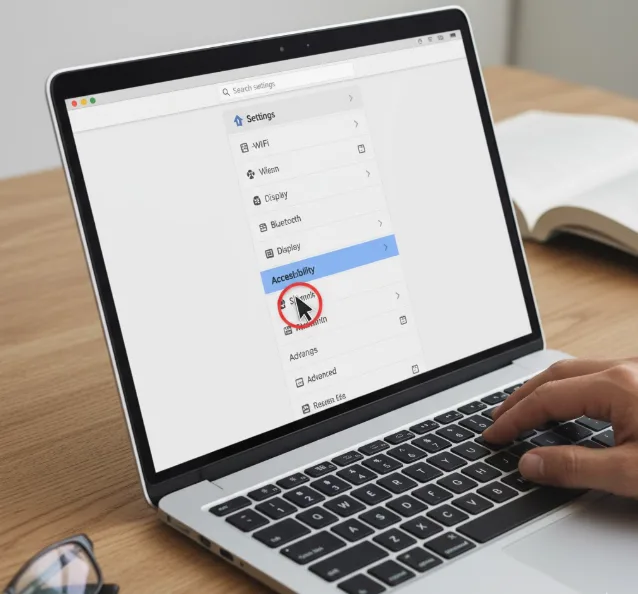
ChromeOS places all cursor visibility options within the accessibility settings. Navigate to Settings, scroll to Accessibility, and select that option.
In the next menu, click Cursor and Trackpad to access these features.
Increase cursor size for better tracking
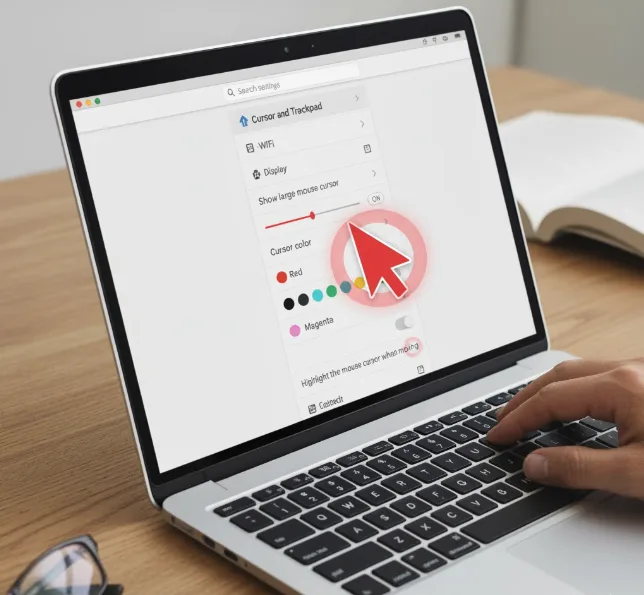
Enable the “Show large mouse cursor” option to make the pointer significantly larger. The default setting increases cursor size approximately four times the standard dimensions.
A slider appears below this toggle for precise size adjustments. Reduce the slider if the default appears too large for comfortable viewing.
This setting proves especially helpful when working with documents or browsing websites with minimal visual contrast.
Change cursor color to stand out
The color menu sits directly beneath the cursor size option. Black serves as the default color most users have used throughout their experience.
ChromeOS provides seven alternative colors: Red, Yellow, Green, Cyan, Blue, Magenta, and Pink. Red creates particularly strong contrast against most backgrounds because it naturally demands attention.
Select any color that provides optimal visibility against your typical screen content. Combining size and color adjustments creates even stronger visual impact.

Enable cursor highlighting during movement
Toggle on “Highlight the mouse cursor when moving” to add a circular indicator. This circle appears around the pointer during motion and fades when movement stops.
The highlighting feature benefits users who need extra visual confirmation of cursor location. Many find this unnecessary initially but appreciate having the option available for future needs.
These three settings work independently, allowing customization of one, two, or all three options simultaneously. Test different combinations to find what works best for your vision requirements.
Users can also explore additional ChromeOS accessibility features like screen magnification to complement cursor visibility improvements.
FAQs
Can I use all three cursor visibility methods at once?
Yes, all cursor visibility settings function independently. Enable any combination of size adjustment, color changes, and movement highlighting based on personal preferences and visual needs without conflicts.
Where do I find cursor settings on my Chromebook?
Open Settings, navigate to Accessibility, then select Cursor and Trackpad. All cursor visibility options appear in this menu alongside other touchpad settings.
Will changing cursor size affect touchpad performance?
No, adjusting cursor size or appearance has no impact on touchpad functionality. The changes only modify visual display without affecting how your touchpad responds to input gestures.
Does cursor highlighting drain battery faster?
The cursor highlighting effect creates minimal battery impact. The feature only activates during pointer movement and fades quickly, resulting in negligible energy consumption during typical usage patterns.
Can I customize the cursor highlight circle size?
ChromeOS does not currently offer customization for the highlight circle dimensions. The circle size remains fixed when the highlighting feature is enabled, though you can adjust overall cursor size independently.
