


It’s slightly possible you heard Elon Musk purchased Twitter recently. Seriously, if you haven’t, I have to question if you’re online at all. Anyway, if you’re thinking of using a similar but different alternative such as Mastodon on a Chromebook, I’ve got some tips for you. I won’t get into the pros and cons of Mastodon or the personal choice of which server instance to join but I can make the Mastodon experience better.
Enable the advanced web interface
When you log in to Mastodon on a Chromebook, this spartan, but likely familiar, interface is what you’ll see:
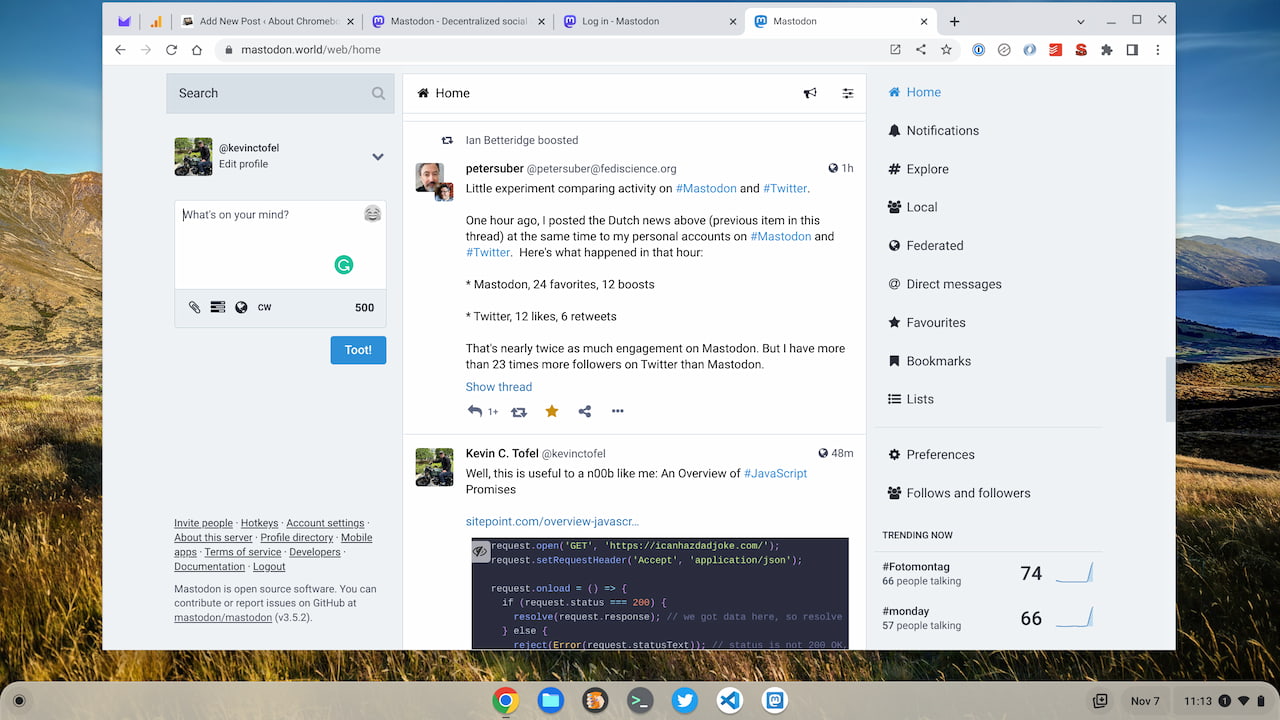
There’s nothing wrong with this layout, obviously. It works and provides some familiarity to those who have used Twitter. However, if you choose Preferences and then Appearance in Mastodon, you can enable the “Advanced Web Interface”.
Then you’ll see this; a layout reminiscent of TweetDeck for Twitter:
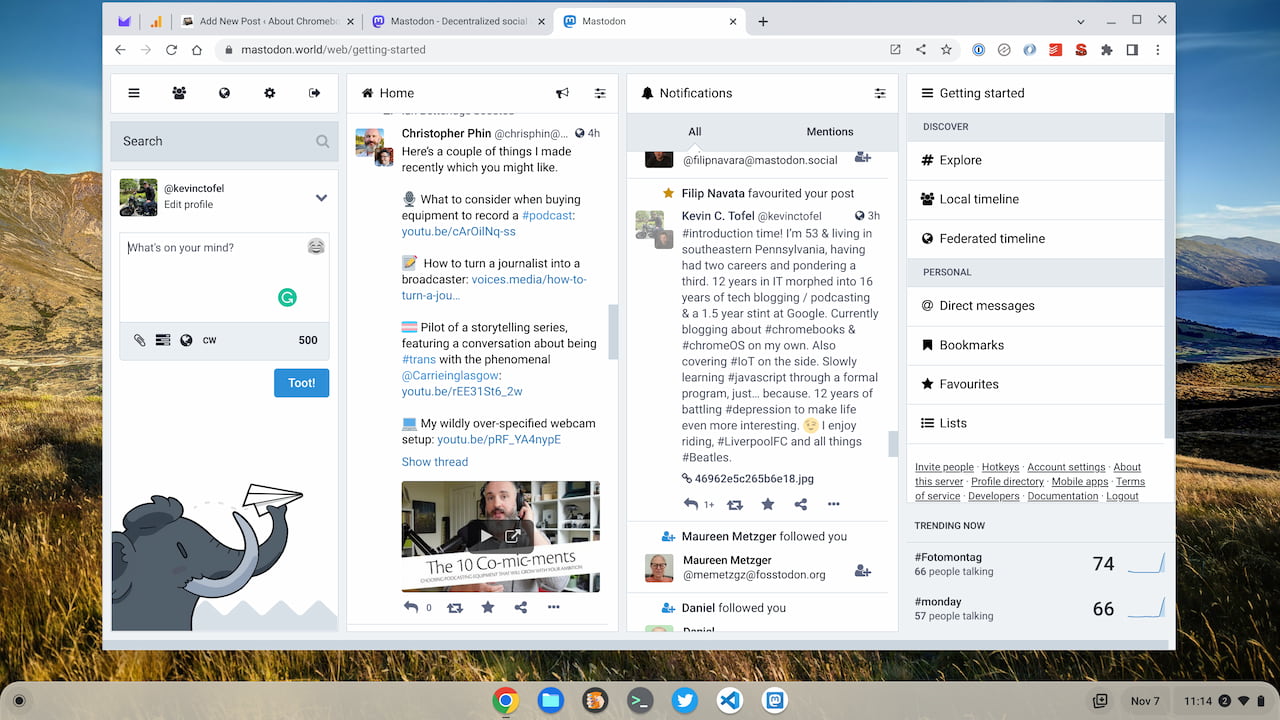
This is my preferred look for Mastodon and you may be partial to the native, simple layout. If not though, you get a multicolumn, configurable view that spreads out across your Chromebook rather nicely.
Install the PWA for Mastodon on a Chromebook
Some folks think that a Progressive Web App, or PWA is nothing more than a way to create a desktop shortcut for a web app. Or that it’s just a basic web wrapper for an online app. It is those but Progressive Web Apps are more too. They’re more secure and cross-platform experiences. That’s why I suggest installing the PWA for Mastodon on a Chromebook.
To this, just look for the download and install icon in the browser Omnibox when visiting a Mastodon web page. Click it and you’ll see a prompt asking if you want to install Mastodon. Confirm it and you’re done.
When you use the PWA for Mastadon, you might be wondering: It looks the same to me, so why is he recommending this? I’ll give you two reasons.
Right-click on the Mastodon PWA for shortcuts
Just like with my Twitter PWA, the Mastodon PWA provides shortcuts for quicker use.
Below you can see the shortcuts as I right-click the Mastodon PWA on a Chromebook:
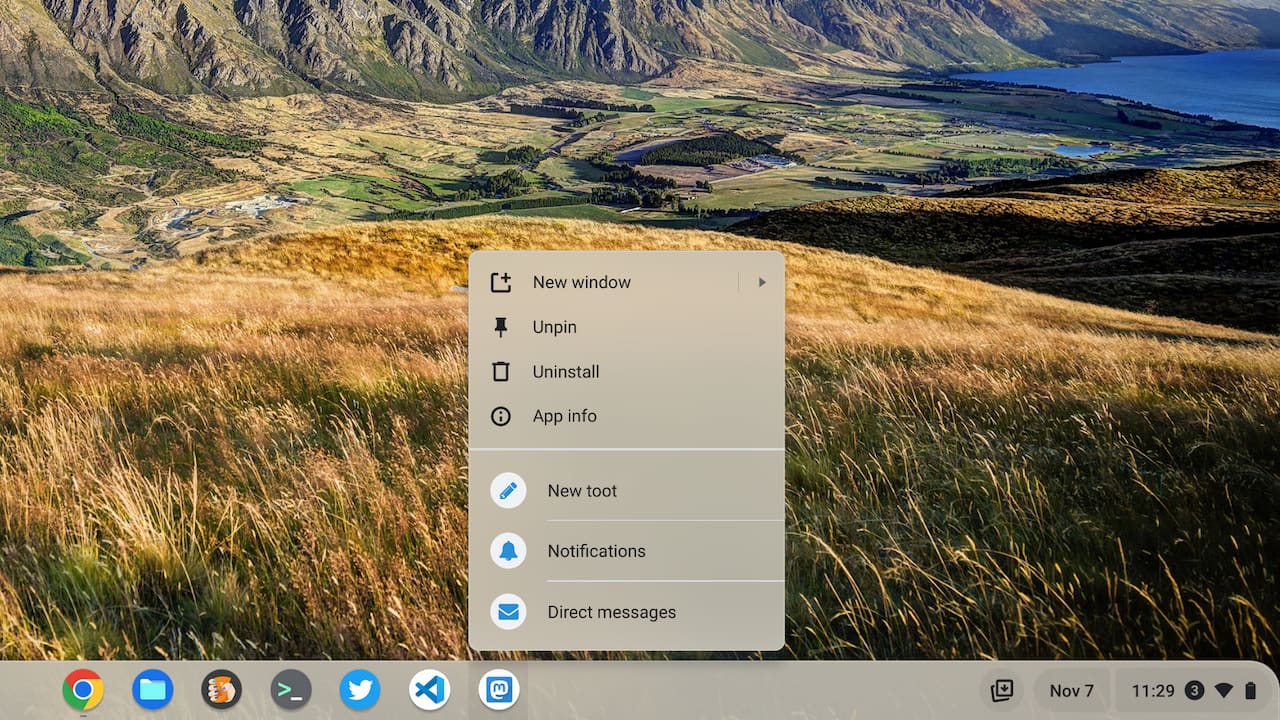
Instead of searching among virtual desks or underneath other open windows, I can easily get at key Mastodon functions: Creating a post, seeing notifications, or direct messages.
It’s easier to share links with the Mastodon PWA on a Chromebook
I promised two reasons to use the Mastodon PWA, so here’s the second. Installed Progressive Web Apps appear in the Share feature built into Chrome and ChromeOS. Again, look in the Chrome Omnibox and click the Share icon.
Your result will likely vary based on what you do or don’t have installed on your Chromebook, but here’s mine.
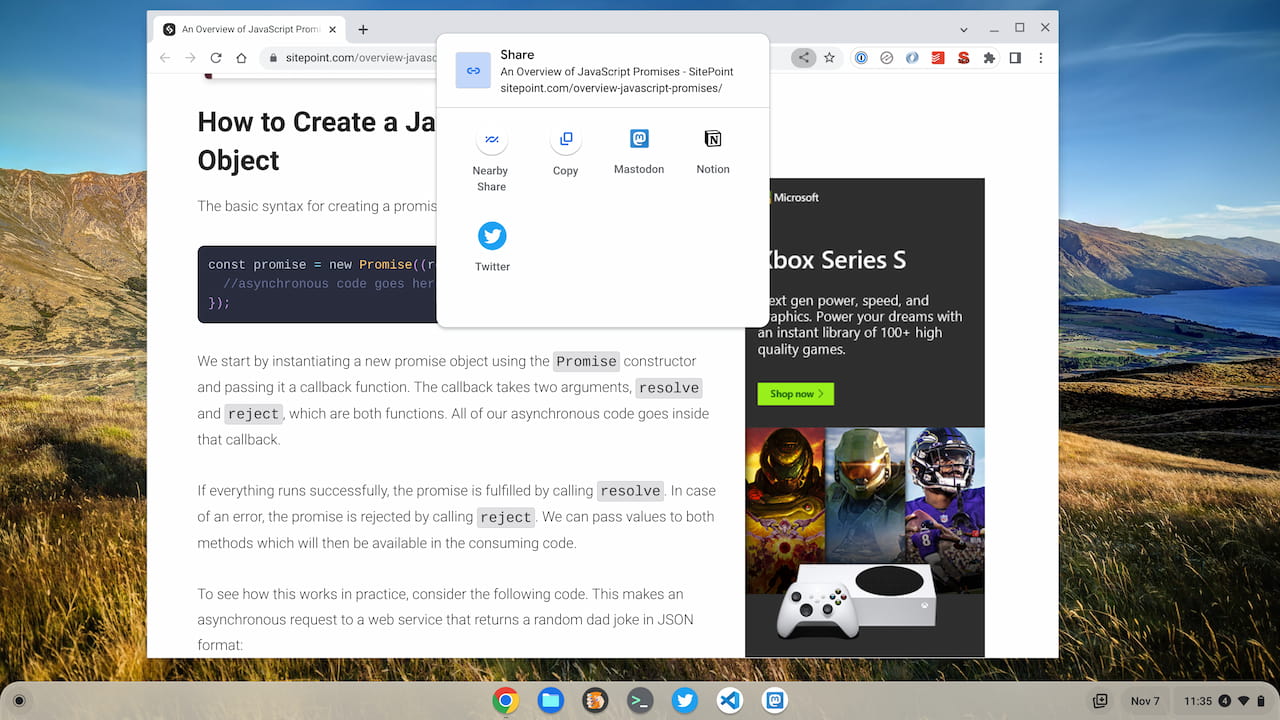
See how Mastodon is registered as a share option?
I have the PWAs for Notion and Twitter installed as well, partially for this reason. There’s no need to copy and paste a link between different apps or browser tabs if you have the PWA for Mastodon on a Chromebook.
By the way, clicking the app link in the Share menu brings up the respective PWA, along with the information you want to share:
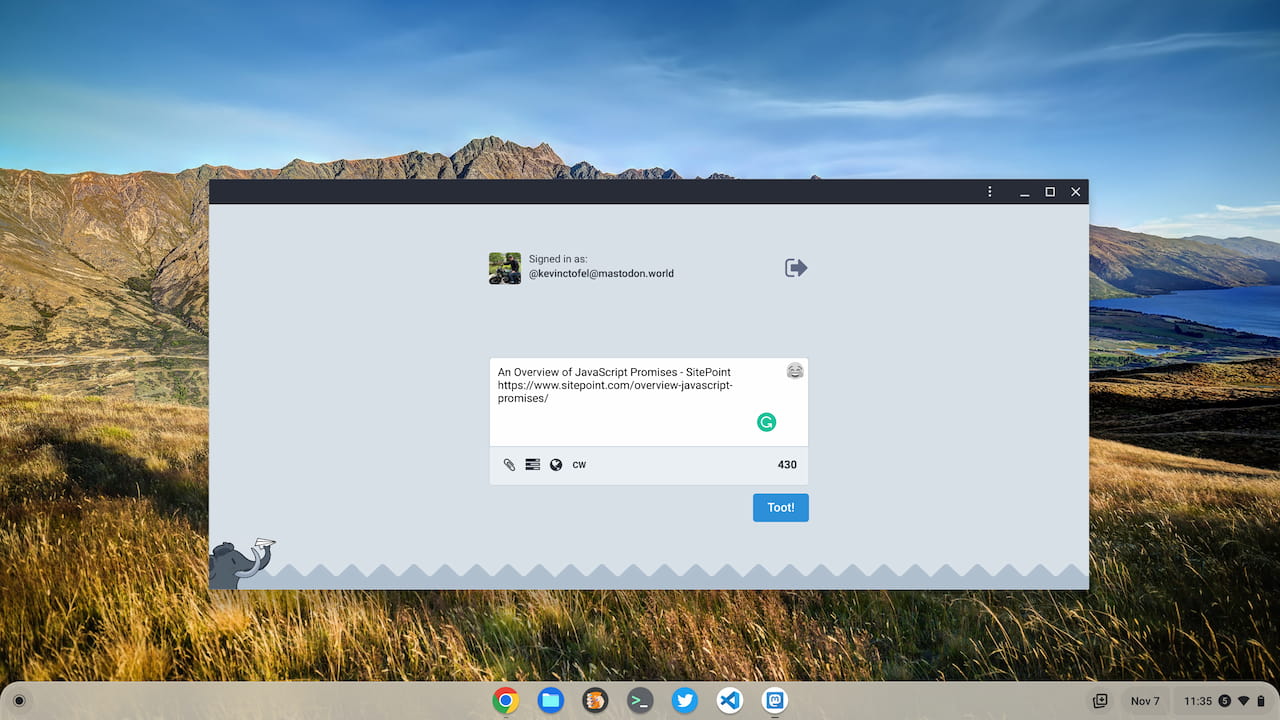
From here you can add more text, an image, or whatever else you want prior to sharing.
Since I’m new to Mastodon, I’m still learning about it. Got any tips for the service or for how to use Mastodon on a Chromebook? Share in the comments!
