


Chromebooks offer impressive versatility for both productivity tasks and entertainment, but proper optimization is essential to maximize their performance. These lightweight devices can handle everyday work, document editing, and casual gaming, though they require specific tweaks to function at their best.
Unlike traditional laptops, Chromebooks run on Chrome OS, which is designed for efficiency rather than heavy processing. This means you cannot push these devices to their absolute limits without experiencing slowdowns.
However, strategic optimization can significantly improve your experience. By adjusting system settings and managing resources effectively, you can enhance both work productivity and gaming performance.
The key is understanding which processes consume the most resources and eliminating unnecessary background activities. Simple adjustments to your settings can free up valuable processing power and extend battery life.
Whether you are working on spreadsheets, browsing multiple tabs, or enjoying web-based games, optimization ensures your Chromebook performs smoothly across all tasks.
How to Optimize Your Chromebook for Both Work and Play?
Monitor and Close Resource-Heavy Processes
The first step in learning how to optimize your Chromebook for both work and play is managing system resources effectively. Press Shift + Esc to open the task manager and identify processes consuming excessive CPU power.
Sort processes by CPU usage to spot applications draining your resources. Close any unnecessary tabs or applications that are slowing down your device.
Regular monitoring of your task manager helps prevent performance issues before they become noticeable.
Enable GPU Rasterization for Better Graphics
Navigate to chrome://flags in your browser address bar. Search for GPU rasterization and enable this feature to improve graphics rendering.

This setting shifts some processing work from your CPU to your GPU. Web pages load faster and graphics-intensive tasks become smoother, which is particularly useful when playing web-based games.
Optimize Battery Life for Extended Use
Limit background processes by closing apps and tabs you are not actively using. Disable Bluetooth and Wi-Fi when you do not need connectivity to conserve power.
Reduce screen brightness by a few levels to significantly extend battery life. Consider enabling battery saver mode for longer work sessions.
Master Keyboard Shortcuts for Efficiency
Press Ctrl + Alt + ? to view all available keyboard shortcuts. Learning common shortcuts eliminates unnecessary clicking and speeds up your workflow.
Keyboard shortcuts help you switch between tasks quickly, whether you are working on documents or managing multiple browser tabs for gaming.
Install Linux Apps for Enhanced Productivity
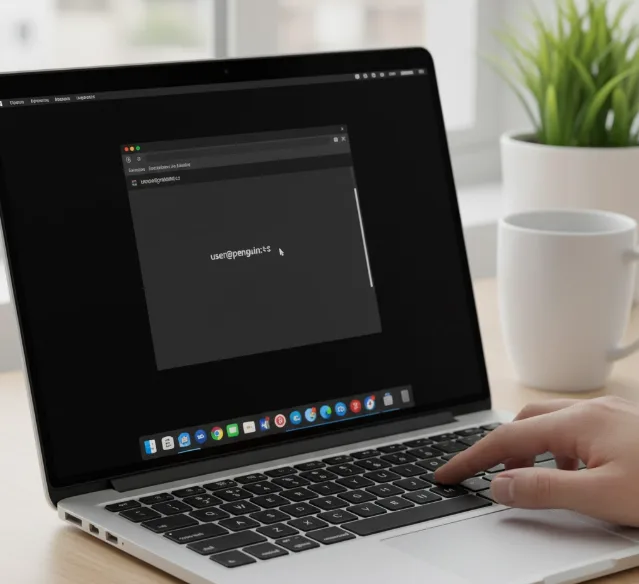
Go to Settings, then navigate to Advanced and select Developers. Enable Linux Development Environment to access professional-grade applications.
Linux support allows you to install full desktop applications like LibreOffice and code editors. This feature significantly expands your Chromebook’s capabilities for work tasks.
Clear Storage Space Regularly
Access Settings, then System preferences, followed by Storage management. Review what is consuming space and delete unnecessary files.
Use cloud storage services or external SD cards to offload large files. Free storage space prevents slowdowns and ensures smooth operation for both work and gaming.
Enable Hardware-Accelerated Video Decoding
Type chrome://flags in your browser and search for hardware-accelerated video decoding. Enable this feature to improve streaming quality and reduce CPU strain.
This optimization is particularly useful when watching videos or streaming content during breaks. Your device handles HD and 4K video more efficiently without overheating.
Keep Your System Updated
Navigate to Settings and select About Chrome OS to check for updates. Install available updates promptly to benefit from performance improvements and security patches.
Regular updates often include optimizations that enhance both system speed and battery efficiency.
FAQs
What is the fastest way to speed up a slow Chromebook?
Open the task manager with Shift + Esc and close resource-heavy processes. Clear cached files, uninstall unused extensions, and ensure your Chrome OS is updated to the latest version.
Does enabling GPU rasterization drain battery faster?
GPU rasterization uses your graphics processor instead of the CPU, which can actually improve battery efficiency for graphics-intensive tasks while maintaining smooth performance.
Can I use my Chromebook for gaming after optimization?
Yes, optimized Chromebooks handle web-based games and Android games well. Enable GPU rasterization and hardware-accelerated video decoding for the best gaming experience.
How often should I clear storage on my Chromebook?
Clear storage monthly or when you notice slowdowns. Regular maintenance prevents performance issues and ensures you have space for new files and applications.
Will installing Linux apps slow down my Chromebook?
Linux apps run in a container and only use resources when active. Choose lightweight applications and close them when not in use to maintain optimal performance.
