


Chromebooks run ChromeOS, which cannot execute Windows programs directly. However, you can use WINE to run .exe files without paying for expensive software.
WINE stands for “Wine Is Not an Emulator.” It translates Windows commands into something ChromeOS understands through Linux.
This method works well for simple applications and older software. You need a Chromebook with Linux support and at least 4GB of RAM.
The setup takes about 15-20 minutes. Once complete, you can run many Windows programs directly on your Chromebook.
How To Run .exe With WINE On Chromebook?
Before starting, make sure your Chromebook model supports Linux. Most modern Chromebooks with Intel or AMD processors work fine. ARM-based models have limited compatibility.
Enable Linux on Your Chromebook
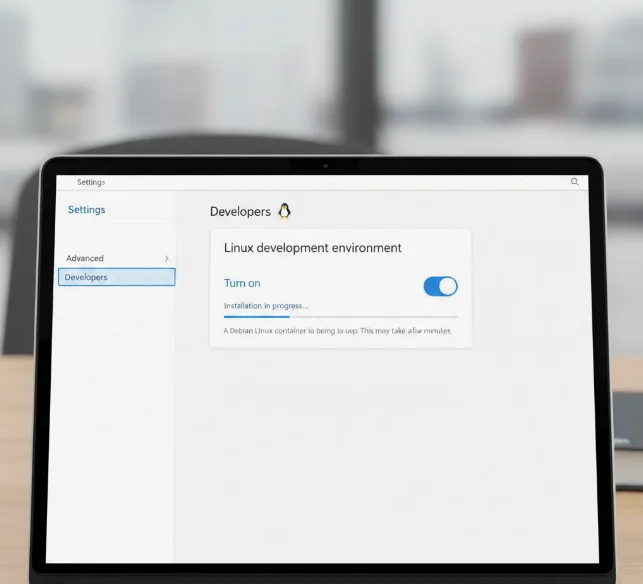
Open Settings and click Advanced in the left sidebar. Select Developers, then turn on Linux development environment.
The installation takes around 10 minutes. Your Chromebook downloads and sets up a Debian Linux container automatically.
Open the Terminal Application
Find the Terminal app in your launcher after Linux finishes installing. Click to open it.
You’ll see a command line interface. This is where you’ll type all the installation commands.
Add 32-bit Architecture Support
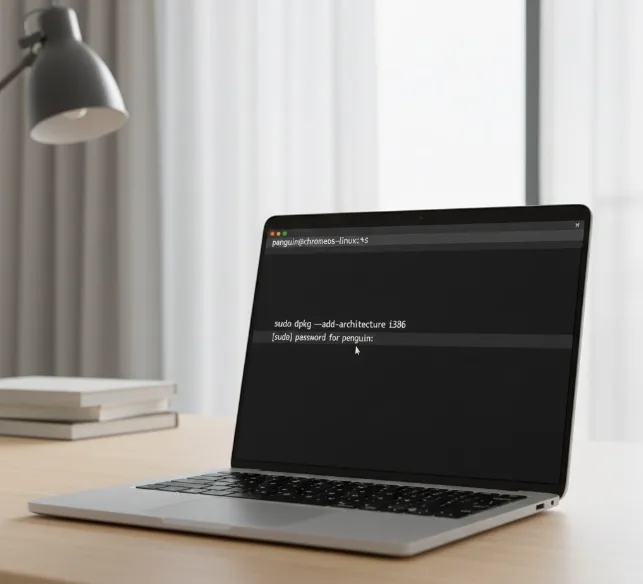
Many Windows programs need 32-bit libraries. Type this command and press Enter:
sudo dpkg --add-architecture i386
Enter your password if prompted. The terminal won’t show characters as you type your password.
Download the WINE Repository Key
This step adds the official WINE source to your system. Run this command:
sudo wget -nc -O /usr/share/keyrings/winehq-archive.key https://dl.winehq.org/wine-builds/winehq.key
Wait for the download to complete before moving forward.
Install WINE
Now install WINE with this command:
sudo apt update && sudo apt install --install-recommends winehq-stable
Type “Y” when asked to confirm. Installation takes several minutes depending on your internet speed.
Configure WINE
Type winecfg and press Enter. A configuration window appears.
Select your preferred Windows version from the dropdown menu. Windows 10 works for most modern applications. Click OK to save.
Run Your EXE File
Move your .exe file to the Linux files folder in your Files app. Right-click the file and select “Open with Wine Windows Program Loader.”
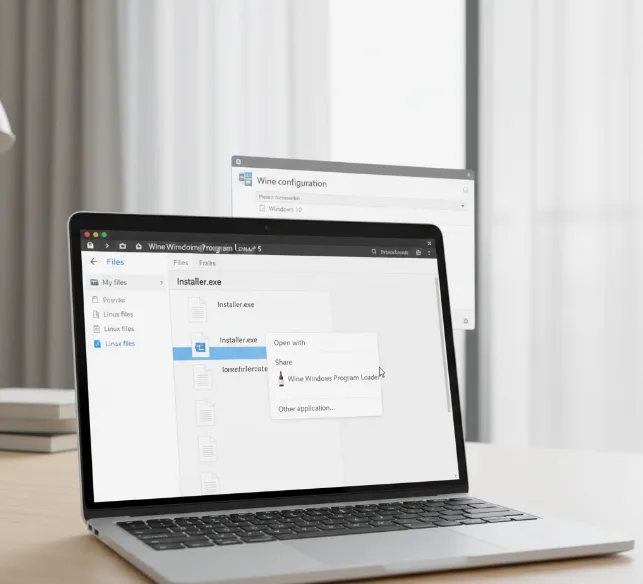
Your Windows application should now launch. Some programs need additional setup or may require specific configurations to work properly.
Not every application runs perfectly through WINE. Check the WINE application database online to see compatibility ratings before installing complex software.
FAQs
Does WINE work on all Chromebooks?
WINE requires Linux support, available on most Intel and AMD Chromebooks. ARM-based Chromebooks have limited compatibility. Check your device settings for Linux availability.
Is WINE free to use?
Yes, WINE is completely free and open-source software. You can download and use it without any payment or subscription fees.
Will WINE slow down my Chromebook?
Running Windows applications uses extra resources. Chromebooks with 8GB RAM handle WINE better than 4GB models. Close unused apps for better performance.
Can I run Windows games through WINE?
Simple and older games often work well. Modern games with anti-cheat software or heavy graphics requirements typically fail. Consider cloud gaming alternatives instead.
What if my application won’t start?
Try changing the Windows version in winecfg settings. Some programs need Windows 7 or earlier versions to function correctly on WINE.
