


Right-clicking on a Chromebook works differently than on Windows or Mac computers. Chrome OS offers several methods to access context menus, copy content, and perform quick actions.
The most common approach uses your touchpad with two fingers. You can also use keyboard combinations if you prefer shortcuts.
This guide covers the main methods so you can pick what works best for you. Once you learn these techniques, navigating Chrome OS becomes much faster.
How To Right-Click on Your Chromebook?
Chrome OS gives you multiple ways to right-click. Here are the main methods, starting with the easiest.
Tap the Touchpad with Two Fingers
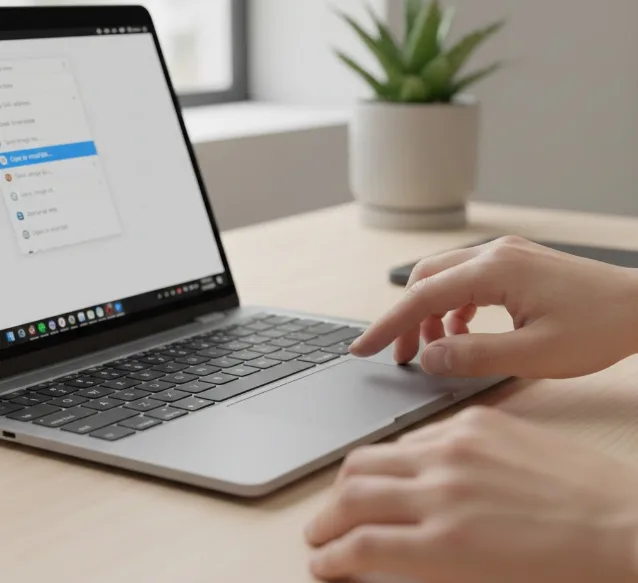
Place two fingers on your touchpad and tap once. This opens the context menu instantly.
Make sure tap-to-click is enabled in your settings. Go to Settings, then Device, then Touchpad, and turn on “Enable tap-to-click” if it’s off.
Press Down with Two Fingers
If you prefer physical feedback, press down on the touchpad with two fingers instead of tapping. This method works even when tap-to-click is disabled.
Hold both fingers steady and press until you feel the click. The context menu appears immediately.
Use the Alt Key Combination
Hold the Alt key on your keyboard. While holding it, tap the touchpad with one finger.
This keyboard method is useful when you’re already typing. It saves you from repositioning your hands.
Connect an External Mouse
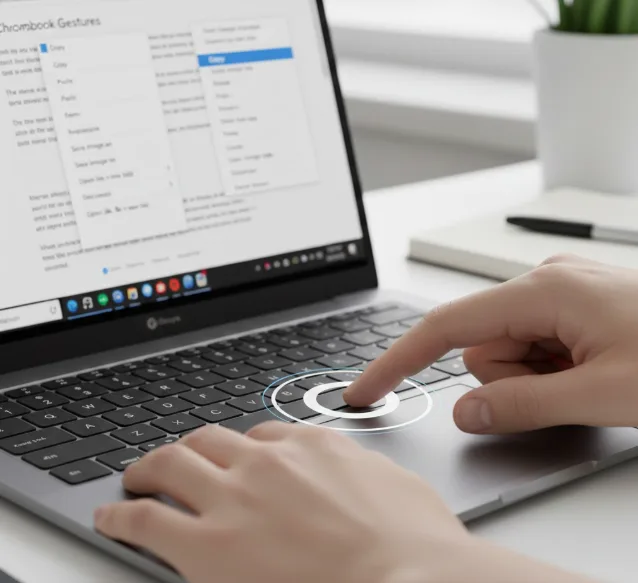
Plug in a USB mouse or connect a Bluetooth mouse. The right button works just like on any other computer.
This option suits users who prefer traditional mouse navigation. You can adjust mouse settings under Settings, then Device, then Mouse and touchpad.
Try the Search Key Method
Some Chromebook users combine the Search key (the magnifying glass or circle icon) with touchpad taps for additional functions. This Chromebook keyboard has unique keys that differ from standard laptops.
The two-finger tap remains the quickest method for most people. Practice it a few times and it becomes second nature.
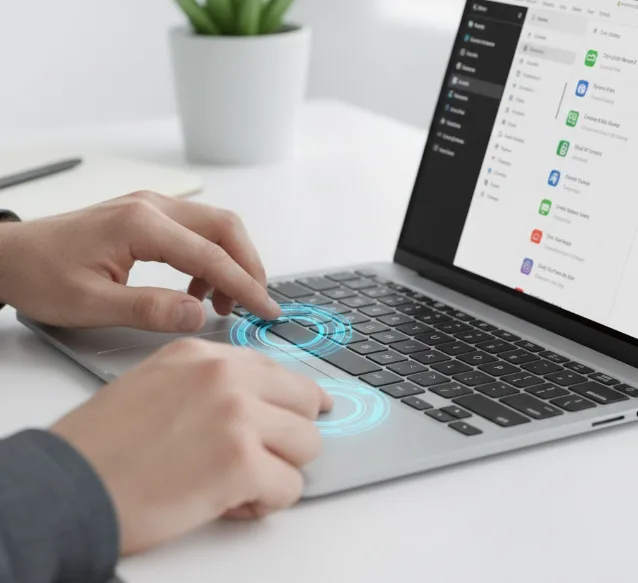
If your touchpad feels unresponsive, clean the surface and check your Chromebook settings. Restarting your device can also fix minor glitches.
FAQs
Can you right-click on a Chromebook without changing settings?
Yes. Press down on the touchpad with two fingers to right-click without enabling any settings. This hardware method works by default on all Chromebooks.
Why is my Chromebook right-click not working?
Check if tap-to-click is enabled in touchpad settings. Clean your touchpad surface and restart your Chromebook. Update Chrome OS if the problem continues.
What does right-click do on a Chromebook?
Right-click opens context menus with options like copy, paste, save image, and open link in new tab. It provides quick access to additional actions for any selected item.
Can I use a regular mouse with my Chromebook?
Yes. Connect any USB or Bluetooth mouse to your Chromebook. The right-click button functions normally, and you can customize settings under Device preferences.
How do I copy and paste using right-click on Chromebook?
Right-click selected text or an image using two-finger tap. Choose Copy from the menu. Right-click where you want to paste and select Paste.
