


Chromebooks offer multiple ways to add emojis to your messages, documents, and social media posts. The feature works across all text fields and applications on your device.
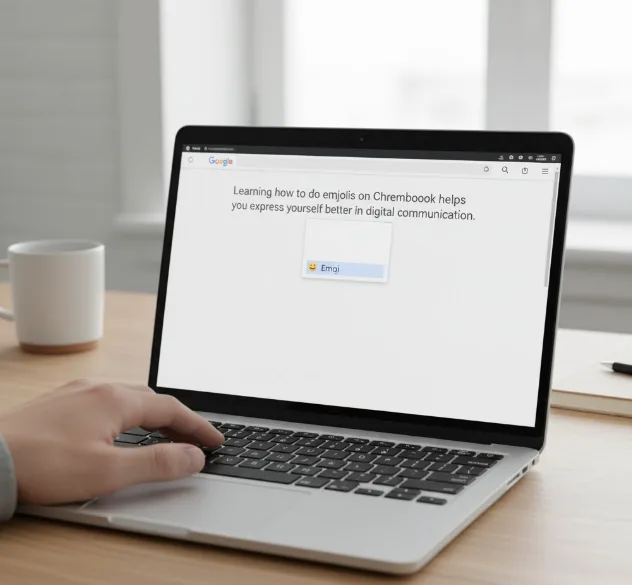
Learning how to do emojis on Chromebook helps you express yourself better in digital communication. You can access hundreds of emojis, symbols, and emoticons without installing extra software.
The process takes just seconds once you know the right keyboard shortcut or menu option. ChromeOS includes built-in emoji support on all devices running version 92 or later.
How To Do Emojis On Chromebook?
Place your cursor in any text field where you want to add an emoji.
Press Search + Shift + Space at the same time. The Search key sits where the Caps Lock key appears on traditional keyboards.
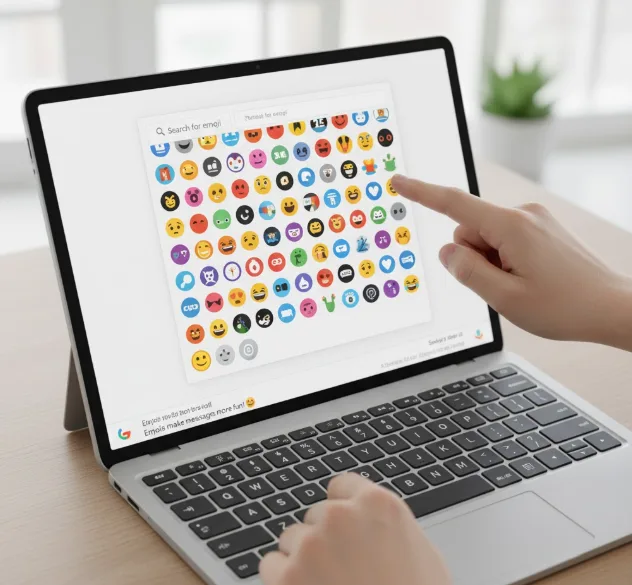
An emoji picker window opens on your screen. You see categories at the top and a search bar.
Click any emoji to insert it immediately. The picker stays open so you can add multiple emojis.
You can use this method in Gmail, Google Docs, messaging apps, and any website. The shortcut works across all ChromeOS applications without exception.
Access Through Right-Click Menu
Right-click in any text field using two fingers on your trackpad. You can also hold Alt and click once.
Select “Emoji” from the menu that appears. This opens the same emoji picker as the keyboard shortcut.
This method works well when you already have your hand on the trackpad. You get access to the full emoji library just like the keyboard shortcut method.

Enable the On-Screen Keyboard
Click the time display in the bottom-right corner of your screen.
Select the Settings gear icon from the quick settings menu.
Navigate to Accessibility settings and find the Keyboard section.
Toggle on “On-screen keyboard” to enable the virtual keyboard feature.
Once enabled, a keyboard icon appears in your taskbar. Click it to bring up the virtual keyboard whenever needed.
Insert Emojis From Virtual Keyboard
Tap the keyboard icon in your taskbar to open the virtual keyboard.
Look for the smiley face icon at the bottom of the keyboard. Click it to open the emoji picker.
Browse through categories or search for specific emojis using keywords. The search function helps you find exactly what you need.
This method works great for Chromebooks in tablet mode. Touch input makes selecting emojis fast and intuitive, similar to how you navigate other Chromebook features.
The emoji picker includes emoticons, symbols, and GIFs beyond standard emojis. You can access special characters through this same interface for mathematical symbols and other unique characters.
ChromeOS updates continue to improve emoji features. Recent versions include emoji combinations and better search functionality, making the feature more powerful with each update.
FAQs
What keyboard shortcut opens emojis on Chromebook?
Press Search + Shift + Space simultaneously to open the emoji picker. This shortcut works in all applications and text fields across ChromeOS without requiring any additional setup or configuration.
Can I use emojis in Google Docs on Chromebook?
Yes, the Search + Shift + Space shortcut works perfectly in Google Docs. You can insert emojis anywhere in your document just like you would in any other application on your Chromebook.
Do emojis work on school Chromebooks?
Emojis typically work on school Chromebooks unless your administrator disabled the feature. The keyboard shortcut functions the same way on managed devices, though some schools may restrict certain features through policy settings.
How do I access emojis without a keyboard shortcut?
Right-click in any text field and select “Emoji” from the menu. Alternatively, enable the on-screen keyboard through Settings and click the smiley face icon on the virtual keyboard to access emojis.
What ChromeOS version supports the emoji shortcut?
ChromeOS 92 and later versions support the emoji keyboard shortcut. Update your Chromebook to the latest version through Settings if the feature does not work on your device currently.
