


Many Chromebook users need to turn off their touchscreen at times. The touchscreen feature allows direct screen interaction, but accidental taps can disrupt your work or drain battery life faster.
You might want to disable it when using an external mouse, preventing unwanted touches during presentations, or when kids use the device for schoolwork. Some users prefer traditional keyboard and trackpad navigation without screen interference.
Chromebooks don’t offer a built-in toggle in settings to turn off the touchscreen. You’ll need to use Chrome’s experimental features and a keyboard shortcut to control this function.
This guide shows you exactly how to disable the touchscreen and restore it when needed.
How To Disable Touchscreen on My Chromebook?
Disabling your Chromebook’s touchscreen requires accessing Chrome’s experimental settings. Follow these steps to turn off touch input and regain control over accidental screen taps.
Access Chrome’s Experimental Settings
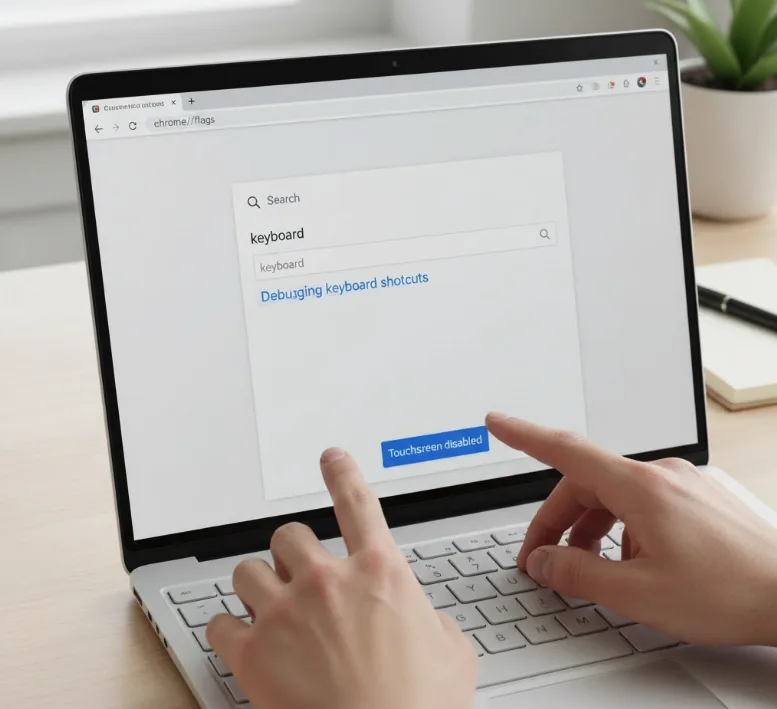
Open the Chrome browser on your Chromebook. Type chrome://flags in the address bar and press Enter.
This opens Chrome’s experimental features page. These settings let you modify advanced options not available in standard menus.
Handle these options carefully since they can affect browser performance. Make changes only when you understand their purpose.

Enable Debugging Keyboard Shortcuts
Use the search box at the top of the flags page. Type “keyboard” to filter the options.
Find “Debugging keyboard shortcuts” in the results. Click the dropdown menu next to it and select “Enabled.”
This activates special keyboard combinations that control system features like the touchscreen.
Restart Your Chromebook
Click the “Restart” button that appears at the bottom of the screen after enabling the setting. Save any open work first since this closes all apps.
Your Chromebook will power down and reboot automatically. The new settings take effect after the restart completes.
Log back in once the device finishes restarting.
Toggle Touchscreen Off
Press Search + Shift + T simultaneously to disable the touchscreen. The Search key appears as a magnifying glass or white dot icon above the left Shift key.
Your touchscreen stops responding immediately. Screen taps and swipes won’t work, but keyboard and trackpad functions remain normal.
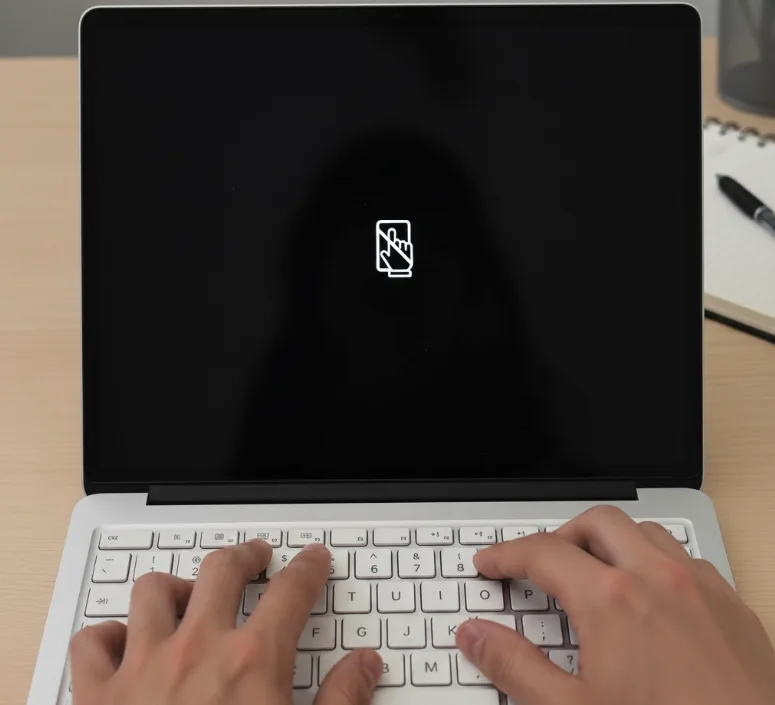
Use the same keyboard shortcut to turn the touchscreen back on when needed. Press Search + Shift + T again to restore touch functionality.
If you want to remove this capability completely, return to chrome://flags and set “Debugging keyboard shortcuts” back to “Disabled.” Restart your Chromebook to apply the change.
FAQs
Can I disable touchscreen permanently on Chromebook?
You can keep the touchscreen disabled by leaving debugging keyboard shortcuts enabled. The setting persists until you manually change it or reset Chrome flags to default.
Does disabling touchscreen save battery life?
Disabling the touchscreen may provide minor battery savings by reducing power to the digitizer. The difference is small but can extend battery life during extended use.
Will disabling touchscreen affect my stylus?
Yes, turning off the touchscreen also disables stylus input. Both touch and stylus functionality rely on the same digitizer, so neither works when disabled.
Can I disable touchscreen without chrome://flags?
No standard setting exists to disable the touchscreen directly. The chrome://flags method with debugging shortcuts is currently the only way to control this feature.
What happens if I reset Chrome flags?
Resetting Chrome flags returns all experimental settings to default. Your touchscreen keyboard shortcut stops working, and you’ll need to re-enable debugging shortcuts to use it.
