


Chromebooks are designed for speed and simplicity, but they can slow down over time. Several factors contribute to reduced performance, including too many open tabs, background processes consuming resources, limited storage space, or outdated software.
Understanding the cause of your slowdown helps you apply the right fix. Most performance issues have simple solutions that don’t require technical expertise.
Whether you’re dealing with storage problems, excessive browser extensions, or aging hardware, this guide provides practical steps to restore your Chromebook’s speed and get back to smooth, efficient computing.
Why Is My Chromebook So Slow?
Performance issues usually stem from specific, identifiable causes. Here’s how to diagnose and fix them.
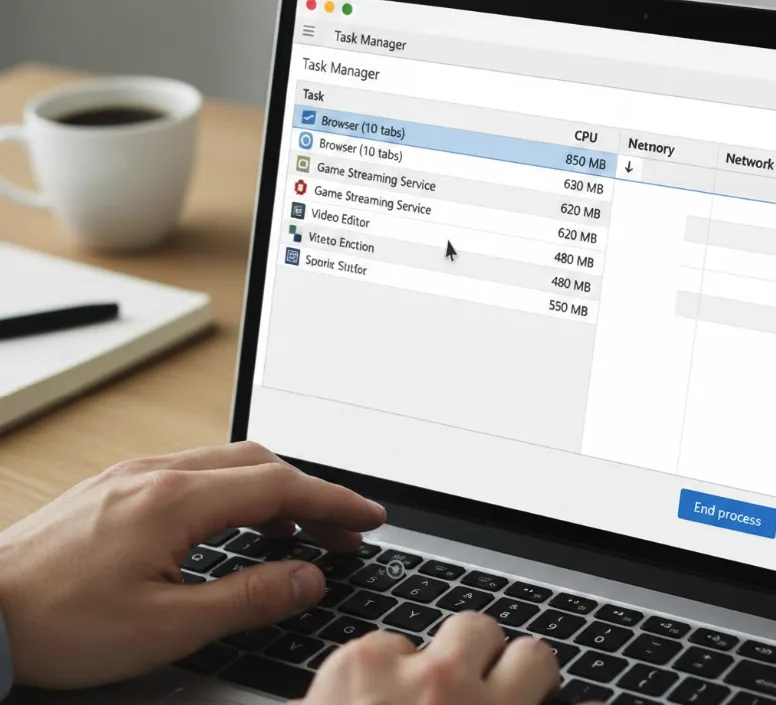
Close Background Programs and Processes
Background applications drain memory and processing power even when you’re not using them actively.
Press Launcher + Esc to open the ChromeOS Task Manager. Sort programs by memory usage to find resource-heavy applications. Select any process consuming excessive resources and click End process.
This immediately frees up memory for tasks you actually need.
Delete Unused Apps and Extensions
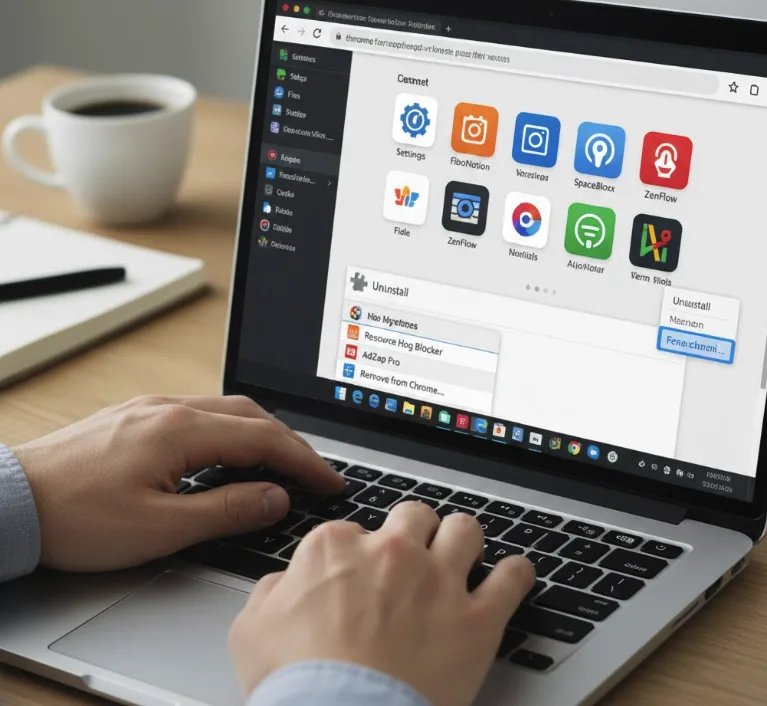
Extensions and apps often launch automatically at startup, consuming valuable system resources. Chrome extensions can significantly hurt performance by using memory continuously.
Press the Launcher key and hover over apps you don’t use. Right-click and select Uninstall. For browser extensions, click the Puzzle icon in Chrome’s toolbar and select Remove from Chrome for any extensions you don’t need.
Free Up Storage Space
Limited storage causes significant slowdowns, especially on budget Chromebooks with 32GB or 64GB drives.
Navigate to Settings, then System preferences, and select Storage management. Review what’s taking up space.
Open the Files app and delete unnecessary downloads and files. Clear Chrome’s cache by going to Settings > Privacy and security > Clear browsing data.
Consider changing your Downloads folder to save directly to Google Drive for automatic cloud backup.
Adjust Linux Storage
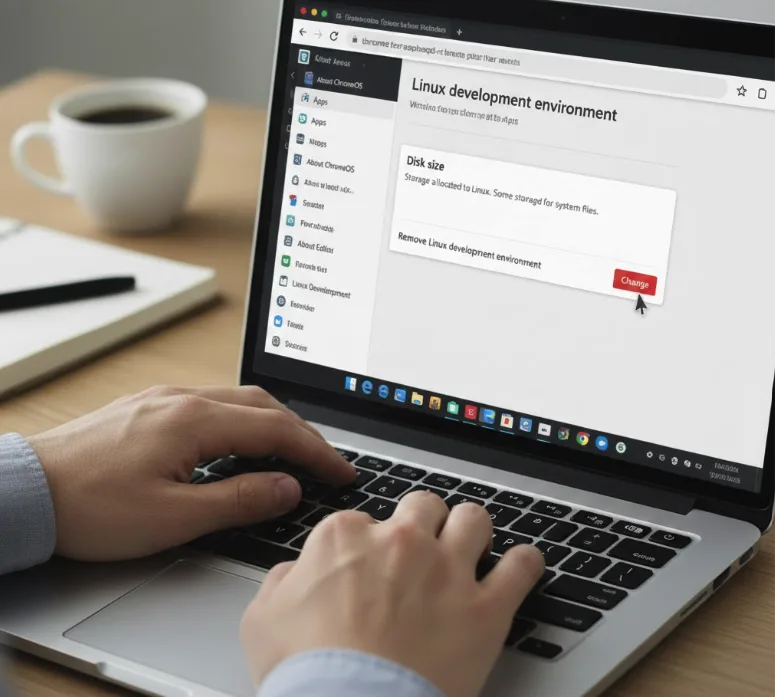
If you use Linux apps, excessive storage allocation can reduce space available for ChromeOS.
Go to Settings, select About ChromeOS, then Linux Development Environment. Click Change next to Disk Size and adjust the slider to reduce allocated space.
If you don’t use Linux applications at all, scroll down and click Remove to delete the entire environment and reclaim storage.
Update ChromeOS
Outdated software creates performance problems and security vulnerabilities.
Navigate to Settings and select About ChromeOS. Click Check for updates. Allow any available updates to install automatically.
Your Chromebook will restart if needed. Updates often include performance improvements and bug fixes.
Check Battery Health
Degraded batteries can’t deliver sufficient power, causing performance throttling.
Open Settings, select About ChromeOS, then Diagnostics. Check your battery health percentage. If battery health falls below 60 percent, your device may throttle performance to preserve power.
Replacement becomes necessary at this point for optimal performance.
Factory Reset Your Device
When other solutions don’t work, a factory reset restores original settings and performance.
This process, called Powerwashing, erases all local data. Back up important files to Google Drive or an external drive first.
Go to Settings > System preferences > Reset settings. Click Powerwash and follow the prompts. Your Chromebook will restart with fresh settings.
FAQs
Can too many browser tabs slow down my Chromebook?
Yes, each tab consumes memory and processing power. Multiple tabs strain system resources and cause noticeable slowdowns. Close unnecessary tabs to immediately improve performance and free up RAM for active tasks.
Does internet speed affect Chromebook performance?
Slow internet impacts browsing and cloud-based applications significantly. Many Chromebook tasks rely on web connectivity. Testing and improving your connection can resolve perceived performance issues with web applications and streaming.
Will disabling Android apps improve speed?
Android apps running in the background consume CPU and memory resources. Disabling or uninstalling unused Android apps frees up processing power, potentially improving overall system responsiveness and extending battery life.
How often should I restart my Chromebook?
Restart weekly to maintain optimal performance. Regular restarts clear temporary files and refresh system processes. This closes lingering background processes and frees up memory that accumulates during extended use periods.
Can upgrading RAM fix a slow Chromebook?
Most Chromebooks have soldered RAM that cannot be upgraded. Hardware modifications aren’t possible on these devices. However, optimizing settings and managing resources effectively can significantly improve performance without hardware changes.
