


Chromebooks support Linux through a built-in development environment that runs applications in a secure container. This feature lets you install desktop software like GIMP, LibreOffice, and coding tools without compromising system stability.
Installing Linux apps requires more steps than adding Android apps from the Play Store. Your device needs Chrome OS 69 or newer to support the Linux development environment. The setup process involves enabling Linux in Settings and using either Terminal commands or downloadable .deb files.
Once configured, Linux apps appear in your launcher next to Chrome and Android apps. This significantly expands your Chromebook’s capabilities beyond web-based tools.
How To Install Linux Apps on Chromebook?
Before installing Linux apps, verify your Chrome OS version. Update your Chromebook if needed to access this feature.
Check Chrome OS Version
Open Settings by clicking the clock area in the bottom-right corner.
Select About ChromeOS from the left menu.
Look at the version number on the right side. You need Chrome OS 69 or newer.
Click Check for updates if your version is older than 69. Restart when prompted.
Enable Linux Development Environment
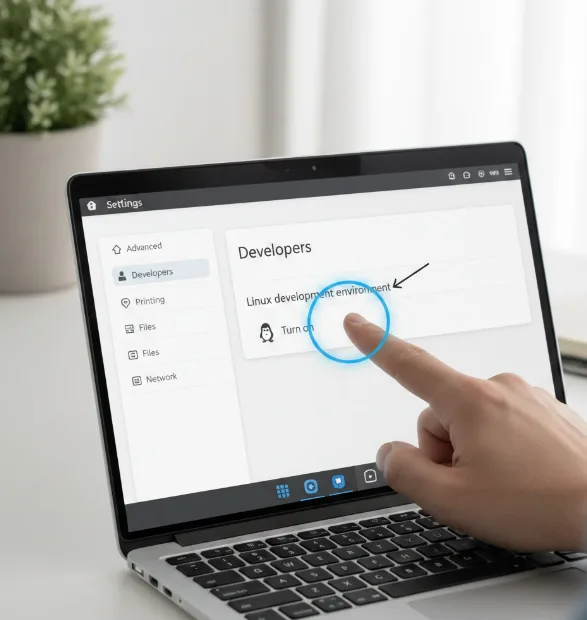
Open Settings and click Advanced in the left menu.
Select Developers from the expanded options.
Find Linux development environment on the right side. Click Turn on.
Click Next when the installation window appears. Choose your preferred disk size.
Click Install and wait for the process to complete. The Terminal window opens automatically when finished.
Update System Packages
Open Terminal from your app launcher.
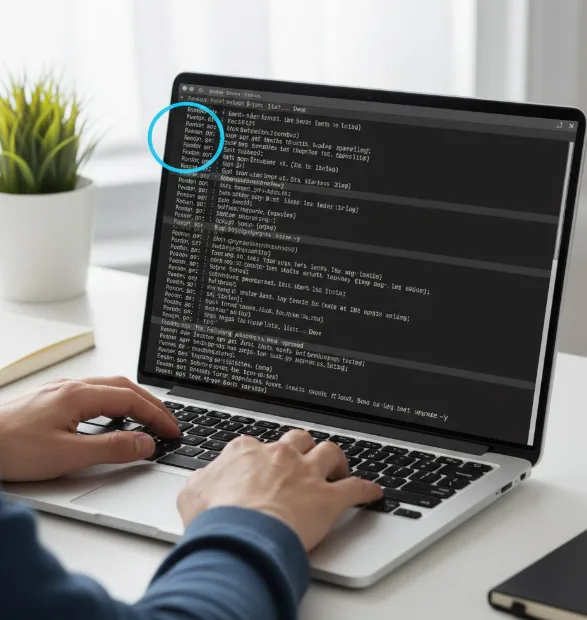
Type this command and press Enter:
sudo apt-get update && sudo apt-get upgrade -y
Wait for the updates to download and install. This prevents errors when installing apps.
Install Apps Using Terminal Commands
Type sudo apt-get install app-name -y in Terminal. Replace “app-name” with your desired application.
Press Enter to start installation. Terminal shows progress as files download.
Search for the app in your launcher when installation completes. Click to open it.
You can use the command line for many different Linux operations beyond installing apps.
Install Apps Using .deb Files
Download the .deb file from the app’s official website.
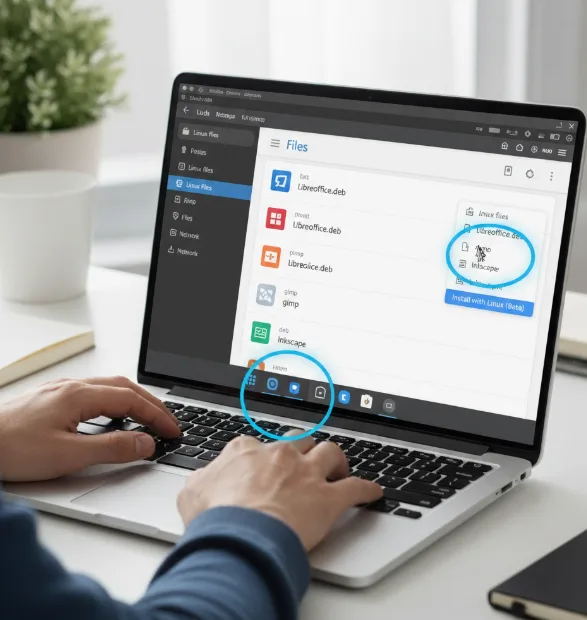
Open Downloads folder in Files app. Right-click the .deb file and select Copy.
Open Linux files folder from the left panel. Paste the file inside.
Double-click the file to launch the installer. Click Install and wait for completion.
Installing with Linux from the Files app is the easiest method for .deb files. You never need to touch Terminal for this approach.
Popular apps include LibreOffice for documents, FileZilla for file transfers, and Audacity for audio editing. Each installs through Terminal using sudo apt-get install followed by the package name.
FAQs
Which Chromebooks support Linux apps?
Chromebooks with Linux kernel 4.4 or newer can run Linux apps. Check chrome://system and search for “uname” to see your kernel version.
Can I install Linux apps without Terminal?
Yes. Download .deb files and use the Install with Linux option when you right-click them in Files app. This method works without any Terminal commands.
Will Linux apps slow down my Chromebook?
Linux apps run in a container and use dedicated resources. Performance depends on your hardware and how many apps run simultaneously. Most apps perform well.
Can I uninstall Linux completely?
Open Settings, go to Developers, and click Remove next to Linux development environment. This deletes all Linux apps and frees disk space without affecting Chrome OS.
Do Linux apps work offline?
Yes. Once installed, Linux apps work offline just like other Chromebook apps. They don’t require internet connection unless the app itself needs online access.
