


Online shopping has become a daily routine for millions. Yet manually checking package status remains tedious and time-consuming.
Chromebook users often struggle with repetitive tracking tasks. Entering tracking numbers across different carrier websites wastes valuable time.
Automated package tracking solves this problem efficiently. The process eliminates manual checks and delivers real-time shipment updates directly to your device.
This guide explains how to automate package tracking on your Chromebook for faster updates. You’ll discover browser extensions, dedicated services, and notification settings that streamline delivery monitoring. The methods work with major carriers including USPS, FedEx, UPS, and DHL.
Setting up automation takes minutes but saves hours over time. You’ll receive instant alerts when packages move, arrive, or encounter delays. No more refreshing carrier websites or wondering about delivery status.
How To Automate Package Tracking on Your Chromebook for Faster Updates?
Use a Dedicated Package Tracking Service
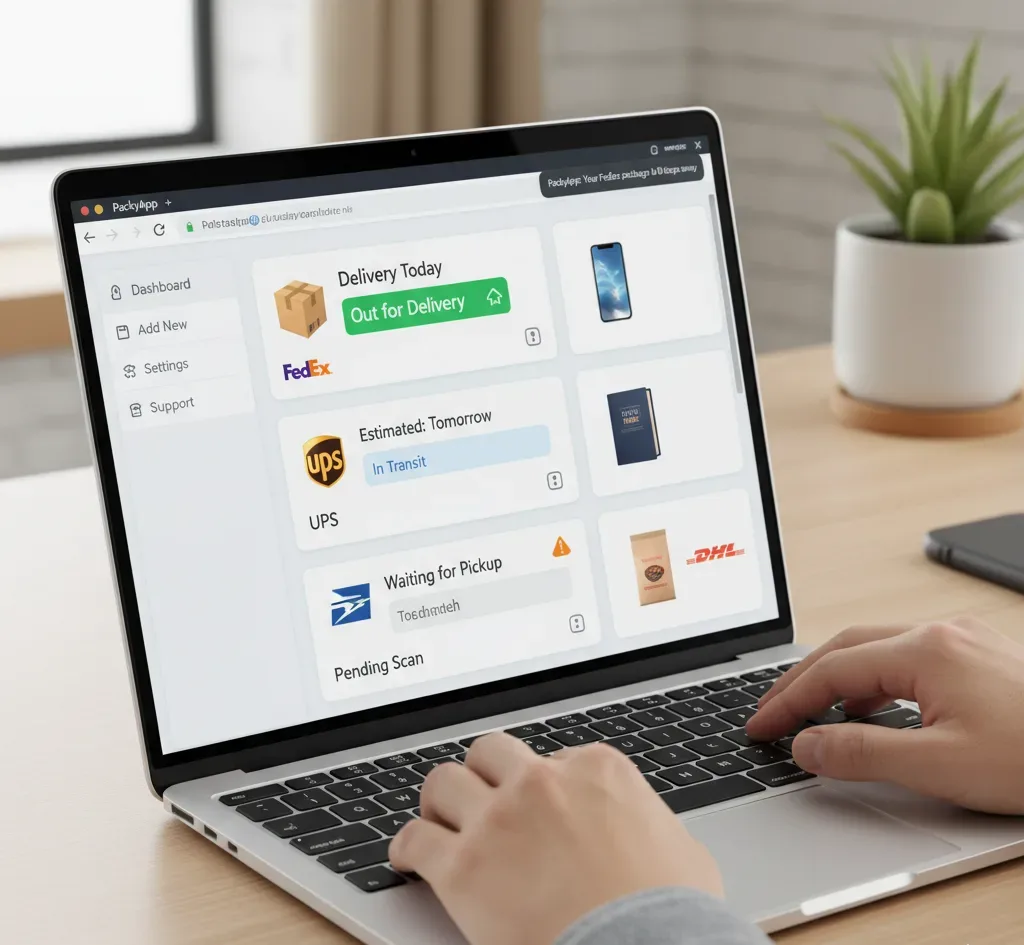
Specialized tracking services provide the simplest automation solution. These platforms consolidate all shipments in one dashboard regardless of carrier.
Create an account with a tracking service like PackyApp or AfterShip. Add your tracking numbers once during initial setup.
The service automatically monitors status changes across all carriers. You receive browser notifications or emails whenever shipments update.
This method eliminates the need to visit individual carrier websites. All package information appears in a single, organized interface.
Install Browser Extensions for Automated Tracking
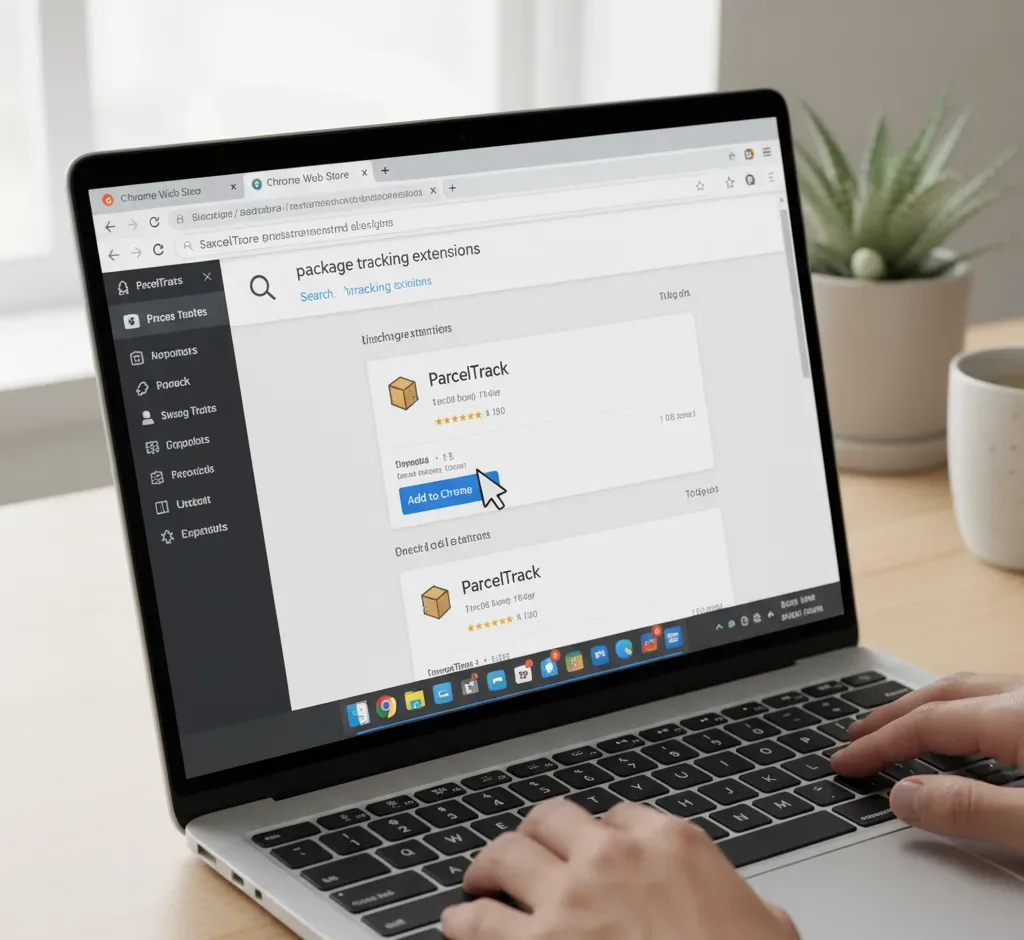
Chrome extensions bring tracking functionality directly into your browser. Installing extensions on Chrome takes seconds and requires no additional software.
Popular options include ParcelTrack, 17Track, and AfterShip. Visit the Chrome Web Store and search for package tracking extensions.
Click the extension you want and select Add to Chrome. Open the extension from your toolbar and enter your tracking numbers.
The extension monitors packages automatically and displays updates in a popup. Many extensions support dozens of carriers simultaneously.
These tools work seamlessly with the best Chrome extensions already on your Chromebook. They consume minimal system resources while running in the background.
Configure Push Notifications for Instant Updates

Chromebook notification settings control how you receive tracking alerts. Proper configuration ensures you never miss important delivery updates.
Open Chrome Settings and navigate to the Notifications section. Enable notifications for your tracking extensions and web apps.
Most tracking services offer push notification options in their settings menu. Toggle these on to receive real-time alerts about package movements.
Email notifications serve as a backup option for critical updates. Configure your tracking service to send emails for delivery attempts or delays.
Understanding notification settings helps you customize alert preferences. You can choose which events trigger notifications and how they appear.
Connect Mobile Apps for Cross-Device Tracking
Android apps extend tracking capabilities beyond your Chromebook. Install apps from the Google Play Store for synchronized updates across devices.
Parcel, Shop by Shopify, and Deliveries offer excellent mobile integration. These apps automatically sync tracking information with your Chromebook.
Many apps import orders directly from Gmail confirmation emails. This feature eliminates manual tracking number entry entirely.
Configure app settings to match your notification preferences. You’ll receive updates on both your Chromebook and smartphone simultaneously.
Leverage Google Assistant for Voice-Based Tracking
Google Assistant on Chromebooks provides hands-free package monitoring. Voice commands offer quick status checks without opening any apps.
Press and hold the launcher key to activate Google Assistant. Ask about package status using natural language commands.
If you use Gmail, Assistant automatically finds tracked packages from confirmation emails. The system recognizes order information and monitors deliveries without manual setup.
Connect third-party tracking apps to Assistant for expanded functionality. This integration enables comprehensive voice control of all tracking features.
Set Up Email Forwarding and Filters
Gmail filters automate tracking information organization. Create rules that automatically forward shipping confirmations to tracking services.
Open Gmail Settings and select Filters and Blocked Addresses. Create a new filter for emails containing tracking numbers.
Configure the filter to forward messages to your tracking service’s email address. Many platforms provide unique email addresses for automatic package detection.
This method captures all shipments without manual entry. The system works particularly well for frequent online shoppers.
Each carrier confirmation automatically enters the tracking system. You’ll see new packages appear in your dashboard within minutes of ordering.
FAQs
What is the best way to automate package tracking on Chromebook?
Using Chrome extensions combined with dedicated tracking services provides optimal automation. This combination delivers real-time notifications and centralized package management across all carriers simultaneously.
Can I track packages from multiple carriers automatically?
Yes, most tracking services and extensions support dozens of carriers including USPS, FedEx, UPS, DHL, and international shipping companies. You can monitor all packages from a single dashboard regardless of carrier.
Do package tracking extensions work offline on Chromebook?
Extensions require internet connectivity to fetch updated tracking information from carrier servers. However, previously loaded tracking data remains visible offline until your Chromebook reconnects to the internet.
How do I enable notifications for package updates?
Open Chrome Settings, select Notifications, and enable alerts for your tracking extensions. Additionally, configure notification preferences within each tracking service or app to receive real-time delivery updates.
Does automated tracking work with Gmail package information?
Yes, Google Assistant and many tracking apps automatically detect package information from Gmail confirmation emails. This feature eliminates manual tracking number entry for orders linked to your Google account.
