


Chromebook keyboards occasionally stop responding, disrupting your workflow. This problem can affect single keys or the entire keyboard.
The issue typically stems from software glitches, outdated ChromeOS, debris buildup, or hardware malfunctions. Understanding these triggers helps determine the right solution.
Whether you encounter unresponsive buttons after an update or sticky keys from everyday use, several proven methods exist to restore functionality. This guide covers practical fixes to get your keyboard working again quickly and efficiently.
How To Fix Chromebook Keys Not Working?
Follow these troubleshooting steps in order for the best results.
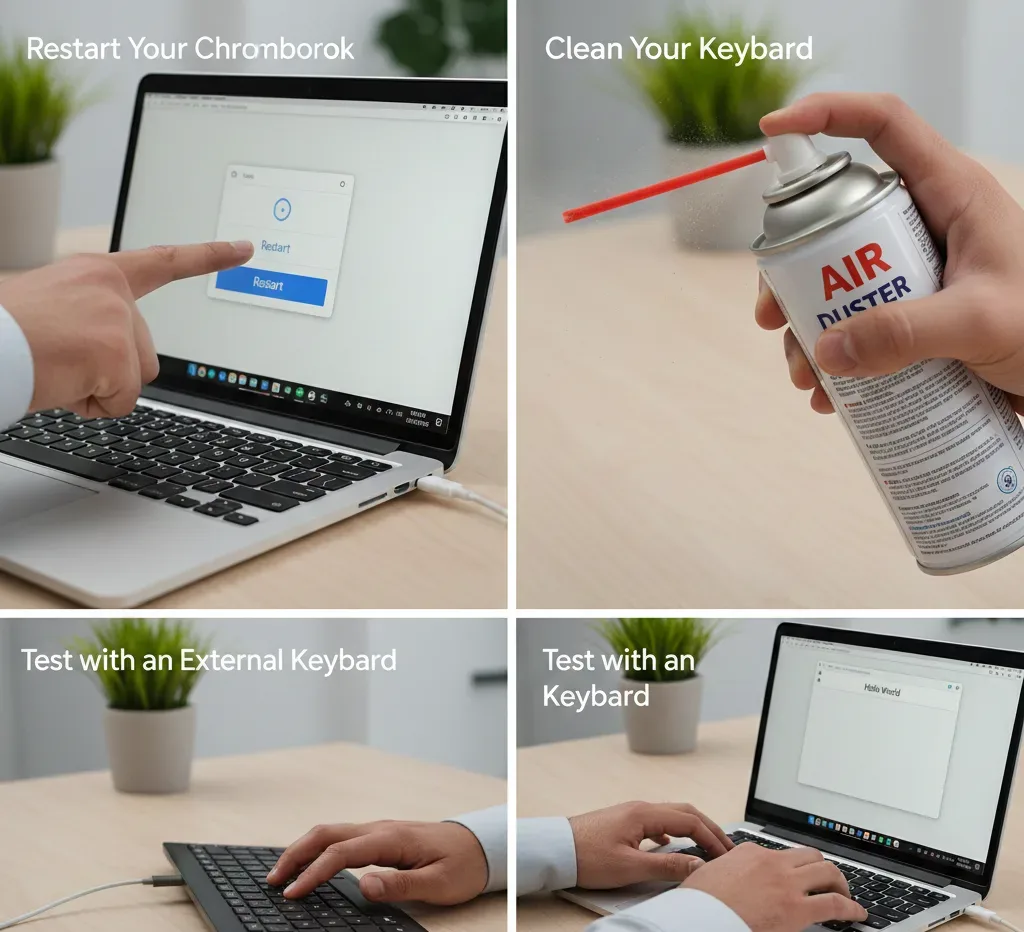
Restart Your Chromebook
A simple reboot clears temporary software glitches causing input failures.
Click the time in the bottom-right corner. Select the power icon and choose Restart.
Wait for the device to fully reboot before testing your keys.
Update ChromeOS
Outdated software often causes keyboard malfunctions.
Navigate to Settings and select About ChromeOS. Click Check for updates and install any available patches.
Your Chromebook will restart automatically after installation completes. Learn more about updating your Chromebook version for detailed instructions.
Disable Problematic Extensions
Browser extensions sometimes conflict with keyboard functionality.
Open Chrome and type chrome://extensions in the address bar. Disable extensions one by one to identify conflicts.
Restart your browser after each change to test results.
Clean Your Keyboard
Dust and debris beneath keycaps prevent proper actuation.
Use compressed air to blow out particles between keys. Hold the canister upright and spray in short bursts.
Never use liquid cleaners directly on the keyboard surface.
Test with an External Keyboard
Connect a USB keyboard to determine if the issue is hardware-related.
If external input works correctly, your built-in keyboard likely has physical damage. Both failing suggests a deeper system problem.
Check Input Language Settings
Incorrect regional configurations cause unexpected character outputs.
Access Settings, then go to Advanced and select Languages and inputs. Verify your keyboard layout matches your region.
You can learn how to change keyboard language for proper configuration steps.
Perform a Hard Reset
This resets hardware configurations without deleting user data.
Power off your Chromebook completely. Press and hold the Refresh key while tapping the Power button once. The Refresh button location varies by model.
Release both keys when the device begins rebooting.
Execute a Factory Reset
Powerwash eliminates persistent software conflicts causing Chromebook keys not working.
Go to Settings, select Advanced, then Reset settings. Click Powerwash and follow on-screen prompts.
Back up important files beforehand. This process erases all local data. For complete guidance, see how to factory reset your Chromebook.
What Causes Chromebook Keys Not Working?
Several factors contribute to keyboard failures on Chromebooks.
Software bugs and outdated ChromeOS versions frequently disable hardware functions temporarily. System updates often resolve these compatibility issues.
Physical damage poses another common threat. Liquid spills can permanently damage internal circuits, while accumulated debris prevents key actuation.
Loose ribbon connectors inside the device disrupt communication between the keyboard and motherboard. Incorrect language settings also cause unexpected behavior, making keys output wrong characters.
FAQs
Why is only one key not working on my Chromebook?
Single key failures usually indicate debris trapped beneath the keycap or physical damage. Try cleaning with compressed air first. If that fails, the individual switch may need professional replacement.
Can I use my Chromebook without a working keyboard?
Yes. Enable the on-screen keyboard through Settings, then Accessibility, then Manage accessibility features. Toggle on the virtual keyboard option to type using your touchscreen or mouse.
Will a factory reset fix keyboard problems?
A Powerwash resolves software-related keyboard issues but cannot repair hardware damage. Try simpler solutions like restarts and updates before attempting a factory reset.
How do I know if my keyboard needs replacement?
If an external USB keyboard works but your built-in keyboard remains unresponsive after software troubleshooting, the internal hardware likely requires replacement by a professional technician.
Should I attempt to repair my Chromebook keyboard myself?
Opening your Chromebook voids warranties and risks further damage. Unless you have technical experience, contact customer support or a certified repair service for internal hardware issues.
