


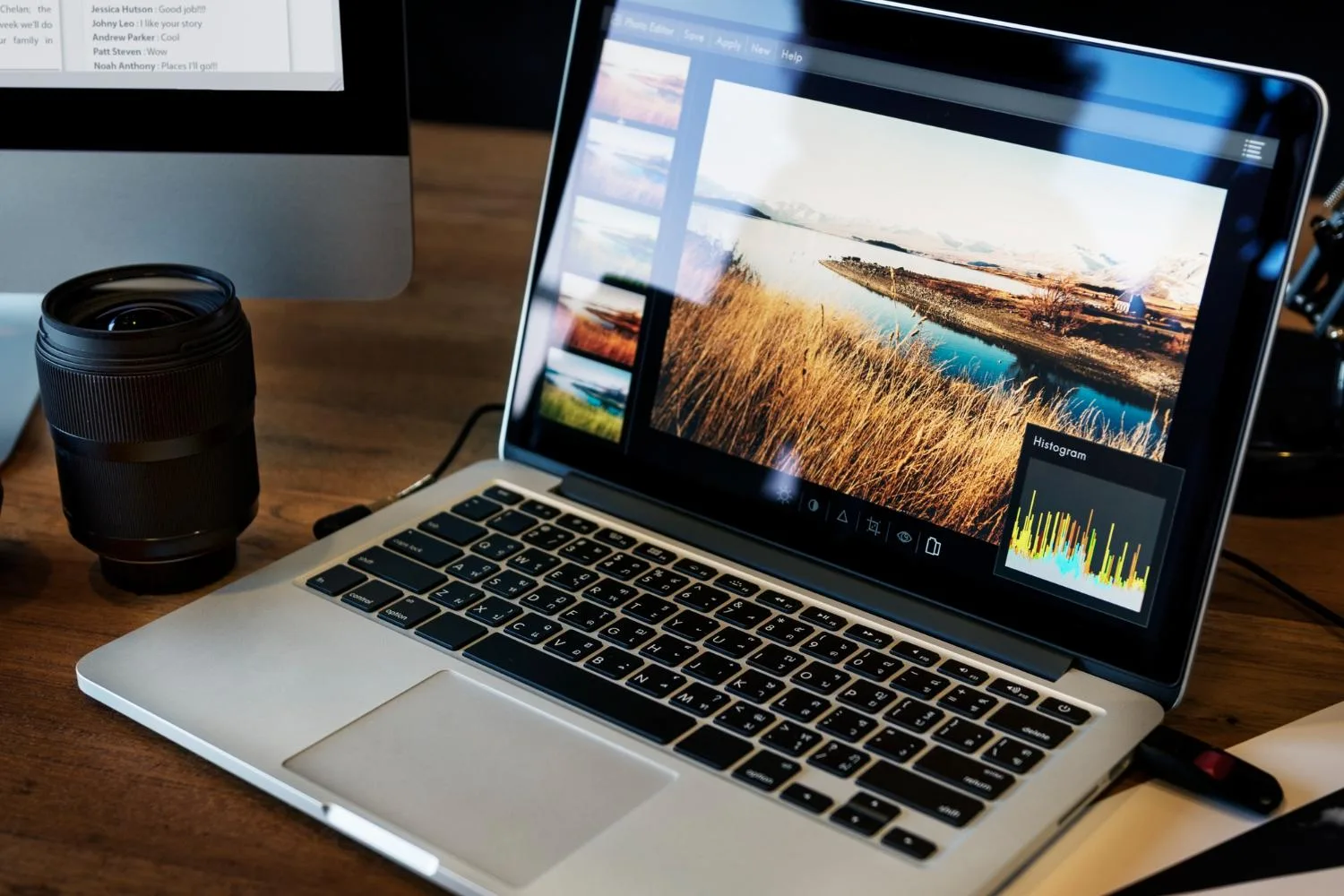
The old complaint about Chromebooks was that you could not do serious work on one, and photo editing was exhibit A. No Photoshop, no Lightroom, limited local storage, a processor chosen for battery life rather than rendering.
Most of that criticism is now out of date, though not all of it, and the gap between what people assume and what these machines actually do has become wide enough to be worth mapping properly.
The honest answer is that a Chromebook handles the great majority of what most people need, with a few specific exceptions that matter enormously to a small number of users.
Four Different Ways to Run Software
The confusion around ChromeOS capability comes from the fact that there are several distinct routes to running an application, and people generalize from whichever one they tried. Web applications run in the browser and have become genuinely capable.
Android apps install from the Play Store and bring the mobile photo editing ecosystem with them. Linux applications run in a container on supported devices, which opens up the open-source software that serious photographers have used for years.
And the built-in Gallery app handles basic crops, rotations and adjustments without any of the above. Knowing which route suits a given task is most of the skill in using one of these machines well.
Browser Tools Have Quietly Become Good
The most significant change is what browser-based editing can now do. Modern web applications handle layers, masking, background removal, batch processing and format conversion at a level that would have required desktop software a few years ago, and they run identically on any machine with a browser.
For one-off jobs this is frequently the fastest route available on any platform, not merely the best available on ChromeOS.
Reaching for a Cloudinary image tool or a comparable browser-based service to sharpen a soft photo takes less time than launching a desktop application would, and nothing needs installing or updating.
Where Linux Changes the Calculation?
For anyone doing sustained photographic work, enabling the Linux environment on a supported Chromebook transforms the machine.
It brings access to established open-source editors and RAW processors, which cover the large majority of what enthusiasts and many professionals actually do: RAW conversion, curves, local adjustments, retouching, batch export.
The trade-offs are real and worth stating. Setup takes some willingness to use a terminal, performance depends heavily on the specific hardware, and integration with ChromeOS file handling is functional rather than seamless.
It is not the right answer for a casual user and it is a genuinely powerful option for someone who knows what they want.
Think About What Leaves the Device
Browser-based editing means uploading your photographs to somebody else’s servers, which is unremarkable for a landscape shot and worth a moment’s thought for photographs of your family, your documents or your home.
Services differ substantially in what they retain, how long they keep uploads, and whether material is used to improve their systems, and that information lives in a privacy policy rather than on the landing page.
The NIST Privacy Framework provides a useful way to think about this, centering on identifying what data you are actually sharing and with whom before deciding whether the trade is acceptable.
For most casual editing the answer will be yes without much deliberation. For sensitive images, local editing through Linux or an Android app avoids the question entirely.
Storage Is the Constraint People Actually Hit
Processing power is rarely what stops photo work on a modern Chromebook. Storage is. Many models ship with modest local capacity on the assumption that files live in the cloud, and that assumption breaks the moment someone imports a few hundred RAW files from a camera.
The workable approaches are the obvious ones: an SD card or external drive for working files, cloud storage for the library, and a habit of clearing the Downloads folder, which quietly becomes an archive on every Chromebook ever used.
Anyone planning to do photographic work regularly should weight local storage heavily when choosing a model.
Memory is worth attention alongside it, since editing large images in a browser is more demanding on RAM than most other ChromeOS activity, and an entry-level machine with minimal memory will struggle with several browser tabs and a photo editor open at once in a way that has nothing to do with the processor.
Working Without a Connection
Offline capability has improved and remains the clearest weakness of a browser-first workflow. Some web applications now function offline once loaded, though support varies and is easy to discover at the wrong moment.
Android and Linux applications work offline as a matter of course, which makes them the sensible choice for anyone who edits while traveling or in places with unreliable connectivity.
The practical approach is to test your intended workflow with the WiFi switched off before you depend on it, rather than finding out on a plane.
Match the Machine to the Work
The reasonable conclusion is neither the dismissal nor the enthusiasm you usually encounter. For editing phone photographs, preparing images for the web, quick corrections and format conversion, a Chromebook is entirely adequate and often faster than the alternatives.
For serious RAW work it is capable with Linux enabled and a well-specified machine, and frustrating on an entry-level one. For a professional retoucher whose income depends on a specific application, the software simply is not there.
Everyone else has considerably more capability available than the reputation suggests, and most of it needs nothing more than a browser tab.
