


Chromebooks replace traditional function keys (F1-F12) with specialized keys for brightness, volume, and other quick actions. But developers and power users sometimes need standard function keys for programming tools and applications.
You can configure your Chromebook to treat the top-row keys as function keys instead of their default shortcuts. This setting proves useful when working with development environments, Linux applications, or software that relies on F1-F12 commands.
The process takes just a few clicks in your Chromebook settings. Once enabled, you can toggle between function keys and standard shortcuts whenever needed.
How to use the top-row keys as function keys on a Chromebook?
Your Chromebook hides the function key setting in the keyboard configuration menu. Follow these steps to activate it.
Open your Chromebook settings
Click the system tray in the bottom-right corner of your screen. Select the gear icon to open Settings.
You can also type “chrome://settings” in your browser’s address bar.
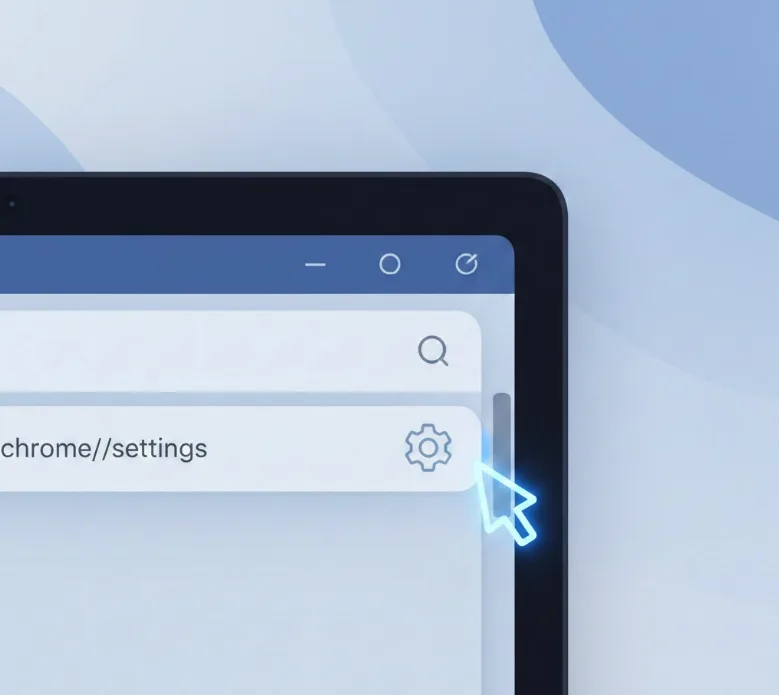
Navigate to keyboard settings
In the Settings menu, click “Device” from the left sidebar. Select “Keyboard” from the options that appear.
This brings up all keyboard-related configurations for your Chromebook.
Enable function key behavior
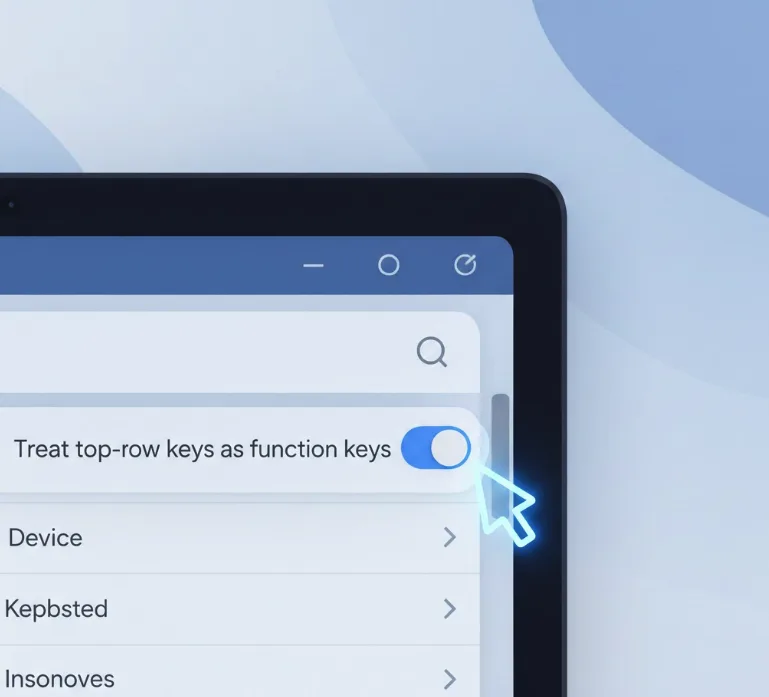
Look for the option labeled “Treat top-row keys as function keys.” Toggle the switch to turn it on.
Your top-row keys now work as F1, F2, F3, and so on by default.
Access standard shortcuts when needed
Hold the Search key (or Launcher key on older models) while pressing a top-row key. This temporarily reverts them to their original functions like brightness and volume.
Google now calls this the “Everything Button” on newer Chromebooks. The functionality remains identical regardless of the label.
When you enable function keys, your workflow changes slightly. Instead of tapping a key for brightness, you hold Search and tap the key. The reverse happens when the setting is off.

This configuration persists across restarts. You can disable it anytime by returning to the keyboard settings and toggling the switch off. If you want more control over your keyboard, you can also customize other keyboard shortcuts on your Chromebook.
FAQs
Do all Chromebooks support function keys?
Yes, all Chromebooks can use top-row keys as function keys through the keyboard settings, regardless of manufacturer or model.
What is the Everything Button on Chromebook?
The Everything Button is Google’s new name for the Search or Launcher key. It opens universal search for apps, files, and web content.
Can I use function keys temporarily without changing settings?
No, you must enable the setting first. Once enabled, holding the Search key provides temporary access to standard shortcuts like brightness.
Will this affect my normal Chromebook shortcuts?
Yes, you’ll need to hold the Search key to access brightness, volume, and other standard shortcuts when function keys are enabled.
Do function keys work in Linux apps on Chromebook?
Function key support works in Linux development environments and most productivity apps when the setting is enabled.
