


Sharing a Chromebook between family members or colleagues doesn’t require buying separate devices or constantly resetting your machine. Chrome OS includes built-in support for multiple user accounts, allowing each person to maintain their own personalized environment with separate files, apps, and settings.
This feature works similarly to user accounts on Windows or macOS computers. Each account gets its own encrypted profile and storage space, ensuring complete privacy between users.
Understanding how to share a Chromebook by using multiple user accounts helps households maximize their tech investments. Instead of purchasing multiple devices, families can share one Chromebook while maintaining individual workspaces. This proves especially useful when students need devices for remote learning or when household members want to try different hardware without losing their personal settings.
How to share a Chromebook by using multiple user accounts
The process of adding users to your Chromebook takes just a few minutes. The first person who logs in automatically receives Administrator rights, which control device-wide settings and user permissions.
Access the login screen
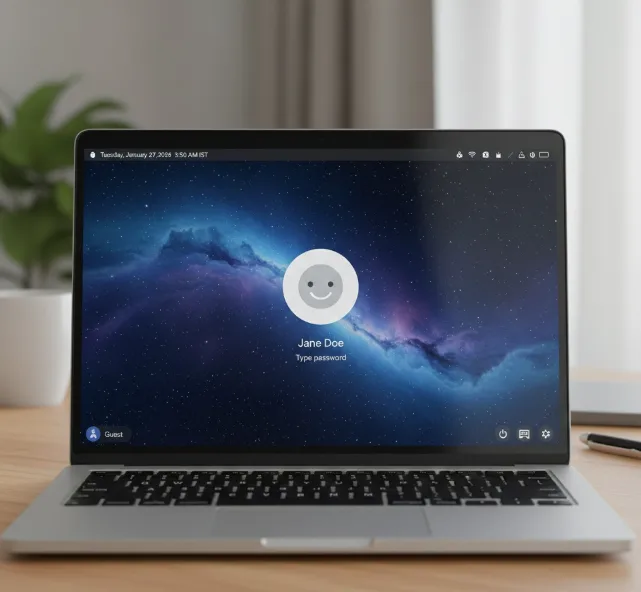
Turn on your Chromebook or sign out of your current session. You’ll see the main login screen displaying any existing user accounts on the device.
Select “Add Person”
Look for the “Add Person” option in the bottom right corner of the login screen. Click this button to begin adding a new user account.
Choose account type
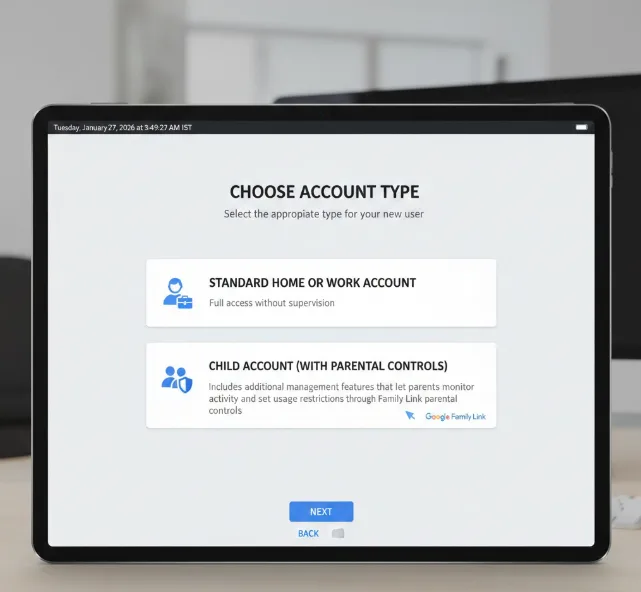
The setup screen presents two options: a standard home or work user account, or a child account with parental controls. Select the appropriate type for your new user.
Child accounts include additional management features that let parents monitor activity and set usage restrictions through Family Link parental controls. Standard accounts provide full access without supervision features.
Sign in with Google account
The new user enters their existing Google account credentials. If they don’t have a Google account, they can create one during this step.
Wait for profile setup
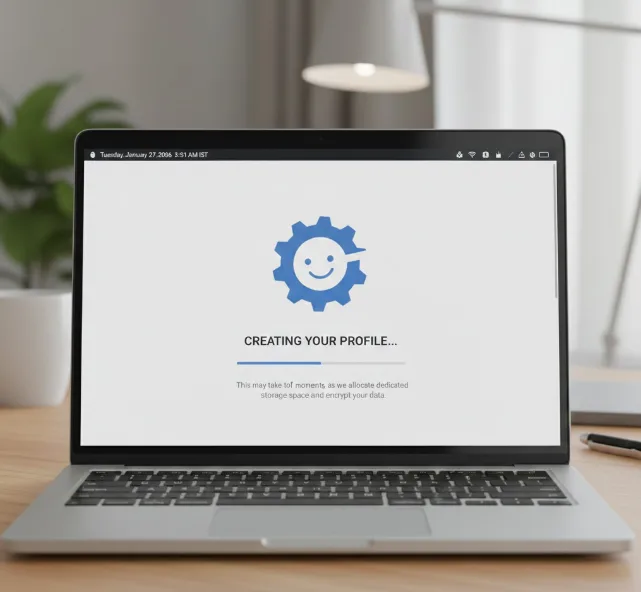
Chrome OS creates an encrypted profile and dedicated storage space for the new account. This process takes a few moments as the system allocates resources.
Complete synchronization
The new user’s data, apps, and settings automatically sync from their Google account to the Chromebook. Their personalized environment appears as if they were using a brand new device.
Note that local files stored on other Chromebooks won’t transfer during this sync process. Only cloud-based data and settings migrate to the shared device.
Each user on the Chromebook maintains complete privacy. Files and documents remain separate and inaccessible to other users on the same device. When someone removes their Google account from the Chromebook, all associated profile information and personal data gets deleted automatically, preventing any privacy concerns.
For temporary sharing without creating a full account, you can also use Guest Mode, which erases all browsing data once the session ends.
FAQs
Can multiple users access the same Chromebook simultaneously?
No, only one user can actively use the Chromebook at a time, but switching between accounts is quick and easy.
How many user accounts can I add to one Chromebook?
Chrome OS supports multiple user accounts on a single device, though the exact limit depends on available storage space.
Will adding users slow down my Chromebook?
Each user consumes storage space and system resources, so performance may decline if too many accounts are added or storage fills up.
Can I remove a user account after adding it?
Yes, administrators can remove user accounts from the login screen settings, which permanently deletes all associated data from the device.
Do users need internet to access their accounts?
Initial setup requires internet connectivity, but users can access previously synced data and offline-enabled apps without an internet connection.
