

Close Menu
    Facebook X (Twitter) Instagram
    • About
    • Privacy Policy
    • Write For Us
    • Newsletter
    • Contact
    Instagram
    About ChromebooksAbout Chromebooks
    • Linux
    • News
      • Stats
      • Reviews
    • AI
    • How to
      • DevOps
      • IP Address
    • Apps
    • Business
    • Q&A
      • Opinion
    • Gaming
      • Google Games
    • Blog
    • Podcast
    • Contact
    About ChromebooksAbout Chromebooks
    News

    Chrome OS 94 brings Debian Bullseye to Linux on Chromebooks

    Kevin TofelBy Kevin TofelAugust 16, 2021Updated:September 17, 2025No Comments2 Mins Read

    Did you hear? There’s a new major update of a desktop operating system now available. No, it’s not Windows, macOS, or even Chrome OS. It’s Debian Bullseye, which is version 11 of the popular Linux platform. And Chrome OS 94 brings Debian Bullseye to Linux on Chromebooks.

    The upgrade of the Linux container on Chromebooks is still a work in progress as there are some changes the Chromium development team has yet to make. You can read about them in this bug report. But if you have a Chromebook running the Dev Channel of Chrome OS 94 as I do, you can install and use Debian Bullseye on your Chromebook.

    On the Stable Channel of Chrome OS, currently, version 92, all new Linux containers on Chromebook use Debian 10, or the Buster version. Previously, Chromebooks used Stretch, which is Debian 9.

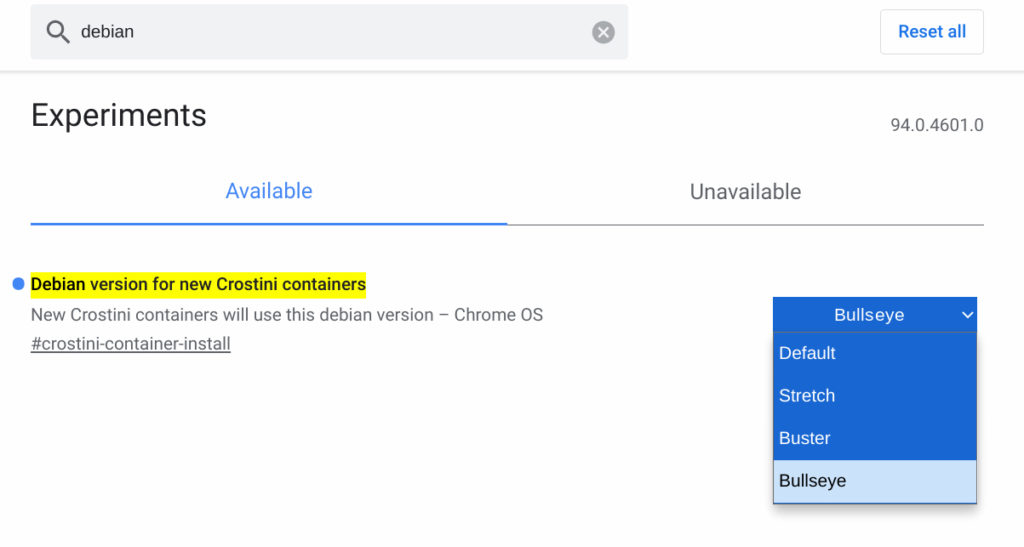
    With the Dev Channel of Chrome OS 94, there’s an option to choose your Debian version from among the three. You’ll have to navigate to chrome://flags#crostini-container-install where you can make that choice:
    Debian Bullseye for Linux on Chromebooks

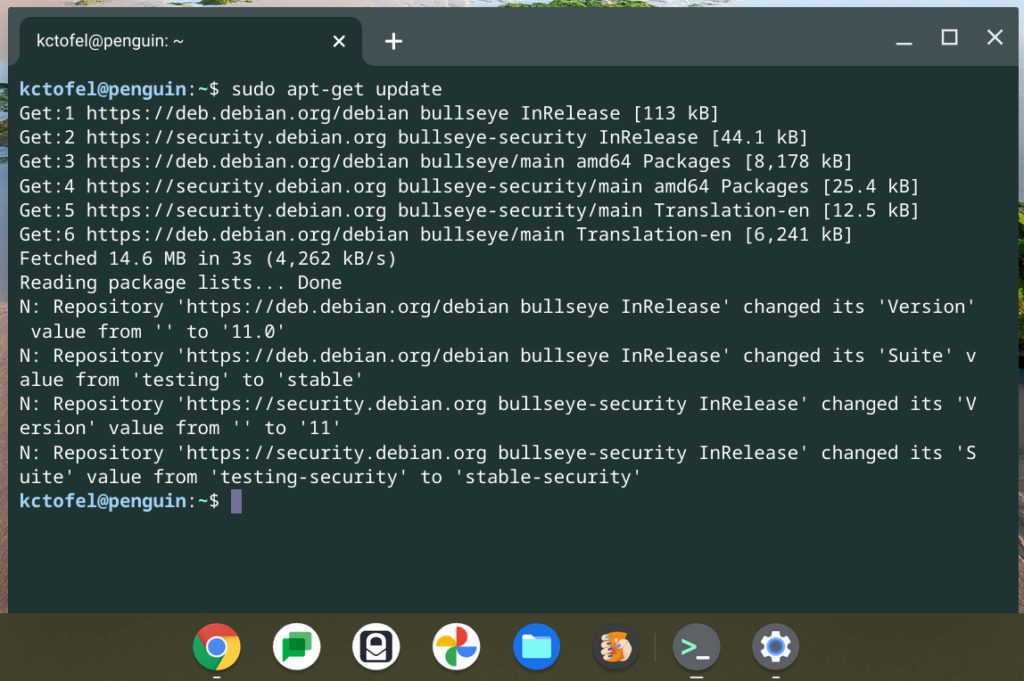
    I chose Bullseye and deleted my existing Linux container for testing. Then, following the standard method to enable Linux support in the Chrome OS Settings, I created a new Linux container. Sure enough, it’s Debian Bullseye.
    Debian Bullseye for Linux on Chromebooks

    I have no plans to rely on this Bullseye container for what I’d call “production work” or for my Computer Science classes. Nor would I recommend you do so. As I mentioned, there are some changes that need to be made for full Chrome OS support.

    Regardless, Debian Bullseye does bring new behind-the-scenes changes including exFAT filesystem support and improved driverless printer and scanning support to name a few. The full release notes for Debian Bullseye can be found here.

    Kevin Tofel
    • Website

    After spending 15 years in IT at Fortune 100 companies, Kevin turned a hobby into a career and began covering mobile technology in 2003. He writes daily on the industry and has co-hosted the weekly MobileTechRoundup podcast since 2006. His writing has appeared in print (The New York Times, PC Magazine and PC World) and he has been featured on NBC News in Philadelphia.

    Best of AI

    AI21 Jurassic Statistics 2026: Model Size, Usage and AI Performance Trends

    May 19, 2026

    Chub AI Explained

    May 6, 2026

    Stable Diffusion AI: Free Text To Image AI Generator

    May 5, 2026

    Imagen AI: The Best Photo Editing AI In 2026

    April 21, 2026

    Alphafold AI from Google Deepmind 2026

    April 21, 2026
    Trending Stats

    Chromebook Webcam Usage Trends Statistics 2026: Video Calls, Remote Learning And User Behavior

    May 19, 2026

    External Monitor Usage on Chromebooks Statistics 2026

    May 15, 2026

    Chromebook Keyboard Failure Rates Statistics 2026

    May 13, 2026

    Chromebook Boot Failure and Recovery Statistics 2026

    May 7, 2026

    Linux Usage on Chromebooks Statistics 2026

    May 7, 2026
    • About
    • Tech Guest Post
    • Contact
    • Privacy Policy
    • Sitemap
    © 2026 About Chrome Books. All rights reserved.

    Type above and press Enter to search. Press Esc to cancel.