

Close Menu
    Facebook X (Twitter) Instagram
    • About
    • Privacy Policy
    • Write For Us
    • Newsletter
    • Contact
    Instagram
    About ChromebooksAbout Chromebooks
    • News
      • Stats
    • AI
    • How to
      • DevOps
      • IP Address
    • Apps
    • Business
    • Q&A
      • Opinion
    • Gaming
      • Google Games
    • Blog
    • Podcast
    • Contact
    About ChromebooksAbout Chromebooks
    News

    A first look at the Google Password Manager Chromebook app

    Kevin TofelBy Kevin TofelJune 15, 2023Updated:September 13, 2025No Comments3 Mins Read
    Share
    Facebook Twitter LinkedIn Pinterest

    When Chrome 114 arrived last week, Google said the browser would get an updated Google Password Manager experience. And like nearly all Chrome browser features, it’s coming to Chromebooks as well. In fact, it’s a dedicated progressive web app. Or it can be if you install the Google Password Manager Chromebook app, as I found on the latest ChromeOS 115 Beta Channel.

    To get my first look at the Google Password Manager Chromebook app, I enabled this flag on ChromeOS 115: chrome://flags#password-manager-redesign. After a quick restart of the browser to apply the flag, I was able to access the updated Password manager. However, I didn’t find it in the ChromeOS settings or my Launcher.

    Instead, navigating to chrome://password-manager on my Chromebook opened the Google Password Manager in a browser tab:
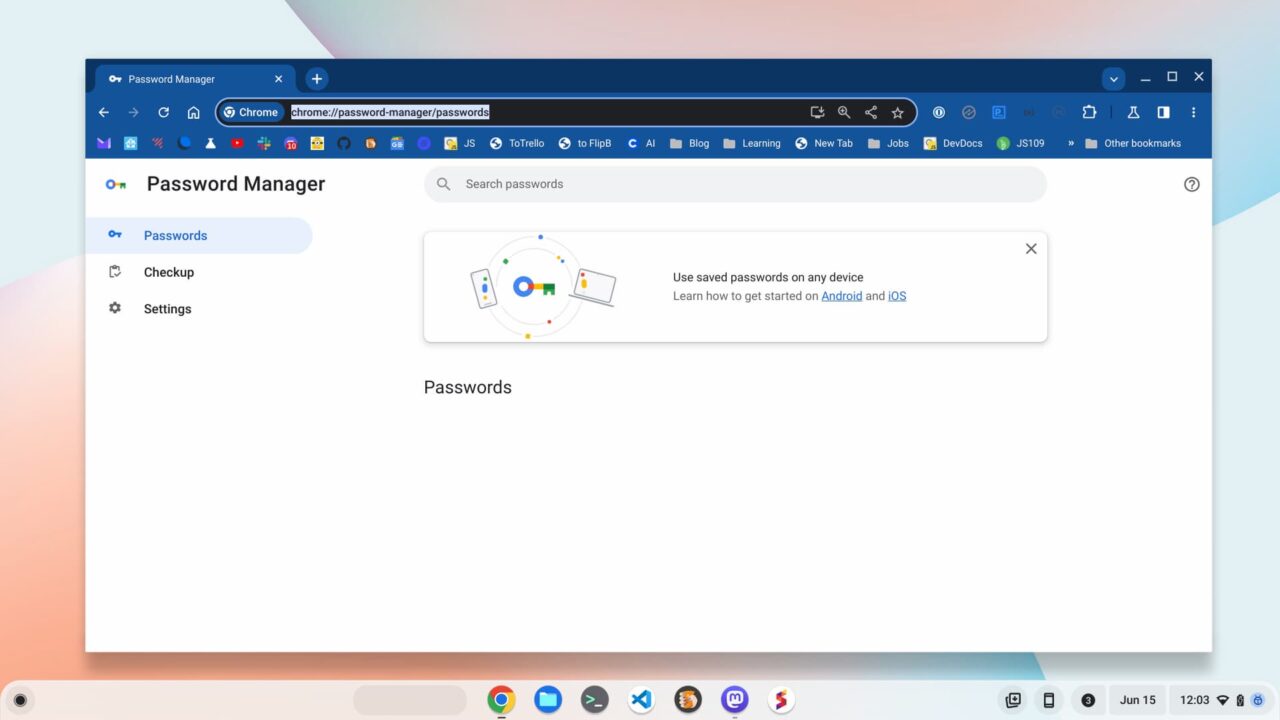
    Google Password Manager Chromebook app in the browser

    You can tell that the PWA isn’t installed because the install icon appears in the Omnibox; it’s the first of the four icons. Tapping it begins the standard PWA install process.
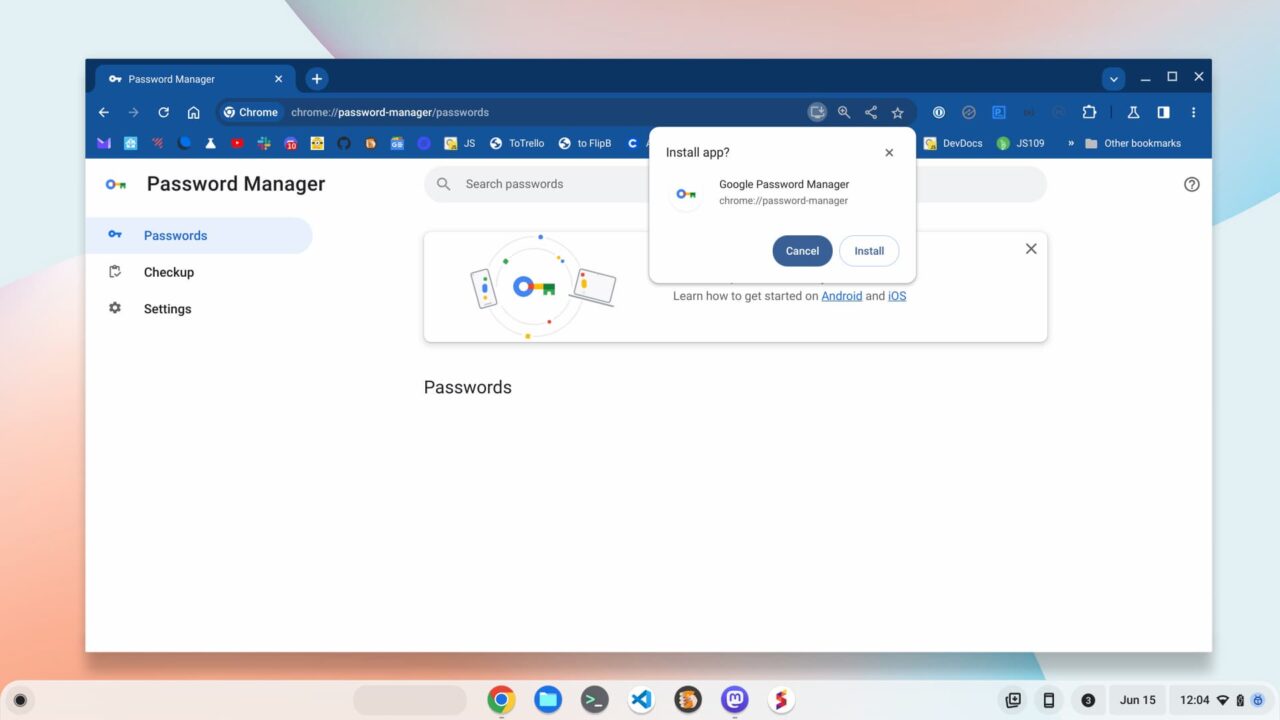
    Google Password Manager Chromebook app is a progressive web app

    Once I installed the PWA, the Google Password Manager Chromebook app appeared in my System Tray. That makes sense because it’s now a dedicated, standalone application running on my Chromebook. If you plan to use this app, I recommend right-clicking on the app icon and selecting the option to “pin” the app.

    In terms of functionality, there’s not much new here. You still have the basics to view or edit your passwords, run a password check, and a settings page. You can export or import passwords or create notes as well. According to 9to5 Google, the password manager will support biometric authentication in the future; that’s great for Chromebooks with fingerprint sensors.
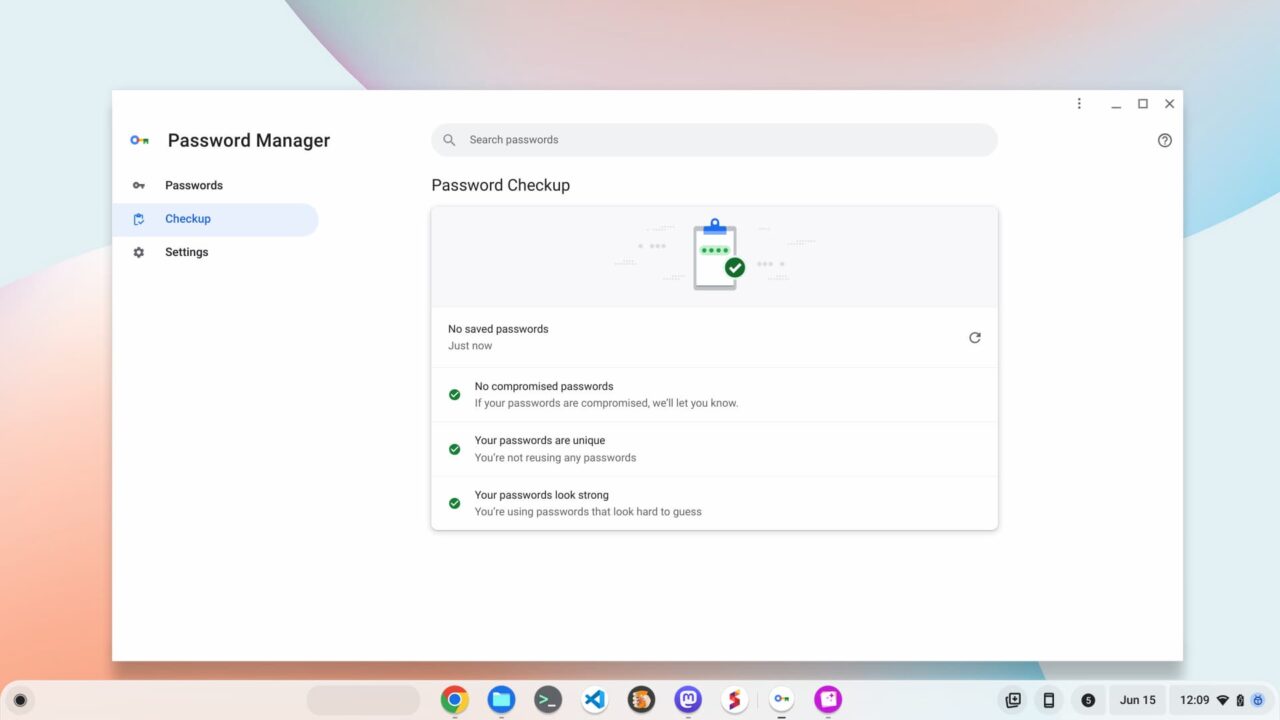
    Google Password Manager Chromebook app includes a checkup
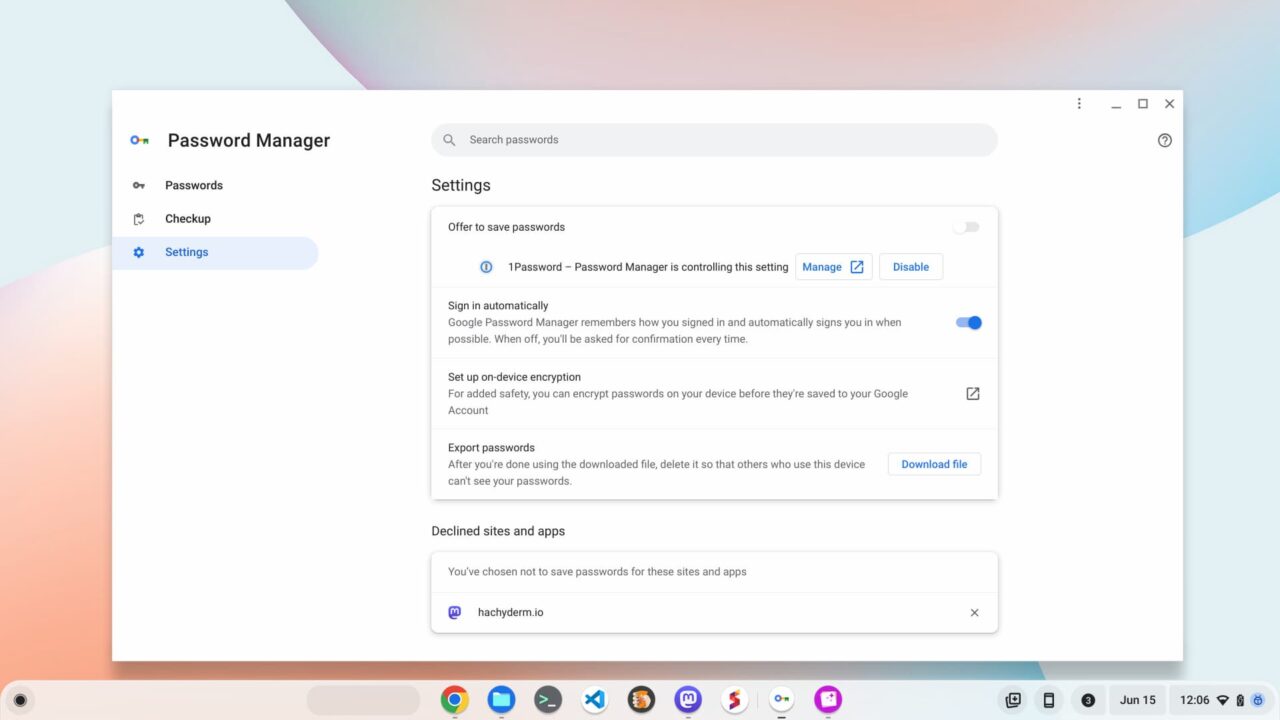
    Google Password Manager Chromebook app settings

    As you can tell from Settings, I don’t use the Google Password Manager for my own credentials. Last year, I opted to remove both Apple and Google from storing my passwords across all of my devices. Instead, I pay for 1Password, which has been fantastic for me. It’s also among the first to bring support for Passkeys.
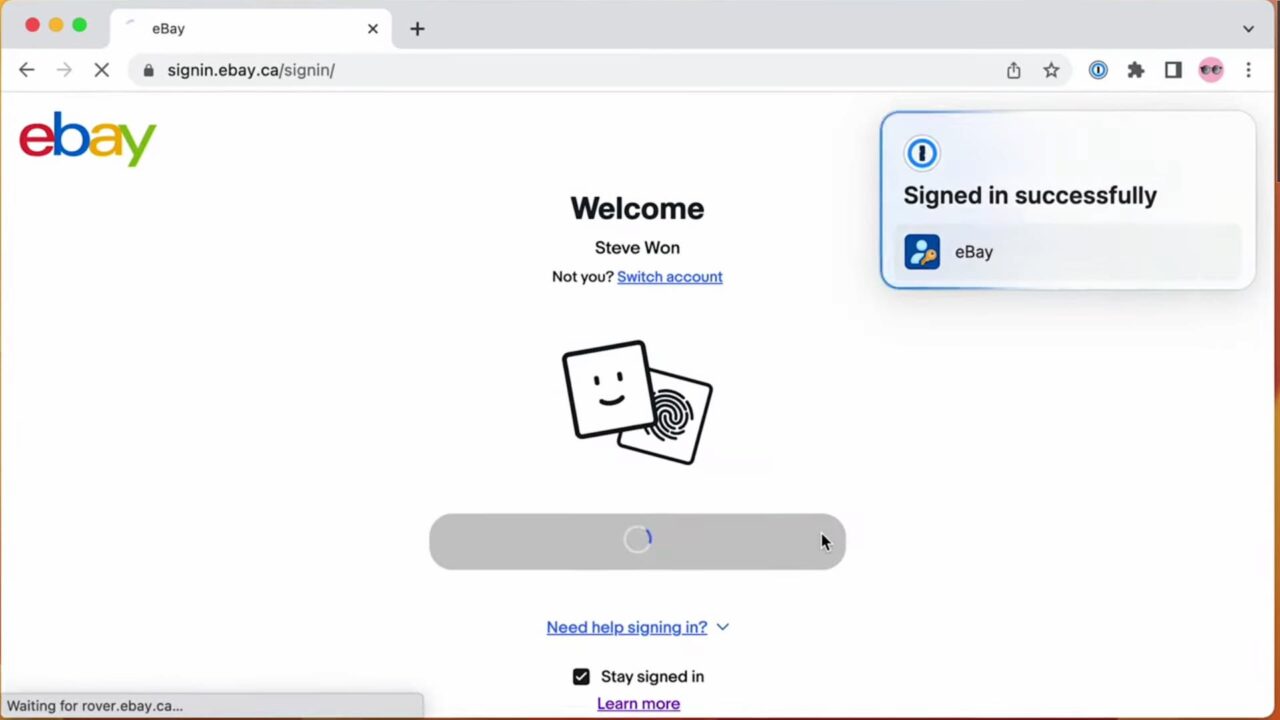
    Passkeys on Chromebooks 1Password demo

    Of course, there are other options, some that cost money and some that are free or open-source software. I’m not about to tell anyone where they should store their online credentials; that’s a personal choice.

    Mostly, Google’s effort here is not just to bring a standalone Google Password Manager app to Chromebooks. It also includes useful tools, like the password checkup function, and cleaning up the interface. I’m sure this app will change over time as Google continues to improve it, both visually and functionally.

    Chrome OS Chromebooks ChromeOS ChromeOS 115 ChromeOS flags Experimental Features Google Password Manager Password Manager Progressive Web Apps
    Share. Facebook Twitter Pinterest LinkedIn Tumblr
    Kevin Tofel
    • Website

    After spending 15 years in IT at Fortune 100 companies, Kevin turned a hobby into a career and began covering mobile technology in 2003. He writes daily on the industry and has co-hosted the weekly MobileTechRoundup podcast since 2006. His writing has appeared in print (The New York Times, PC Magazine and PC World) and he has been featured on NBC News in Philadelphia.

    Related Posts

    Auto DraftStarbucks Partner Hours: Manual to Managing Work Schedules

    January 26, 2026

    Anon Vault For Private Cloud Storage

    January 23, 2026

    GitHub Copilot Statistics [2026]

    January 7, 2026

    Comments are closed.

    Best of AI

    VALL-E Statistics 2026

    January 28, 2026

    StarCoder Statistics And User Trends 2026

    January 27, 2026

    BLIP-2 Statistics 2026

    January 23, 2026

    AI mode Usage Statistics 2026

    January 22, 2026

    Code Llama Statistics 2026

    January 22, 2026
    Trending Stats

    Most searched keywords on Google

    January 27, 2026

    Ahrefs Search Engine Statistics 2026

    January 19, 2026

    Pay Per Click Advertising Statistics 2026

    January 16, 2026

    Google Ads Revenue 2025

    November 29, 2025

    Statistical Analysis Programs for Chromebook 2025

    November 22, 2025
    • About
    • Write For Us
    • Contact
    • Privacy Policy
    • Sitemap
    © 2026 About Chrome Books. All rights reserved.

    Type above and press Enter to search. Press Esc to cancel.