


Using Auto Clicker for Chromebook can significantly enhance productivity, especially for gamers, data entry professionals, and users with accessibility needs. This guide explores various methods to implement auto-clicking on Chromebooks, including built-in features, Chrome extensions, and Android applications.
Built-In Auto Clicker in ChromeOS
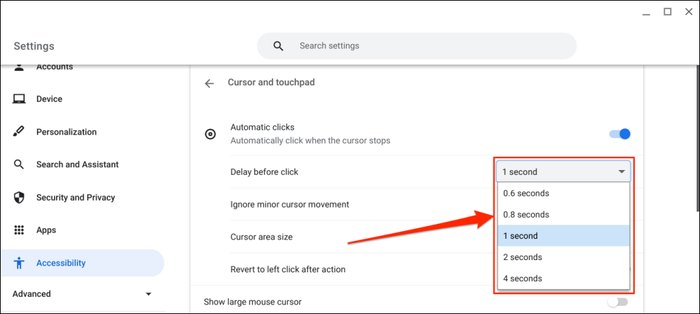
ChromeOS offers a native auto-clicker feature designed primarily for accessibility purposes. This tool automatically performs clicks when the cursor remains stationary for a specified duration.
How to Enable:
-
Click on the time in the bottom-right corner of the screen.
-
Select the gear icon to open Settings.
-
Navigate to Accessibility > Cursor and touchpad.
-
Toggle on: Automatically click when the mouse cursor stops.
Customizable Options:
-
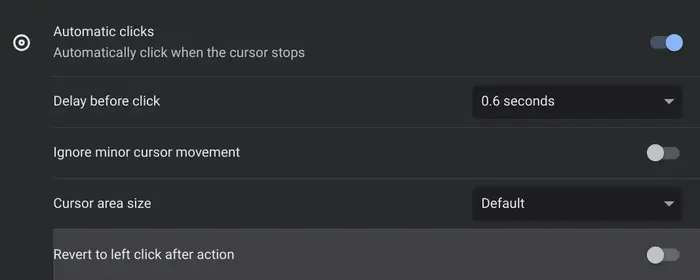
Delay before click initiation.
-
Click type: left-click, right-click, double-click, or click-and-drag.
-
Movement threshold to prevent unintended clicks.
This feature is particularly beneficial for users with motor impairments, reducing the need for manual clicking.
Chrome Extensions for Auto Clicking
For users seeking more control over automated clicking, Chrome extensions provide a viable solution.
Auto Clicker by Tesilio:
-
Installation: Available on the Chrome Web Store.
-
Features:
-
Keyboard shortcuts for starting and stopping clicks.
-
Lightweight and user-friendly interface.
-
-
Limitations:
-
May not function properly in Flash or SVG-based games.
-
Mixed user reviews, with a rating of 2.1 out of 5.
-
While extensions offer enhanced functionality, it’s essential to review user feedback and ensure compatibility with specific tasks.
Android Auto Clicker Apps on Chromebook
Chromebooks that support Android applications via the Google Play Store can utilize various auto clicker apps designed for Android devices.
-
Auto Clicker – Automatic Tap:
-
Allows setting multiple click points and swipe gestures.
-
User-friendly interface with customizable settings.
-
-
Click Assistant – Auto Clicker:
-
Features include loop mode, global timer, and task import/export.
-
Suitable for gaming and routine tasks.
-
Installation Steps:
-
Open the Google Play Store on your Chromebook.
-
Search for the desired auto clicker app.
-
Click Install and follow the on-screen instructions.
Ensure that the selected app is compatible with ChromeOS to avoid potential issues.
Safety and Ethical Considerations
When utilizing auto clickers, it’s crucial to consider the following:
-
Compatibility: Ensure the tool is designed for ChromeOS to prevent system instability.
-
Permissions: Be cautious about granting extensive permissions, especially if the tool requests access to sensitive data.
-
Terms of Service: Using auto clickers in online games or services may violate their terms, potentially leading to account suspension.
Always prioritize ethical practices and respect platform guidelines when employing automation tools.
Conclusion
Implementing an auto clicker on a Chromebook can streamline repetitive tasks and enhance the user experience.
Whether leveraging the built-in ChromeOS feature, installing a Chrome extension, or utilizing Android applications, users have multiple avenues to achieve efficient automation. Careful consideration of compatibility, functionality, and ethical use will ensure optimal results.
