


Chrome OS 75 introduces a native reader mode that strips away clutter from web pages, displaying only text and images. This feature helps you focus on content without distractions like ads, sidebars, or pop-ups.
The reader mode benefits anyone who reads articles or long-form content on their Chromebook. You get a cleaner reading experience that reduces eye strain and improves concentration.
Currently available in the Canary Channel, this feature requires enabling a specific flag. While it needs Developer Mode access now, the stable release should make it available to all users by mid-June without special setup.
How to enable Chrome OS 75 reader mode
The reader mode feature requires several setup steps before you can use it on your Chromebook.
Switch to Chrome OS Canary Channel
You need to enable Developer Mode on your Chromebook first. This process removes some security protections, so only do this on a spare device you don’t use for important work.
After enabling Developer Mode, switch your Chromebook to the Canary Channel through system settings. The Canary Channel receives experimental features before they reach stable releases.
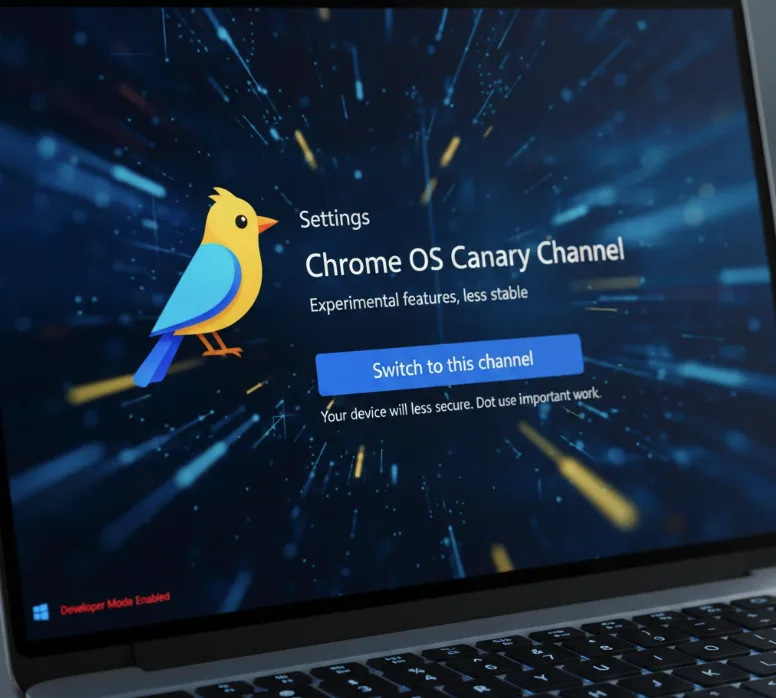
Enable the reader mode flag
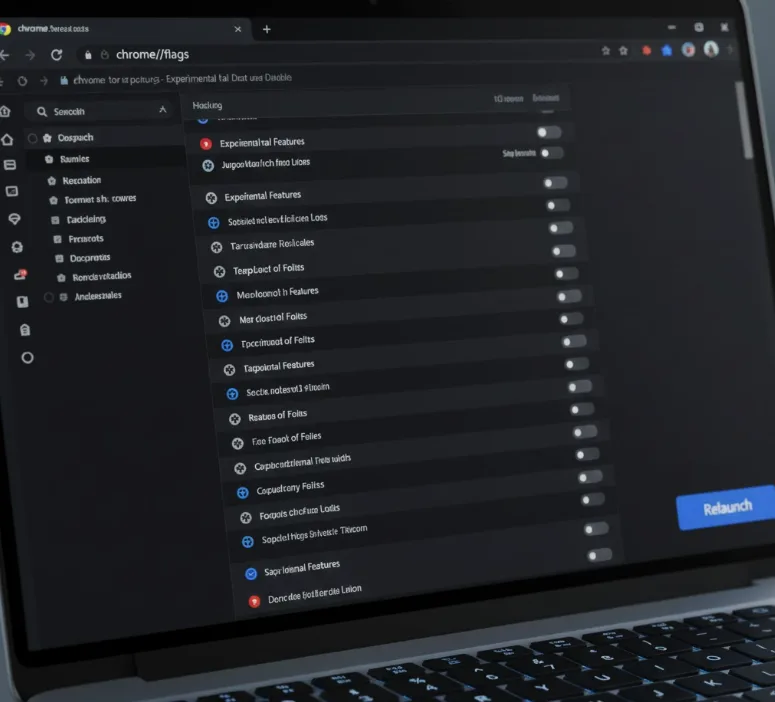
Open a new browser tab and type chrome://flags/#enable-reader-mode in the address bar. This takes you directly to the reader mode flag setting.
Find the reader mode option and change its setting from “Default” to “Enabled.” The flag activates the underlying feature that powers reader mode.
Restart your browser
Click the blue “Relaunch” button that appears at the bottom of the flags page. Your browser will close and reopen automatically with the new setting active.
Wait for Chrome to restart completely before proceeding. The reader mode option won’t appear until the restart finishes.
Access reader mode on web pages
Navigate to any article or web page you want to read. Click the three-dot menu button in the top right corner of your browser window.
Select “Distill page” from the dropdown menu. The page refreshes and displays only the main content without ads, sidebars, or other distracting elements.
The distilled view shows clean text and relevant images from the original article. Navigation elements and visual clutter disappear, leaving you with a focused reading experience.
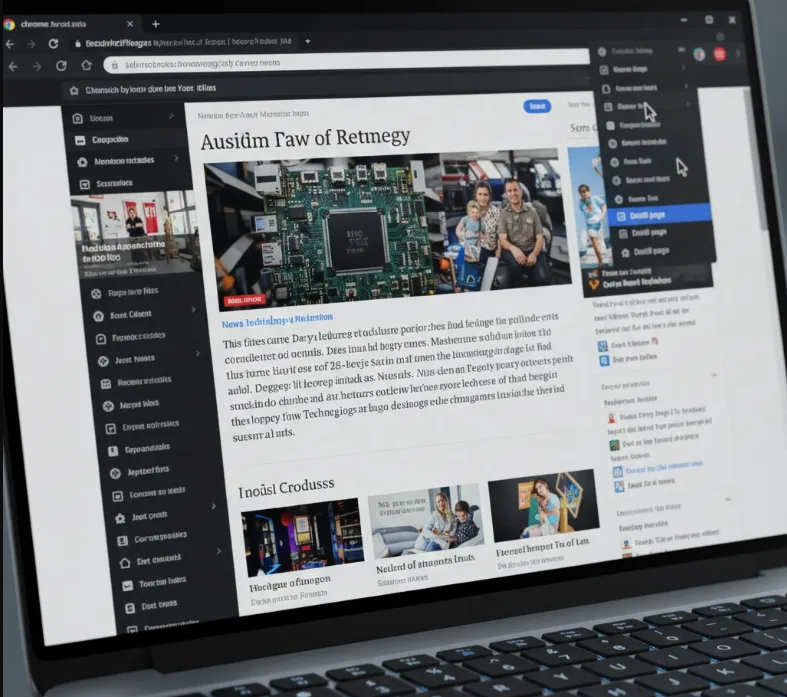
You can return to the normal view by refreshing the page or clicking the back button. Each time you want reader mode, repeat the menu selection process on your current page.
FAQs
What is Chrome OS reader mode?
Reader mode removes ads, sidebars, and clutter from web pages, displaying only text and images for distraction-free reading on Chromebooks.
Do I need Developer Mode for reader mode?
Developer Mode is required only for the Canary Channel preview. The stable Chrome OS 75 release will include reader mode without Developer Mode.
Where is the reader mode option located?
Click the three-dot menu button at the top right of your browser and select “Distill page” to activate reader mode on any webpage.
Can I use reader mode on all websites?
Reader mode works on most text-based web pages and articles. Some sites with complex layouts or special formatting may not display correctly in reader mode.
When will reader mode be available for everyone?
Chrome OS 75 with native reader mode is scheduled for stable release in mid-June, making the feature available to all Chromebook users automatically.
