


Keeping your Chromebook current ensures optimal performance and security. Chrome OS updates deliver system improvements, new features, and critical security patches that protect your device from vulnerabilities.
Updates also fix bugs that might slow down your Chromebook or cause apps to crash. Google releases these updates regularly, so checking for them helps maintain your device’s reliability.
If you’re experiencing sluggish performance or want access to the latest features, updating Chrome OS can resolve many common issues. The process takes just a few minutes and happens automatically once initiated.
Understanding how to update your Chromebook version gives you control over when these improvements reach your device. You can choose to stay on the stable release or experiment with beta features before they reach most users.
How to Update Chromebook Version?
Chrome OS makes updating straightforward through the Settings menu. The system handles everything automatically once you initiate the check, downloading and preparing the update in the background while you continue working.
Open Chrome OS Settings
Click the time in the bottom-right corner of your screen. This opens the Quick Settings panel where you’ll find various system controls. Select the gear icon labeled “Settings” to access the full settings menu.

Navigate to System Information
Find “About ChromeOS” in the left sidebar of the Settings window. This section displays your current Chrome OS version and provides update controls. Click on it to view detailed information about your system.
Check for Available Updates
Select “Check for updates” on the right side of the About ChromeOS page. Your Chromebook will contact Google’s servers to see if a newer version is available. This process typically takes a few seconds.
Download the Update
If an update exists, Chrome OS will begin downloading it automatically. You can continue using your Chromebook during this process. The download size varies depending on the update, but the system manages everything in the background.

Restart to Complete Installation
Once the download finishes, a “Restart” button appears. Click it to install the update and reboot your Chromebook. Your device will restart with the latest Chrome OS version installed. The restart typically takes less than a minute.
Switch to Beta or Dev Channel
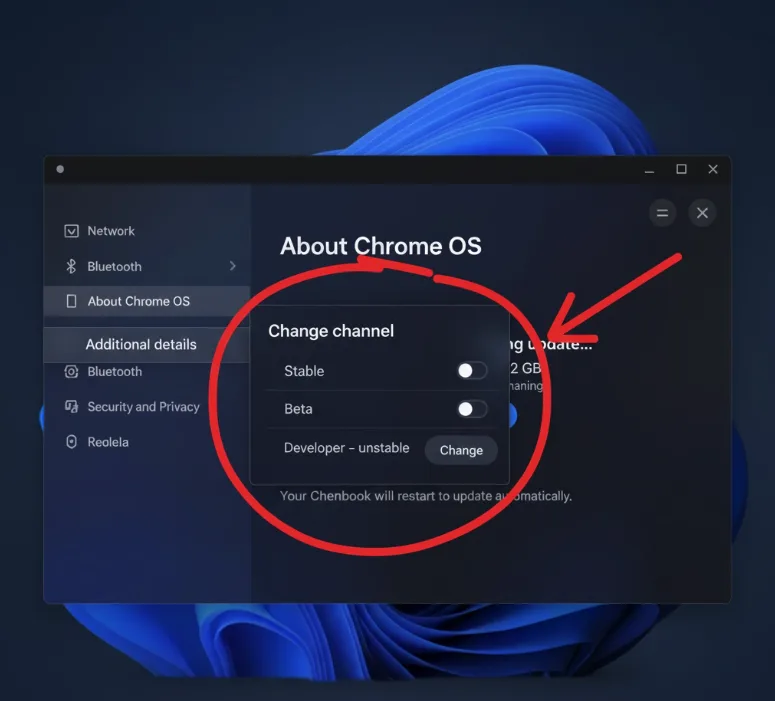
Access “About ChromeOS” and select “Additional details” to see your current channel. Click “Change channel” and choose either “Beta” or “Developer – unstable” from the popup menu. Return to the About ChromeOS page and check for updates to download the new channel’s build.
The Beta channel offers upcoming features with reasonable stability, while the Dev channel provides the newest experimental features but may contain bugs. Switching back to the stable channel later will erase all local data, so back up important files before changing channels.
Update Linux on Chromebook
For Chromebooks running Linux through Crostini, open the Linux terminal and run sudo apt update && sudo apt upgrade -y to update all packages. Then execute sudo apt dist-upgrade -y to upgrade the Linux distribution itself. These commands handle the entire Linux update process automatically.
Chrome OS manages system components like drivers and the Android container through its unified update system. However, the Linux container requires separate updates through terminal commands.
FAQs
How often does Chrome OS release updates?
Google releases Chrome OS updates approximately every four weeks for the stable channel. Security patches may arrive more frequently if critical vulnerabilities are discovered.
Can I use my Chromebook while updating?
Yes, downloads happen in the background without interrupting your work. You only need to restart once the download completes to finish the installation process.
Will updating delete my files?
No, standard Chrome OS updates preserve all your files and settings. Only switching from Beta or Dev channels back to stable requires a powerwash.
What if the update fails?
Restart your Chromebook and try checking for updates again. Ensure you have a stable internet connection and sufficient battery power before initiating the update process.
How do I check my current Chrome OS version?
Go to Settings, select “About ChromeOS,” and your current version number appears at the top. This page also shows when your Chromebook last checked for updates.
