


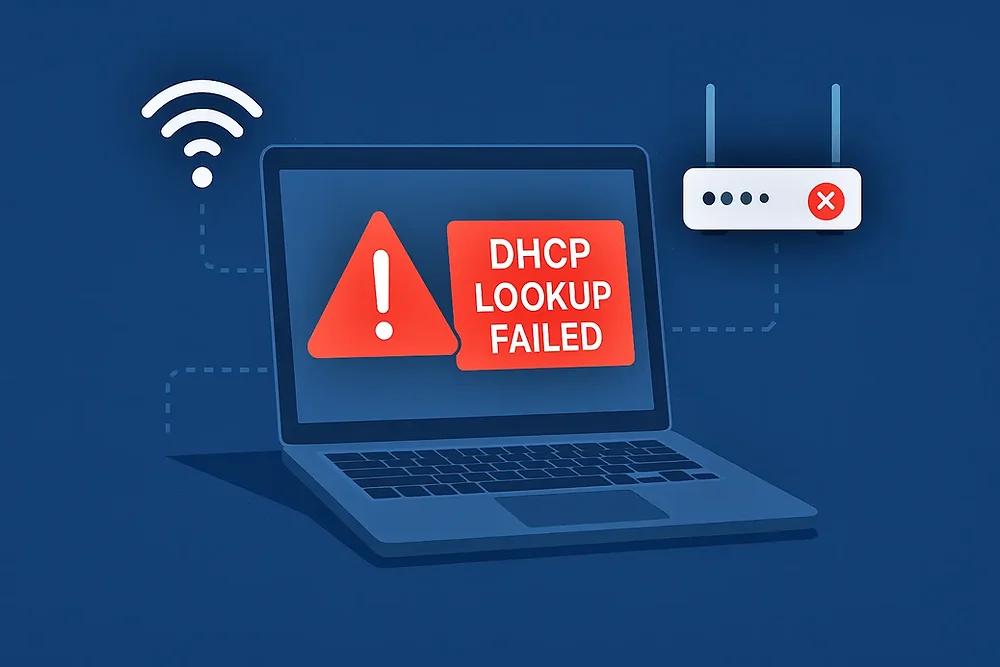
When your Chromebook shows the “DHCP lookup failed” message, it means it can’t connect to the network.
This issue usually appears when the device is unable to get an IP address from your router.
Reasons may include bad settings, outdated software, or a mismatch with your router setup.
Here are several ways to get rid of this error:
Power Cycle Your Chromebook
Restarting both your Chromebook and your modem or router can clear temporary problems and help form a new connection.
Steps to follow:
| Device | Action |
| Chromebook | Shut it down completely |
| Router/Modem | Unplug from power and wait for 30 seconds |
| After 30 sec | Plug it back in and wait till the lights settle |
| Final Step | Start your Chromebook and try reconnecting |
Modify Idle Behavior Settings On Chromebook
Preventing the device from sleeping when not in use can avoid network problems.
- Open the quick settings panel
- Click the Power symbol
- Change When Idle to Turn off screen but stay active
- Under Lid Closed, pick Stay active
- Save settings and restart the Chromebook
This only stops the screen, not the system, from sleeping.
Rejoin the Wireless Connection
Reconnecting lets the Chromebook ask for a fresh IP, which might fix the issue.
- Click on the Wi-Fi symbol on the lower right
- Select your network name
- Open settings by clicking the gear
- Tap Wi-Fi, then the arrow next to your network
- Choose Forget
- Reboot and connect again
Apply Google DNS Servers On Chromebook
Switching to Google’s DNS can fix address problems that may cause DHCP lookup errors.
To switch:
- Go to Chromebook Settings
- Tap Wi-Fi
- Hit the arrow next to the active network
- Scroll to Name Servers
- Choose Google Servers
- Restart and test the connection
If the issue stays, change back to Automatic Name Servers or:
| Setting | Action |
| Auto IP | Turn it off |
| Manual IP | Enter the IP based on the network |
| Final Step | Restart Chromebook |
Increase Available IPs in Router
If the network runs out of IPs, this can trigger the DHCP problem. Expanding the range can solve it.
- Log in to your router’s control panel
- Go to the DHCP section
- Widen the range (e.g., up to 192.168.1.253)
- Some routers let you raise the number of allowed devices
- Save settings and reconnect
Shift Wireless Frequency Band
Switching between 2.4 GHz and 5 GHz can reduce signal problems.
- Log in to the router admin panel
- Head to Wireless Settings
- Change the current band
- Save and reboot Chromebook
- Reconnect to Wi-Fi
Install the Latest Chrome OS Update
Software updates often bring network fixes that may help resolve the DHCP lookup failed Chromebook issue.
- Connect using Ethernet or Wi-Fi
- Go to Settings > About Chrome OS
- Click Check for Updates
- Install any updates that are available
- Restart your device and connect
Reset Router or Modem to Factory Settings
Incorrect network settings can block IP allocation. Resetting clears misconfigurations.
Reset options:
| Method | Steps |
| Physical Reset | Hold the reset button (usually 30 seconds) |
| Web Portal Reset | Go to your router page via browser → Login → Locate reset → Confirm |
After reset, reconnect your Chromebook and see if the DHCP issue is gone.
By following these steps, you can solve the DHCP lookup failed Chromebook error and restore your internet access.
