


Many Android apps on Chromebooks display text and interface elements that are too small for comfortable reading. While some apps include built-in font size controls, most don’t offer this option.
This creates a real problem for Chromebook users who rely on Android apps for communication, productivity, or entertainment. Squinting at tiny text during long work sessions causes eye strain and reduces productivity.
Fortunately, you can change the zoom levels in Android apps on a Chromebook through a simple settings adjustment. This solution works across all Android apps at once, letting you zoom in and out using familiar keyboard shortcuts just like you would in a web browser.
How to change the zoom levels in Android apps on a Chromebook for easier reading
The process requires enabling Developer options in your Chromebook’s Android environment. Don’t worry—this won’t compromise your device’s security or stability. These options are simply tools that help developers test their apps.
Access Android preferences on your Chromebook
Open Settings on your Chromebook. Type “Android” in the search bar.
Select “Android preferences” from the search results. Click “Manage Android Preferences” to open the Android settings interface.
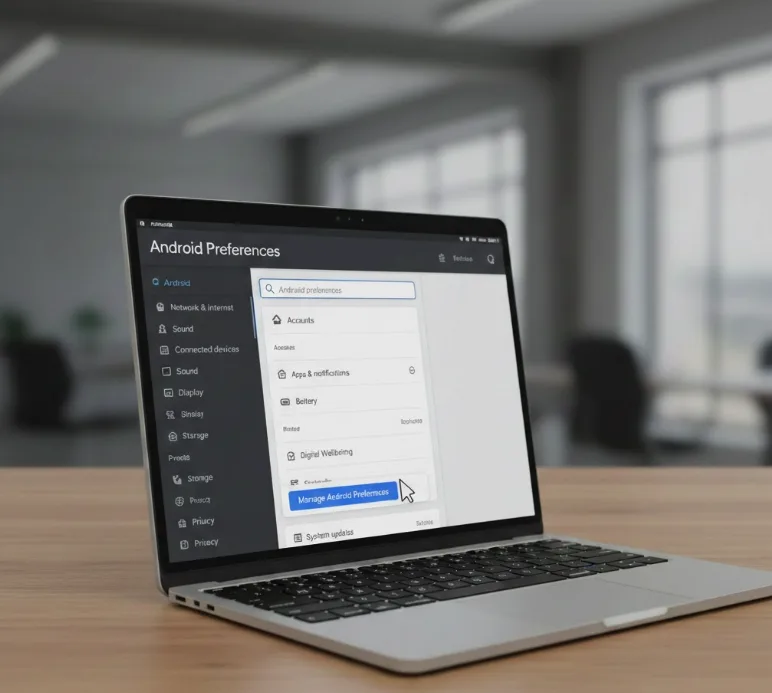
The Android settings will appear, possibly in full screen mode. The layout resembles a standard Android device, though Chromebooks don’t display every option.
Navigate to system settings
Scroll down to the bottom of the Android settings menu. Tap “System” to view additional options.
Look for “About device” in the System menu. The device name shown here reflects your Chromebook’s baseboard, which varies by model.
Enable Developer options
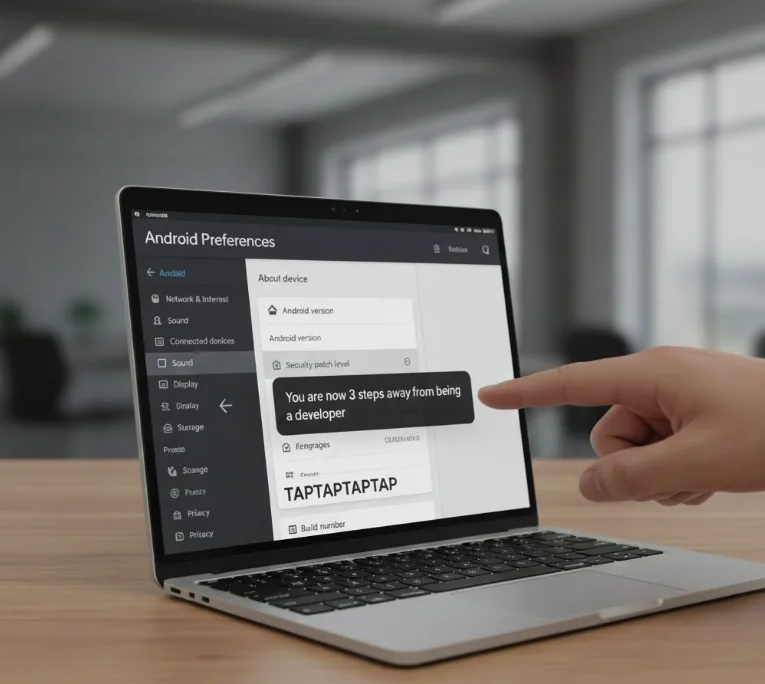
Tap “About device” to view information about Android on your Chromebook. Locate “Build number” at the bottom of this screen.
Tap “Build number” repeatedly and quickly. A message will appear showing how many taps remain before Developer options unlock.
After enough taps, you’ll receive a confirmation message. Tap the back arrow to return to the System menu.
Activate application zoom
You’ll now see “Developer options” in the System menu. Tap this new option to access developer features.
Scroll through the Developer options until you find “Enable application zoom.” Toggle this setting on.
Use zoom controls in Android apps
Open any Android app on your Chromebook. Press Ctrl and + to zoom in, making text and interface elements larger.
Press Ctrl and – to zoom out and reduce the size. These shortcuts work the same way they do in Chrome browser.
The zoom setting applies universally across all Android apps. You won’t need to repeat this process for individual apps.
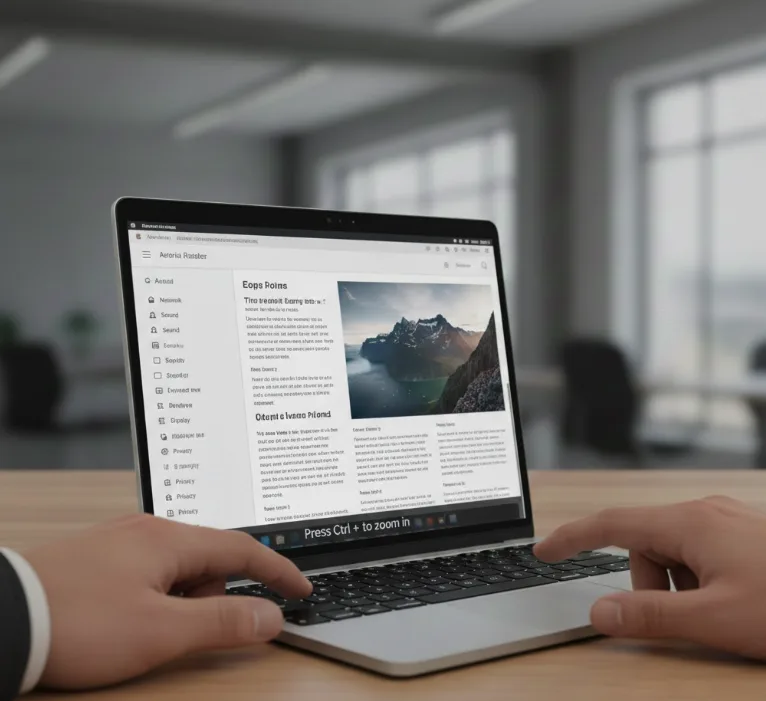
Note that some Android apps may not respond to zoom controls depending on how developers built them.
Most apps will work with this feature, giving you better control over readability. While zooming helps with text size, you might also want to explore how to resize Android apps on your Chromebook for a more flexible layout experience.
FAQs
Does enabling Developer options make my Chromebook less secure?
No. Developer options for Android don’t affect Chrome OS security. These settings only provide extra features for testing Android apps without compromising your device. This is different from Chrome OS Developer Mode, which does reduce security.
Can I disable application zoom after enabling it?
Yes. Return to Developer options in Android settings and toggle off “Enable application zoom.” The zoom shortcuts will stop working in Android apps immediately.
Why doesn’t zoom work in some Android apps?
Some apps override system zoom controls based on how developers coded them. Most apps support this feature, but certain apps can’t be resized because developers disable these options.
Will this affect my Chrome browser zoom settings?
No. Android app zoom settings are separate from Chrome browser zoom. Each environment maintains its own zoom levels independently without affecting the other.
Do I need to enable zoom for each Android app separately?
No. Enabling application zoom in Developer options applies to all Android apps on your Chromebook at once. You only need to enable this setting one time.
