


Casting content from your Chromebook to a TV screen expands your viewing options and makes sharing content much easier. Chromecast technology lets you mirror your browser tabs, entire screen, or specific media files onto any compatible display.
This feature works with built-in Chrome functionality, so you don’t need extra software or complicated setup procedures.
Understanding how to Chromecast from Chromebook helps you stream entertainment, share work presentations, or browse the web on your television.
The process takes just a few minutes once you know the basic steps. Many Chromebook users already use features like split screen functionality for everyday multitasking.
How To Chromecast From Chromebook?
Check Your Network Connection
Both your Chromebook and Chromecast need to connect to the same WiFi network. Open your Chromebook’s settings and verify your network name matches the one your Chromecast uses.
Set Up Your Chromecast Device
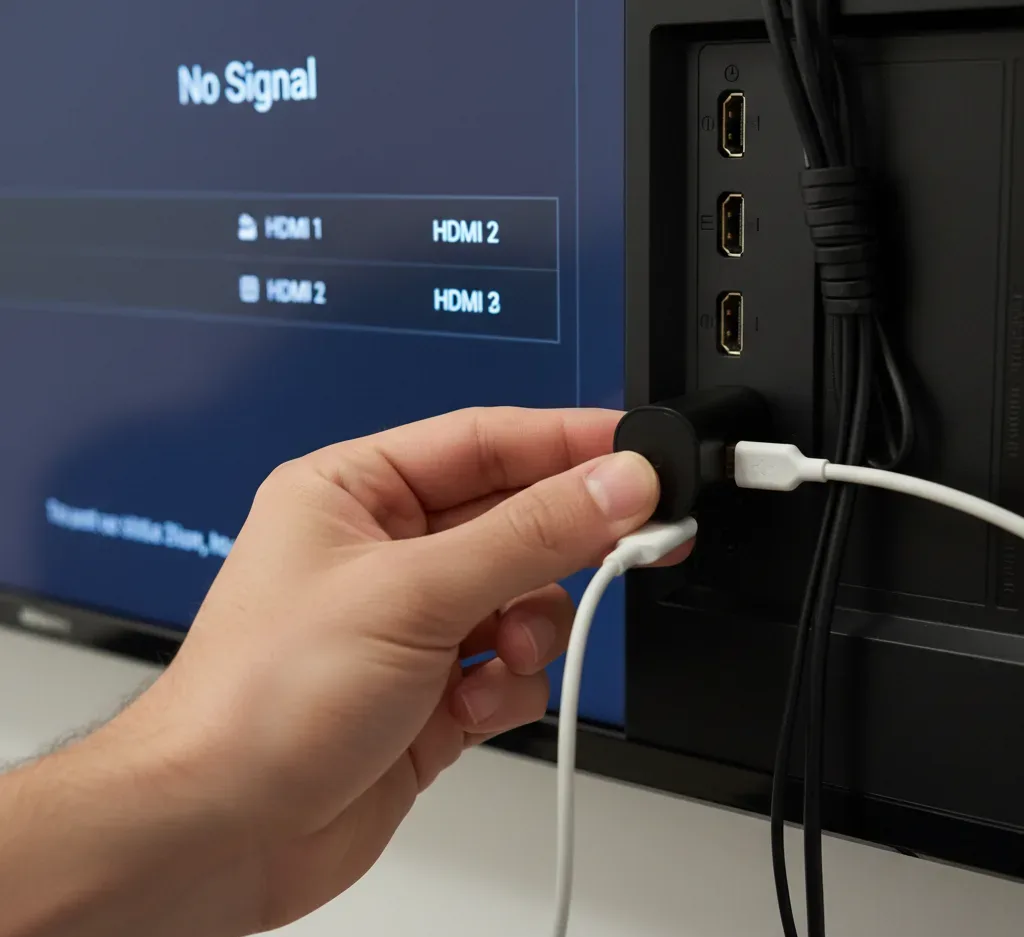
Plug your Chromecast into an available HDMI port on your TV. Connect the USB power cable to a power source. Turn on your TV and select the correct HDMI input using your remote.
Open Chrome Browser
Launch the Chrome browser on your Chromebook. You’ll find the cast icon in the top right corner of your browser window.
Access Cast Options

Click the three-dot menu icon in Chrome’s top right corner. Select “Save and share” then choose “Cast” from the dropdown menu.
A pop-up window displays available casting devices on your network. Your Chromecast or compatible TV will appear in this list.
Select Your Display
Click on your Chromecast device name from the available options. The connection establishes within a few seconds.
Your current browser tab now appears on your TV screen. You can continue browsing while content streams to your display.
Choose What To Cast
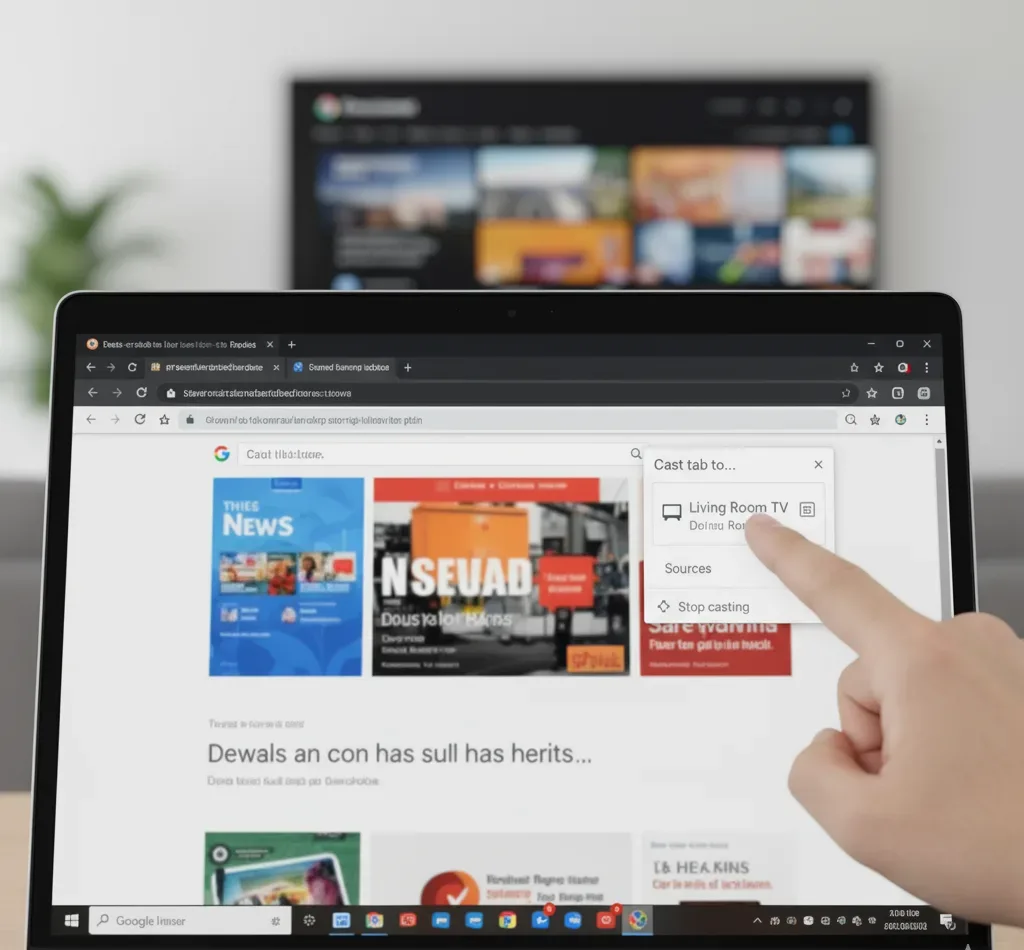
The default setting casts your current Chrome tab. Click “Sources” in the cast dialog box to see other options.
You can cast a single tab, your entire desktop, or a specific file. Select “Cast desktop” to mirror everything on your Chromebook screen. This works similarly to connecting your Chromebook to a projector for presentations.
Control Your Content
Use your Chromebook as a remote control while content plays on your TV. Adjust volume, pause videos, or switch between tabs normally.
The cast icon turns blue when actively streaming. Click it anytime to stop casting or change settings.
End Your Session
Click the blue cast icon when you finish. Select “Stop casting” to disconnect from your TV.
Your Chromebook screen returns to normal operation. The Chromecast stays ready for your next casting session.
Casting from a Chromebook works with most streaming services and websites. You can use this feature for Netflix, YouTube, or any browser-based content. If you also use screen recording features on your Chromebook, the Screencast app provides additional options for capturing and sharing content.
Some websites restrict casting due to copyright protections. When this happens, try casting your entire desktop instead of just the browser tab.
FAQs
Can I cast from a Chromebook without WiFi?
No, both your Chromebook and Chromecast require WiFi connection on the same network. Guest mode allows temporary casting but still needs internet access for setup.
Why can’t my Chromebook find my Chromecast?
Check that both devices connect to identical WiFi networks. Restart your router, Chromebook, and Chromecast. Update ChromeOS to the latest version through settings.
Does casting drain my Chromebook battery faster?
Yes, casting uses more battery because your Chromebook maintains an active WiFi connection and processes streaming data. Plugging in your device prevents battery drainage during long sessions.
Can I cast specific apps from my Chromebook?
You cast browser tabs or your entire screen rather than individual apps. Open the app in Chrome browser and cast that tab for best results.
What’s the difference between tab casting and desktop casting?
Tab casting streams only your active Chrome tab while desktop casting mirrors your entire screen. Desktop casting shows everything including notifications and other windows.
