


Spotify offers different installation methods on a Chromebook, making it accessible for all users. The streaming platform works through the web player, Android app, or Linux version depending on device compatibility. Each option provides full access to music, playlists, and podcasts.
Understanding how to install Spotify on Chromebook helps users choose the best method for their device. Some Chromebooks support Android apps from the Play Store, while others require Linux installation. The web player remains the simplest option that works on every device without downloads.
How to Install Spotify on Chromebook?
Chromebooks provide three distinct methods for accessing Spotify. The right choice depends on whether your device supports Android apps or Linux applications.
Use the Web Player Without Installation
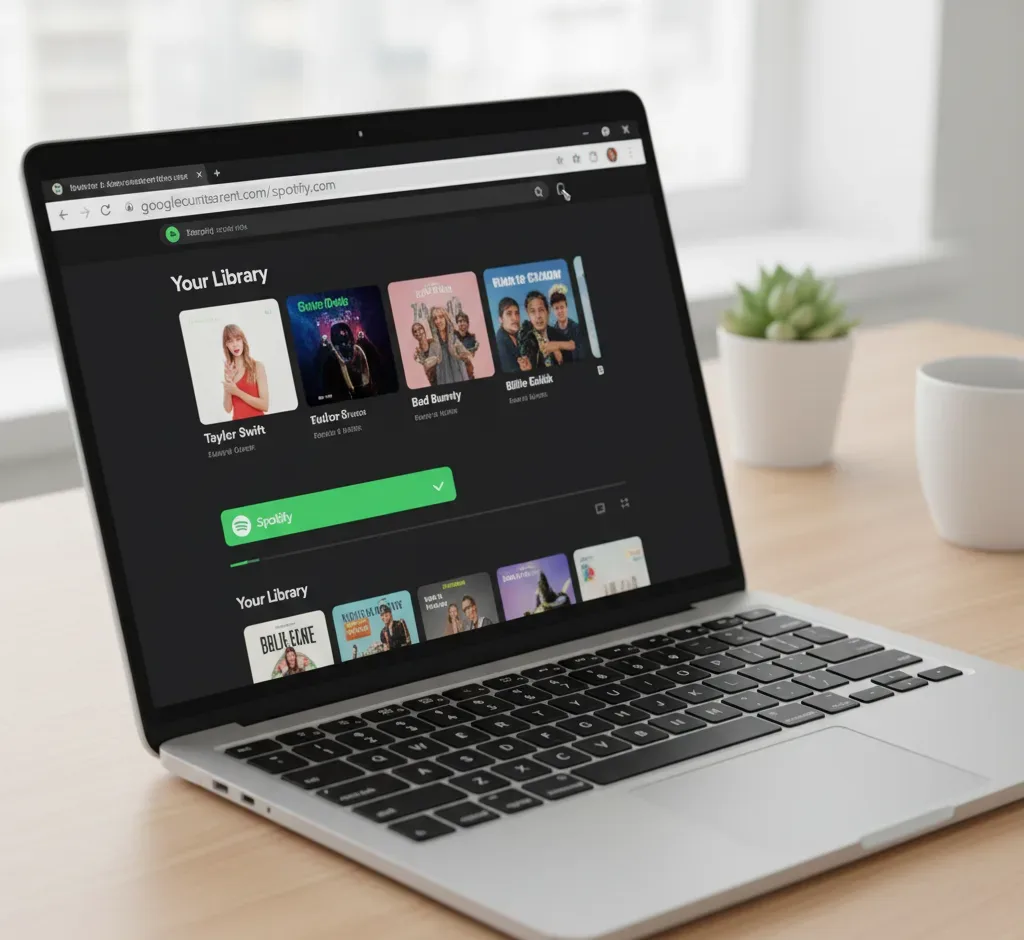
Open your Chrome browser and navigate to the Spotify web player at open.spotify.com. Sign in with your account credentials to access your music library instantly.
The web version requires no downloads or setup. Every Chromebook supports this method regardless of model or year.
Download the Android App from Play Store
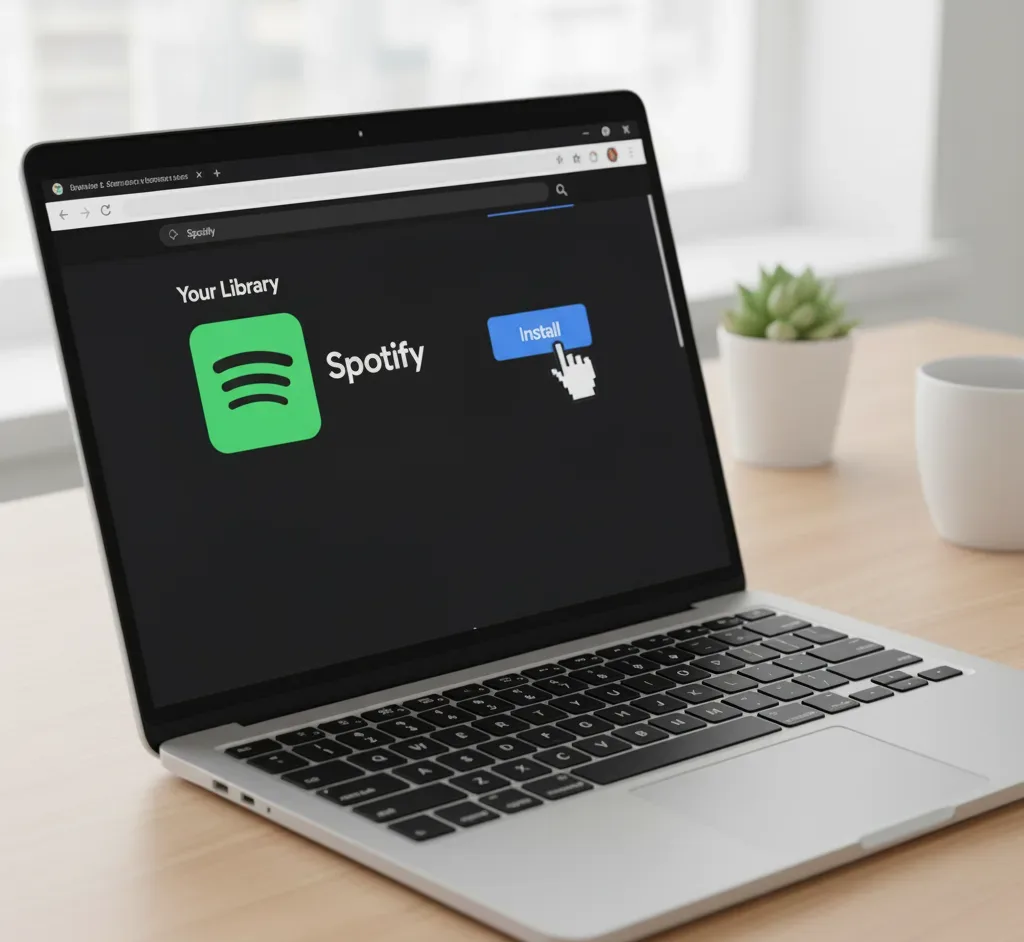
Check if your Chromebook supports Android apps by enabling the Play Store. Open the Google Play Store from your app launcher.
Search for “Spotify” in the search box and select the official app. Click the Install button and wait for the download to complete.
Open the app from your app drawer after installation finishes. Sign in to your account and start streaming music immediately.
The Android version provides offline downloads with premium subscriptions. Spotify Connect allows seamless device switching during playback.
Install Through Linux for Desktop Features
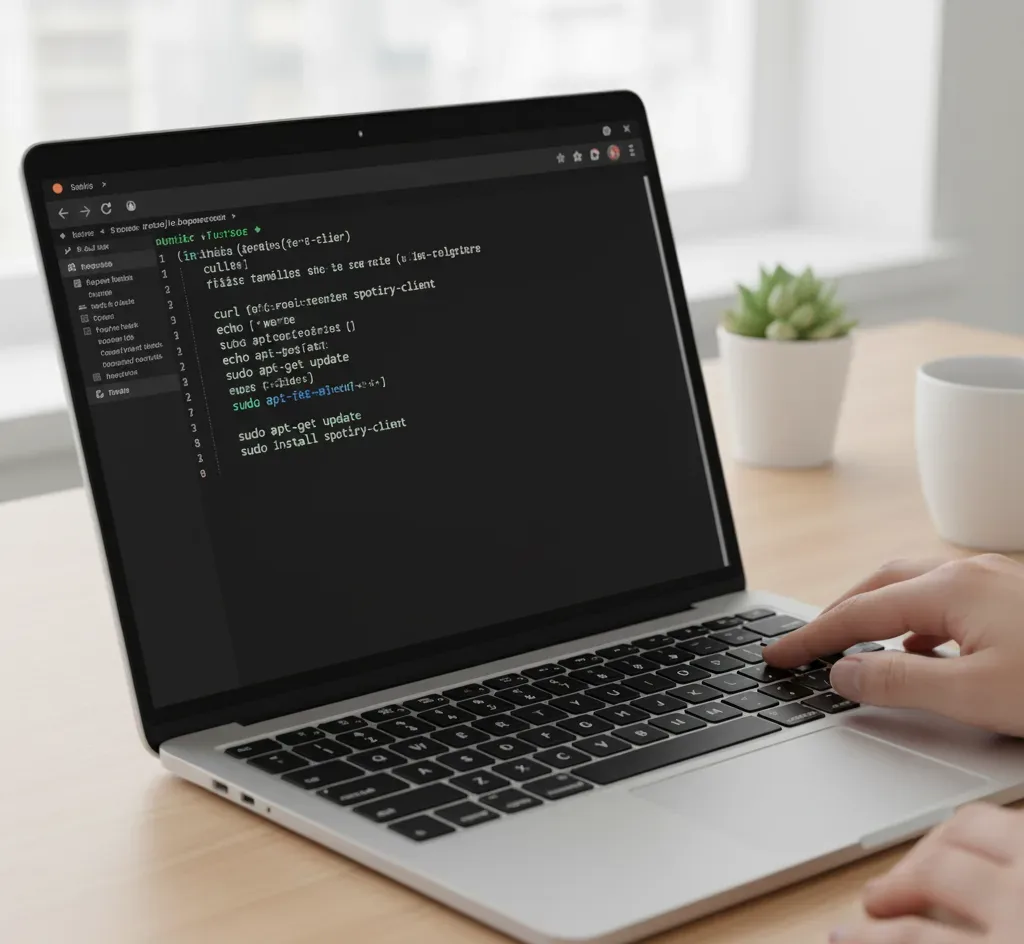
Chromebooks without Android app support can run Spotify using the Linux environment. First, enable Linux by opening Settings and navigating to Advanced > Developers > Linux development environment.
Turn on the Linux feature and wait for the initial setup to complete. Open the Terminal app from your Linux apps folder.
Add the Spotify repository by entering this command:
curl -sS https://download.spotify.com/debian/pubkey_0D811D58.gpg | sudo apt-key add -
Then add the repository source:
echo "deb http://repository.spotify.com stable non-free" | sudo tee /etc/apt/sources.list.d/spotify.list
Update your package list with:
sudo apt-get update
Install Spotify using:
sudo apt install spotify-client
Launch Spotify from the Linux Apps folder in your app drawer. The desktop version provides advanced features and a familiar interface for traditional computer users.
Setting up Linux on your Chromebook opens access to many desktop applications beyond just Spotify. This method works best for users comfortable with command-line interfaces.
Each installation method delivers the complete Spotify experience. Premium subscribers can download songs for offline listening through both the Android and Linux versions.
FAQs
Can I use Spotify offline on Chromebook?
Yes, premium subscribers can download songs for offline playback through the Android app or Linux version. The web player requires an active internet connection and does not support offline downloads.
Does Spotify work on all Chromebooks?
The web player works on every Chromebook model. Android app availability depends on Play Store support, while Linux installation requires compatible devices with Linux development environment enabled.
Which Spotify method provides the best quality?
All three methods stream at the same audio quality based on your subscription tier. Premium accounts access high-quality streaming regardless of installation method, while free accounts have standard quality.
Do I need a premium account for Spotify on Chromebook?
No, the free version works on all three installation methods. Free accounts include advertisements and limited skips, while premium removes ads and enables unlimited skips plus offline downloads.
Can I use multiple Spotify installation methods simultaneously?
Yes, you can install both the Android app and Linux version alongside using the web player. Installing various entertainment apps helps you find your preferred streaming experience.
