


Moving photos between an iPhone and Chromebook is simpler than most people expect. Many users assume cross-platform transfers require complex workarounds, but Chrome OS handles iOS devices with ease.
You have two straightforward methods to transfer your iPhone photos to a Chromebook. The first uses Google Photos for wireless cloud sync. The second relies on a direct USB connection between devices.
Both approaches work reliably and take just minutes to set up. Choose wireless transfer for ongoing automatic backups or USB connection for one-time bulk transfers without internet dependency.
How to easily move iPhone photos to your Chromebook
You can transfer photos from your iPhone to a Chromebook using either cloud storage or a physical cable connection. Both methods work on current iOS and Chrome OS versions.
Transfer photos wirelessly with Google Photos
Download the Google Photos app from the Apple App Store on your iPhone. Open the app and sign in with your Google account.
Tap your profile icon and select “Photos settings.” Enable “Backup & sync” to automatically upload your iPhone photos to Google’s cloud storage.
Your photos upload in the background whenever your iPhone connects to Wi-Fi. Google provides free storage for photos up to 16MP and videos up to 1080p resolution.
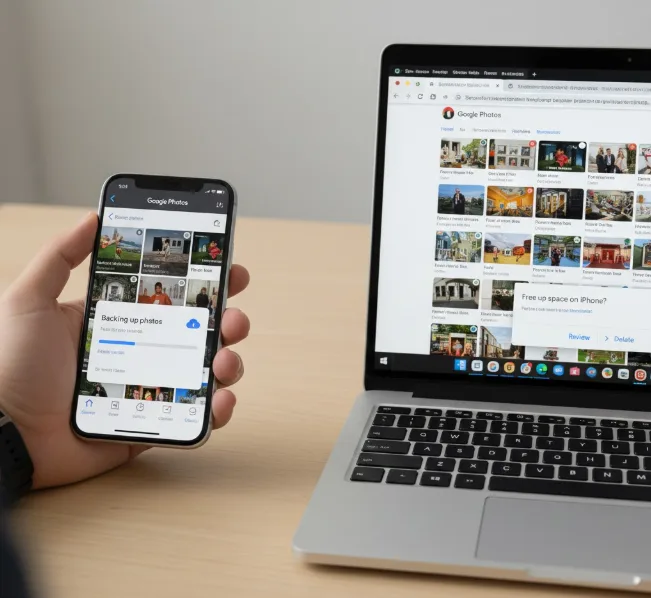
Open your Chromebook and navigate to photos.google.com in Chrome. You can also install the Google Photos Android app or Progressive Web App from the Chrome Web Store.
All photos from your iPhone appear automatically on your Chromebook. You can download specific images to local storage or keep them in the cloud for access from any device.
The Google Photos app periodically asks permission to delete local copies from your iPhone after backup completes. This frees up iPhone storage space while keeping photos accessible on your Chromebook.
Connect your iPhone directly via USB cable
Grab a USB to Lightning cable compatible with your iPhone model. Plug the Lightning end into your iPhone and the USB end into your Chromebook.
Your iPhone displays a prompt asking “Allow this device to access photos and videos?” Tap “Allow” to grant permission.
Open the Files app on your Chromebook. Your iPhone appears as a connected device in the left sidebar under “External devices.”
Click on your iPhone’s name to browse its contents. Navigate through the folder structure to find your photos, typically located in the DCIM folder.
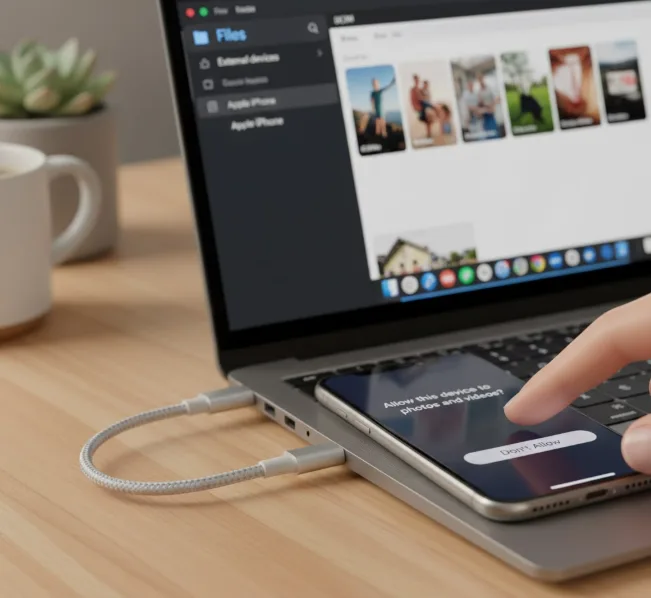
Select the photos you want to transfer. Drag and drop them into your Chromebook’s “Downloads” folder or create a new folder in “My files.”
Chrome OS may prompt you to back up photos to Google automatically when it detects an external device with images. You can accept or decline this offer without affecting the manual transfer process.
Keep your iPhone connected until the transfer completes. Large photo libraries may take several minutes depending on file sizes and quantity.
If you’re also looking to transfer videos from your iPhone, these same methods work just as well for video files.
FAQs
Can I transfer photos from iPhone to Chromebook without cables?
Yes, install Google Photos on your iPhone and enable backup. Your photos sync automatically to the cloud and appear on your Chromebook without cables.
Do I need to pay for cloud storage to move iPhone photos?
No, Google Photos provides free storage for photos up to 16MP and videos up to 1080p resolution, which covers most smartphone photography needs.
Will connecting my iPhone to a Chromebook damage my photos?
No, connecting your iPhone via USB creates a read-only connection. Your original photos remain safely stored on your iPhone during the transfer process.
Can I transfer Live Photos from iPhone to Chromebook?
Yes, both methods transfer Live Photos, but they appear as standard still images on Chrome OS since the format is iOS-specific. Motion data doesn’t transfer.
Does my Chromebook need special software to read iPhone photos?
No, Chrome OS includes native support for iOS devices. The Files app automatically recognizes connected iPhones without requiring additional drivers or software installations.
