


When your Chromebook reaches its auto-update expiration date, Google stops providing Chrome OS updates. This leaves your device without security patches and new features.
But you’re not stuck with an outdated system. CloudReady Home Edition offers a solution that extends your Chromebook’s life beyond the official AUE deadline.
This alternative operating system runs on Chromium OS, the same foundation as Chrome OS. While it lacks some Google-specific features, CloudReady delivers security updates and maintains basic functionality.
You can install CloudReady on most older Chromebooks, though the process requires some technical steps. The installation involves enabling Developer Mode and potentially removing hardware write-protection on certain models.
How to get Chrome OS updates on a Chromebook after its AUE, or auto-update expiration date
CloudReady provides ongoing software updates for Chromebooks that have passed their AUE date. Neverware maintains this Chromium OS-based system, which works on hundreds of older computers including legacy Chromebooks.
Before starting, create a USB recovery stick from your current Chrome OS installation. This backup lets you restore the original system if needed.
Enable Developer Mode on your Chromebook
Press Esc + Refresh + Power to boot into Recovery Mode. When the recovery screen appears, press Ctrl + D. Confirm by pressing Enter when prompted.
Your Chromebook will reboot and wipe all local data during this transition. Developer Mode allows system-level changes that standard mode blocks.
Create a CloudReady installation USB drive
Download the CloudReady Home Edition USB Maker from Neverware’s website on another computer. Insert a USB drive with at least 8GB of storage.
Run the USB Maker and select your USB drive from the list. The tool will download CloudReady and create a bootable installer automatically.
Remove write-protection if required
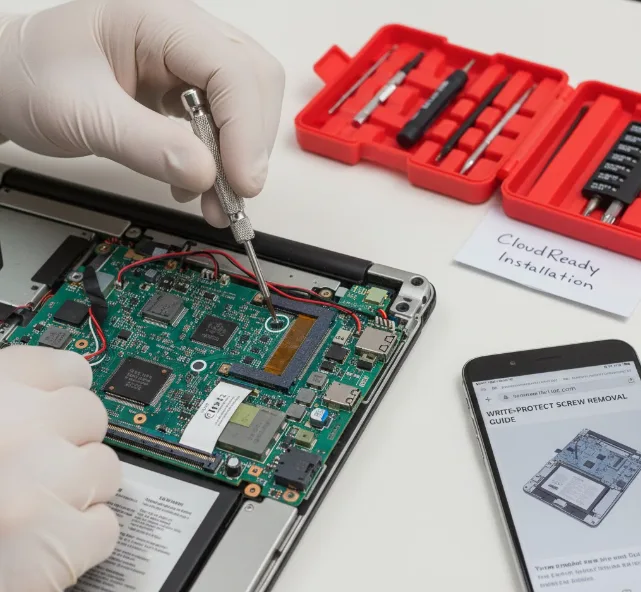
Some Chromebooks like the Pixel models have a physical write-protect screw. You’ll need to open the device and remove this screw to allow CloudReady installation.
Check iFixit for model-specific guides showing the screw’s location. Skip this step if your Chromebook doesn’t have hardware write-protection.
Boot from the CloudReady USB drive
Insert your CloudReady USB drive into the Chromebook. Power on the device while in Developer Mode.
Press Ctrl + U at the verification screen to boot from the USB drive. CloudReady will load without installing to your hard drive first.
Install CloudReady to your Chromebook
Once CloudReady boots from USB, click “Install CloudReady” from the system tray. Select your Chromebook’s internal storage as the installation destination.
The installer will erase all existing data and replace Chrome OS with CloudReady. This process takes about 15-20 minutes depending on your hardware.
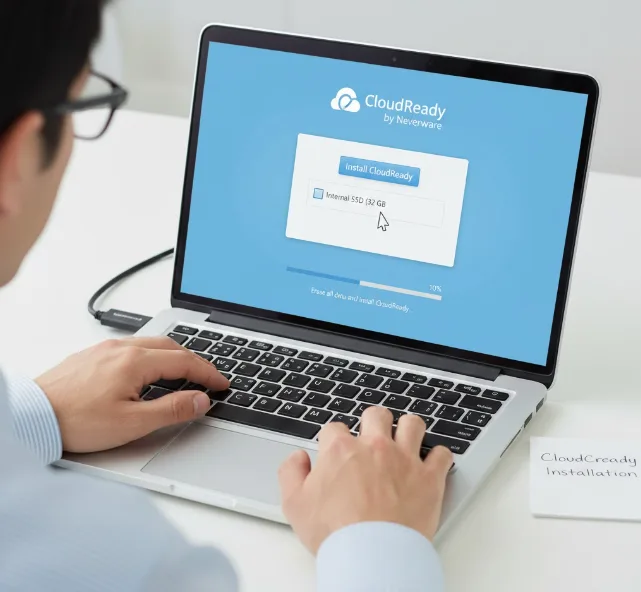
After installation completes, remove the USB drive and restart. Your Chromebook will boot into CloudReady and receive updates from Neverware instead of Google.
CloudReady updates arrive regularly with security patches. You won’t get every Chrome OS feature Google releases, but you’ll maintain a functional and secure system well past the original AUE date. While Google acquired Neverware and later released Chrome OS Flex, the company doesn’t officially support installing it on expired Chromebooks.
FAQs
Will CloudReady work on any Chromebook model?
CloudReady works on most Chromebooks, though Neverware doesn’t certify specific models. Success rates are high on older devices that have reached their AUE date.
Does installing CloudReady void my Chromebook warranty?
Installing CloudReady requires Developer Mode and possibly hardware modifications, which typically void manufacturer warranties. Most post-AUE Chromebooks have expired warranties already.
Can I return to Chrome OS after installing CloudReady?
You can restore Chrome OS using a recovery USB stick. Create this backup before installing CloudReady to ensure you have a working restoration option.
What features does CloudReady lack compared to Chrome OS?
CloudReady doesn’t include Google Play Store, Android apps, or some Chrome OS-specific features. The interface looks similar but misses proprietary Google integrations.
How often does CloudReady receive security updates?
Neverware releases CloudReady updates regularly, typically every 4-6 weeks. These updates include Chromium security patches and bug fixes to maintain system security.
