


Chrome OS now makes installing Debian Linux packages simple through the Files app. This feature eliminates the need for command-line knowledge.
Previously, installing Linux packages on Chromebooks required using Terminal commands. The Files app integration changes that.
You can now right-click .deb files and install them directly. This works through Project Crostini, Chrome OS’s Linux container system.
The feature appeared in Chrome OS version 69. It streamlines the installation process for users who want Linux applications without Terminal complexity.
This guide shows you how to install Debian packages using the Chrome OS Files app. The process takes just a few clicks.
How to install debian linux packages in project crostini chrome os files app
The installation process happens entirely within the Chrome OS Files app. You won’t need to open Terminal or type commands.
Download the Debian package file
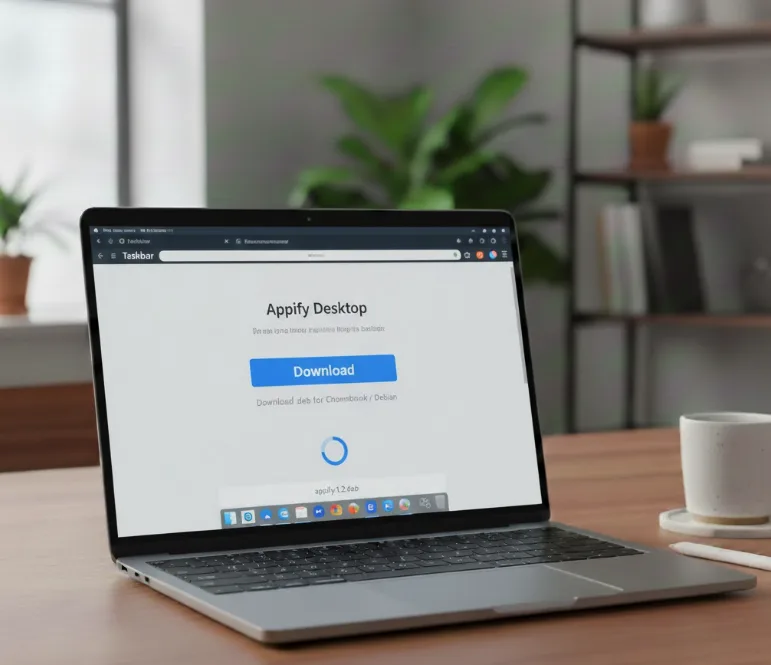
Navigate to the software’s website using Chrome. Download the .deb file for your desired application.
Chrome OS saves the file to your Downloads folder automatically. The file will have a .deb extension.
Locate the package in Files app
Open the Files app on your Chromebook. Go to the Downloads folder where your .deb file is saved.
You’ll see the package file listed with other downloads. The icon shows it’s a Debian package.
Right-click and select install option
Right-click on the .deb file. A context menu appears with several options.
Select “Install with Linux (beta)” from the menu. This triggers the installation process.
Confirm the installation
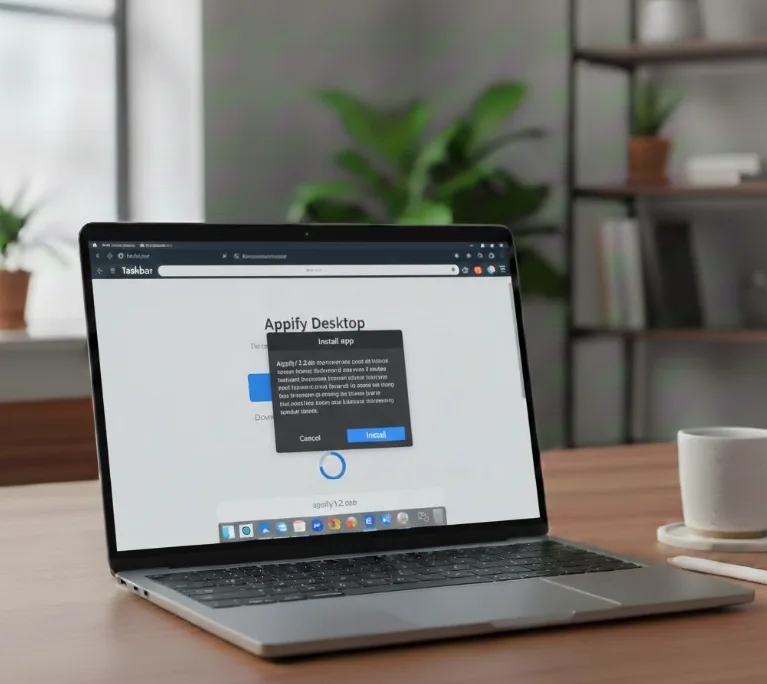
Chrome OS displays a confirmation dialog. It explains what the installation will do.
Click the “Install” button to proceed. The system begins installing the package to your Linux container.
Monitor installation progress
The Files app shows a progress indicator. The installation typically takes a few seconds to complete.
You’ll see a notification when the process finishes. The System Tray also displays a confirmation message.
Launch your installed application
Check the Chrome OS Launcher for a new icon. The installed application appears alongside your other apps.
Click the icon to open the application. The Linux Terminal spins up if needed, then launches your app.
This method works for any Debian package with a .deb file available. Some applications still require Terminal installation if they lack .deb downloads.
The Files app approach removes barriers for users unfamiliar with Linux commands on Chromebooks. Everything happens within the native Chrome OS environment.
You must first enable Linux on your Chromebook before using this feature. Once enabled, installing .deb packages becomes straightforward through the Files app.
FAQs
What is a Debian package on Chrome OS?
A Debian package is a file with a .deb extension containing Linux software. Chrome OS uses these to install applications in its Linux container through Project Crostini.
Do I need to enable Linux on my Chromebook first?
Yes, you must enable Linux (beta) in Chrome OS Settings before installing Debian packages. The Files app installation method requires an active Linux container to work properly.
Can I uninstall Debian packages through Files app?
No, you cannot uninstall through the Files app. You must use the Linux Terminal or Chrome OS Settings to remove installed Linux applications from your system.
Which Chrome OS version supports this feature?
Chrome OS version 69 and later support installing Debian packages through the Files app. Earlier versions require manual Terminal installation using command-line instructions.
What happens if installation fails?
Installation failures usually indicate incompatible packages or dependency issues. Try installing through Terminal instead, or verify the package is compatible with your Chromebook’s architecture.
