


Chromebook users who want Firefox now have a simple option. Mozilla offers Firefox packages for Debian Linux. Since ChromeOS supports Linux apps, you can download and install Firefox directly.
Previous methods required using the Android version from the Play Store or running terminal commands. Neither worked well.
This new approach uses the ChromeOS Files app to install Firefox with just a few clicks. The entire process takes about two minutes.
You get the full desktop version of Firefox with all features and automatic updates.
This method works on Chromebooks with Intel or AMD processors only.
How to install Firefox on a Chromebook the easy way?
Before starting, make sure Linux is enabled on your Chromebook. Go to Settings, then Advanced, then Developers. Turn on Linux development environment if you have not done so already.
Download the Firefox .deb file from Mozilla
Visit the Mozilla FTP site at ftp.mozilla.org and find the latest Firefox release. Look for the .deb file in the linux-x86_64 folder.
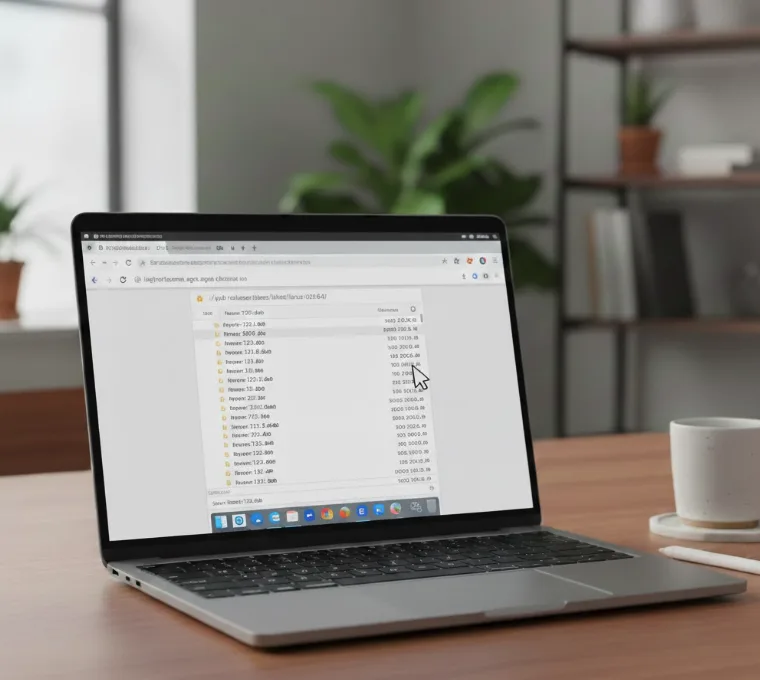
Click the .deb file to download it. The file saves to your Downloads folder automatically.
This download only works with x86 Chromebooks running Intel or AMD chips. ARM-based devices cannot use this file.
Locate the file in ChromeOS Files
Open the Files app on your Chromebook. Navigate to the Downloads folder.
You can also click the notification that appears after the download completes. Select the option to show the file in its folder.
Install Firefox using the built-in installer
Right-click the downloaded .deb file. Select the Install with Linux option from the menu.
A window appears showing details about the application. Click the Install button to proceed.
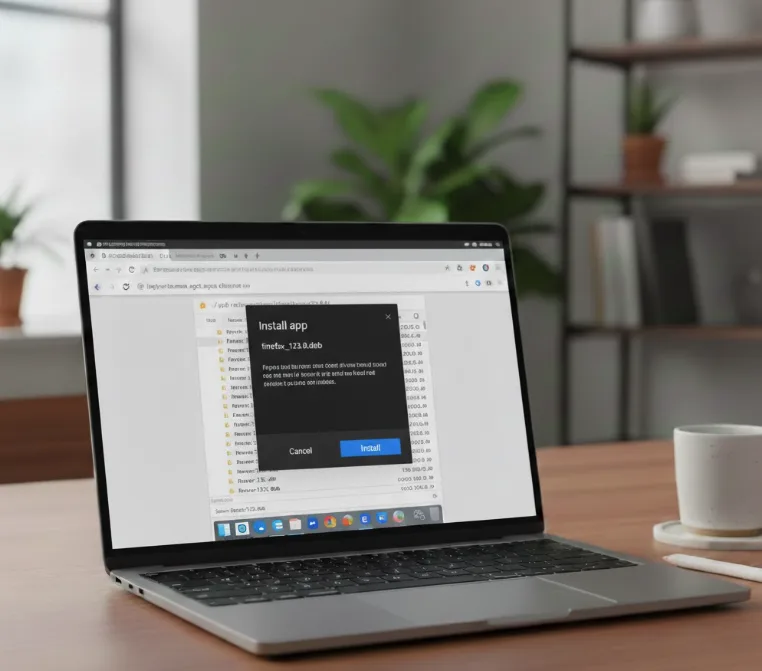
ChromeOS handles everything from here. A notification tells you when installation finishes.
Launch Firefox from the Launcher
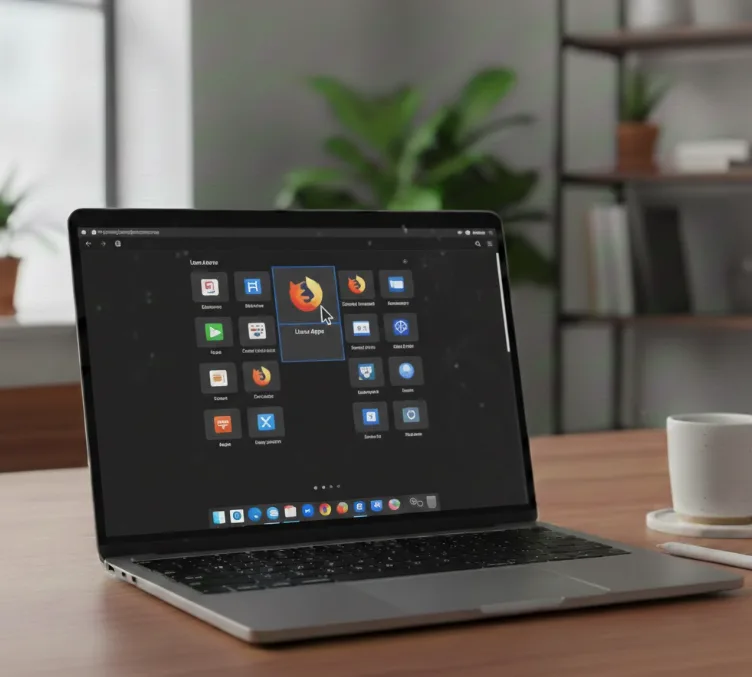
Open the Chromebook Launcher. Look inside the Linux Apps folder.
Click the Firefox icon to open the browser. You can also search for Firefox directly in the Launcher.
Firefox updates automatically through its built-in update system. Check for updates manually in the browser settings menu if needed.
This method gives you the full desktop browser experience that many users prefer over the Android version. You can use Linux on your Chromebook for other applications too.
FAQs
Does Firefox work on all Chromebooks?
No. This installation method requires a Chromebook with an Intel or AMD processor. ARM-based Chromebooks cannot use the .deb package from Mozilla.
Do I need to use the Linux terminal?
No terminal commands are required. The ChromeOS Files app handles the installation through its graphical interface when you right-click the downloaded file.
Will Firefox receive automatic updates?
Yes. Firefox includes its own update mechanism. Check for updates in the browser settings or wait for automatic update notifications.
Can I set Firefox as my default browser?
ChromeOS keeps Chrome as the default system browser. However, you can use Firefox as your primary browser for daily tasks and open links manually.
Is the Linux version better than the Android version?
The Linux version offers the full desktop experience with all features. The Android version is designed for mobile devices and has fewer capabilities.
