


Chrome OS updates usually improve your Chromebook, but occasionally a buggy release slips through testing. These glitches range from minor annoyances to serious problems that make your device nearly unusable.
A standard powerwash might seem like the solution, but it won’t help if your Chromebook downloads the same problematic version again.
Reverting Chrome OS to a prior version gives you a way out. This process uses the same Chromebook Recovery Utility you’d use for offline recovery, but with a twist that lets you install an older, more stable version instead of the latest release.
You’ll need a USB drive and about 30 minutes. The process erases all local data, so you’d only use this option when a major bug makes your Chromebook unusable.
How to revert Chrome OS to a prior version on a Chromebook
Download an older Chrome OS version from Google’s recovery site
Visit the official Chrome OS recovery images page at cros-updates-serving.appspot.com.
The site lists all supported Chromebooks with their internal board names in the left column. If you know your board name, finding your device takes seconds.
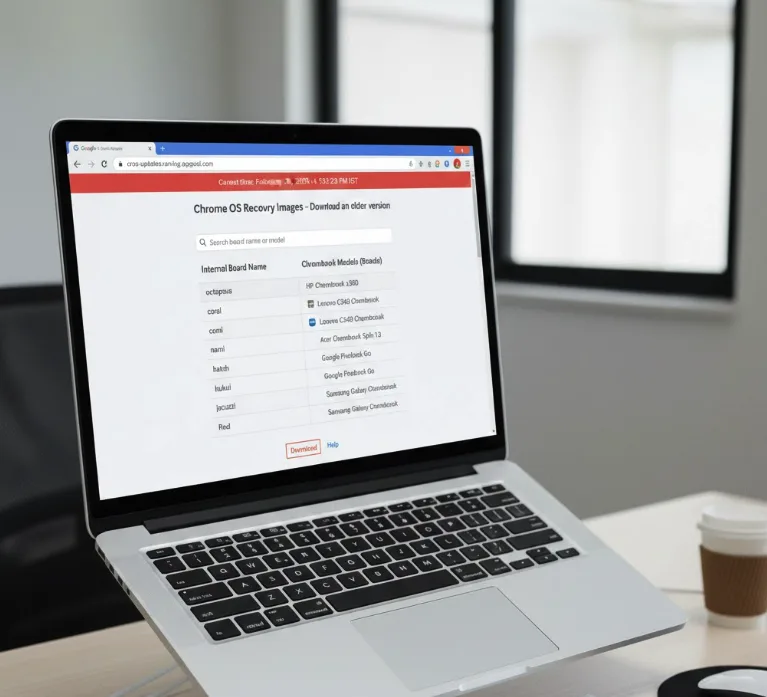
Don’t know your board name? Check the rightmost column showing Chromebook brands and models that use each board.
Locate the recovery version for your device
Find your Chromebook’s row and look at the “Recovery” column next to the brand names.
You’ll see several Chrome OS versions older than the current Stable Channel release. Pick the most recent one, typically one major version behind the current release.
Click the version number to download a .zip file containing the recovery software.
Create recovery media using the local file
Open the Chromebook Recovery Utility. Instead of selecting your Chromebook’s make and model, click the settings icon in the top right corner.

Choose the option to use local media. In the next window, select the .zip file you just downloaded.
This tells the utility to use your downloaded version instead of fetching the current one. Follow the remaining prompts to create your recovery media.
Enter Recovery Mode on your Chromebook
Most Chromebooks enter Recovery Mode the same way. Press and hold Esc + Refresh together, then tap the power button while holding those keys.
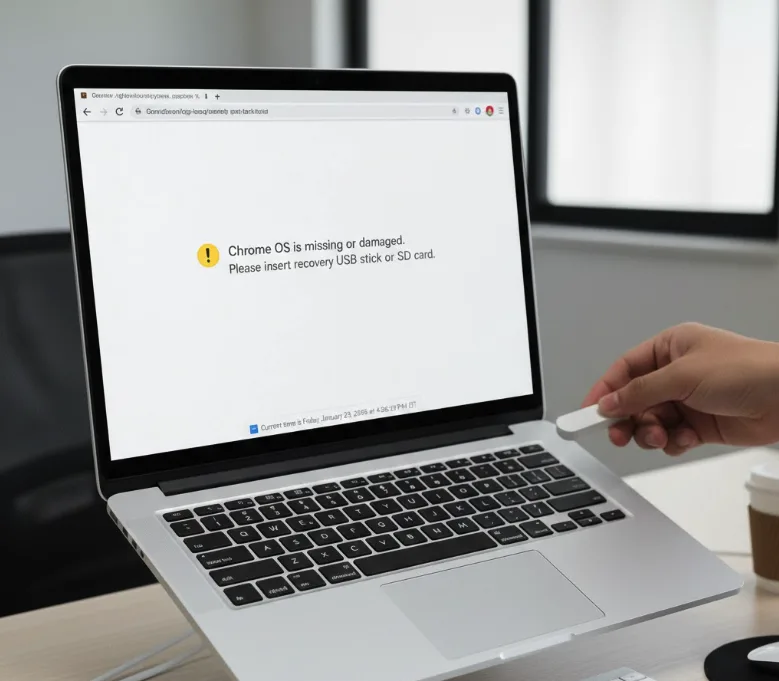
When your display turns on, release Esc and Refresh. You’ll see a prompt asking you to insert recovery media.
Plug in the USB drive you created earlier.
Complete the recovery process
Follow the on-screen instructions to install the older Chrome OS version.
The process takes several minutes and erases all local data from your Chromebook. Your device will restart with the previous version installed.
Keep in mind your Chromebook will likely download the newer version again unless Google has pulled it from distribution. To avoid automatically updating back to the buggy version, prevent your Chromebook from restarting by closing the lid to sleep mode instead of shutting down.
FAQs
Will reverting Chrome OS delete my files?
Yes, reverting Chrome OS works like a powerwash and erases all local data. Files stored in Google Drive remain safe, but local downloads, apps, and settings disappear.
Can I stop Chrome OS from updating again?
Not permanently. Your Chromebook downloads updates automatically. You can delay installation by keeping your device in sleep mode instead of restarting, but updates eventually install.
Where do I find my Chromebook’s board name?
Check Settings > About Chrome OS > Additional details. The board name appears in the platform information. You can also find it on Google’s recovery images page.
How long does the recovery process take?
Creating recovery media takes 10-15 minutes depending on your USB drive speed. The actual recovery process takes another 10-15 minutes to complete and restart your Chromebook.
What happens if I pick the wrong recovery version?
Your Chromebook won’t boot properly if you use an incompatible version. You’ll need to create new recovery media with the correct version for your specific device.
