


Managing multiple open tabs on Chrome OS can quickly become overwhelming, especially when you’re working across several projects or browsing sessions. Chrome OS now offers a feature that lets you search for open tabs directly from the New Tab Page, making it easier to locate and switch between tabs without scrolling through dozens of options.
This search functionality appears when you open a new tab, displaying a search box that indexes all your currently open tabs. When you start typing, Chrome OS shows matching results from your active tabs, letting you jump directly to the one you need.
You might want to use this feature if you regularly work with many tabs open simultaneously, frequently lose track of specific tabs, or need a faster way to navigate between different web pages without clicking through your tab bar.
How to search for open tabs on the New Tab Page of Chrome OS
This feature currently requires enabling experimental flags in Chrome OS. Follow these steps to activate and use the tab search functionality.
Enable the primary tab switch flag
Open your Chrome browser and type chrome://flags/#omnibox-tab-switch-suggestions into the address bar. Press Enter to navigate directly to the flag setting.
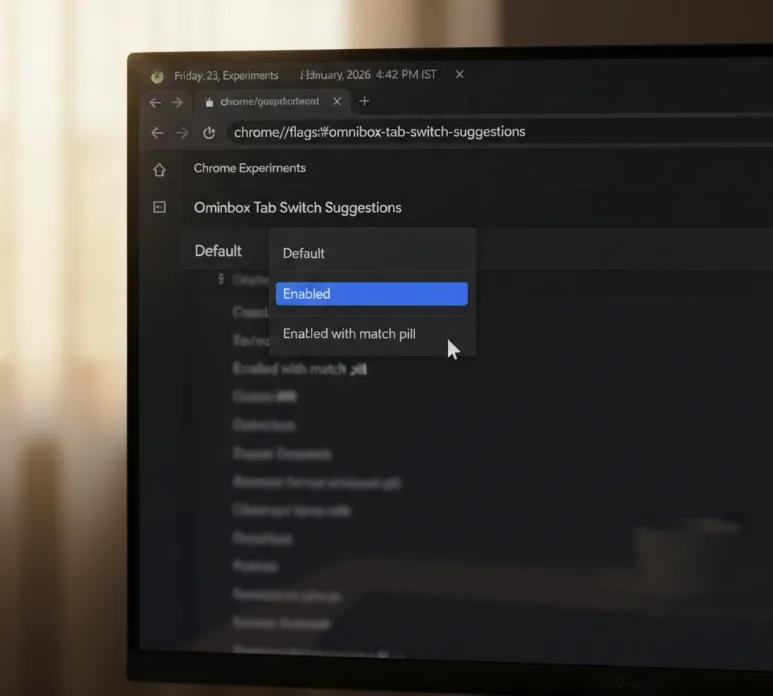
Click the dropdown menu next to “Omnibox Tab Switch Suggestions” and select “Enabled” from the available options. If you’re unfamiliar with Chrome flags and how they work, they’re experimental settings that let you test new features before they’re officially released.
Enable the supporting flag
Navigate to chrome://flags in your address bar. Use the search box at the top of the page to find flags related to tab search or New Tab Page functionality.
Look for the additional flag that enables tab search on the New Tab Page. Enable this flag using the same dropdown method as the previous step.
Restart your Chrome browser
After enabling both required flags, Chrome OS will prompt you to restart your browser. Click the “Relaunch” button that appears at the bottom of your screen.
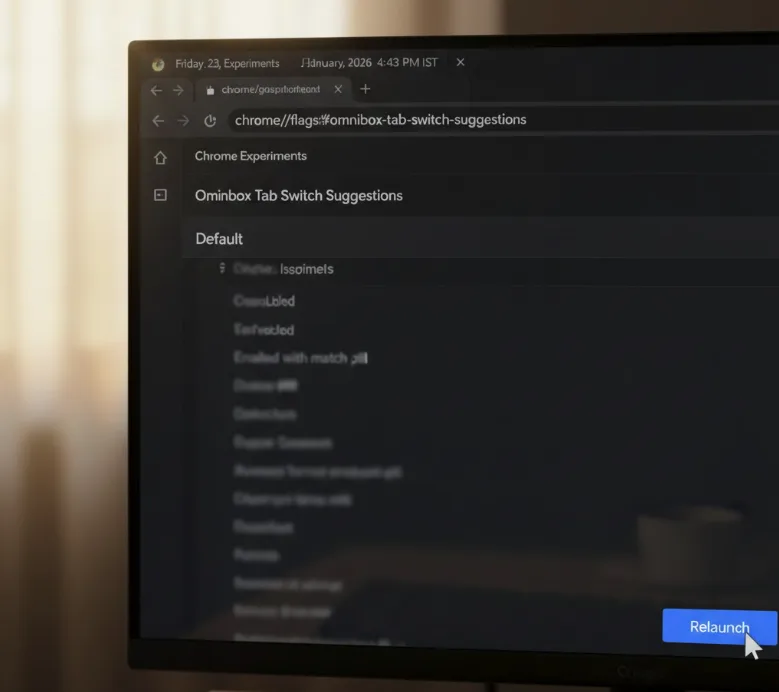
Your browser will close and reopen automatically, applying the new settings.
Open a new tab to access search
Click the plus icon in your tab bar or press Ctrl+T to open a new tab. The New Tab Page will display with the search functionality now active.
Search for your open tabs
Start typing the name or content of the tab you’re looking for in the search box. Chrome OS will show matching results from all your currently open tabs.
Click on any result to switch directly to that tab.
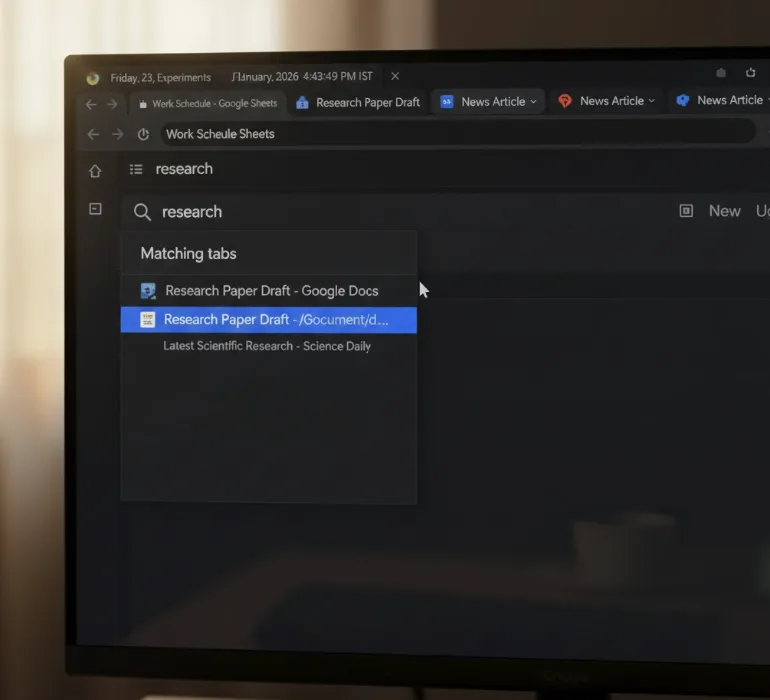
The feature works best when you have multiple tabs open across your browsing session. You can search by page title, website name, or even content from the page. The search updates in real-time as you type, making it quick to locate specific tabs even when you have dozens open simultaneously.
If you’re looking for more ways to manage tabs efficiently, you might want to explore Chrome OS 86’s tab search feature, which offers a dropdown menu for viewing all open tabs. For those who prefer keeping their workspace organized, learning how to view apps or browser tabs side-by-side can also improve your productivity.
FAQs
What Chrome OS channel do I need for tab search?
The feature is available in the Dev Channel, though it may work on Beta Channel if both channels share the same Chrome OS version.
Do I need to enable multiple flags?
Yes, you need to enable at least two flags: the omnibox-tab-switch-suggestions flag and an additional supporting flag for New Tab Page functionality.
Can I search for tabs without opening a new tab?
Currently, no. The search feature only works when you open a new tab, though integration with Launcher search may come in future updates.
Does the search work with minimized or background tabs?
Yes, the search indexes all open tabs regardless of whether they’re active, minimized, or running in the background across your session.
Will this feature come to stable Chrome OS?
The feature is experimental, so Google hasn’t confirmed if or when it will roll out to the stable channel for all users.
