


Google recently separated Chrome OS settings from Chrome browser settings, which changed where you find saved passwords on your Chromebook. Instead of accessing them through Chromebook settings, you now need to use Chrome browser settings.
This shift affects how you search for saved passwords on a Chromebook. The feature itself works the same way, but the location has moved. You might need to find a specific login credential, update an old password, or check what accounts you have saved.
Understanding this change saves you time and frustration. Long-time Chromebook users often look in the wrong place, expecting passwords in Chrome OS settings. Knowing the correct location helps you manage your credentials efficiently and maintain account security across all your saved logins.
How to search for saved passwords on a Chromebook
You have two methods to access and search your saved passwords. The first uses a direct web address, while the second navigates through Chrome browser settings.
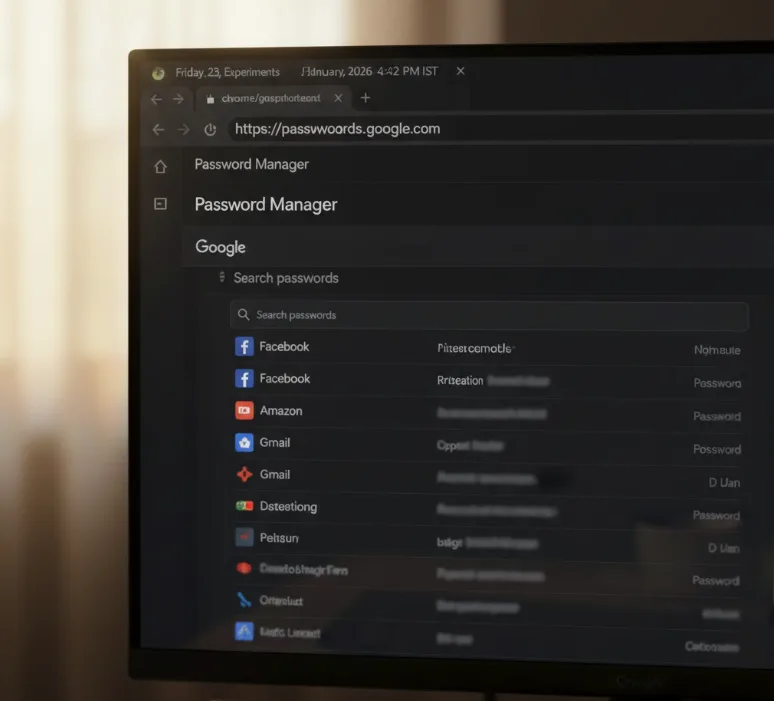
Access passwords through Google’s online portal
If your Chromebook has internet access, visit https://passwords.google.com in any browser. This direct method works for anyone using Google Password Manager.
You’ll see all your saved credentials immediately. The search function appears at the top of the page.
Navigate to Chrome browser settings
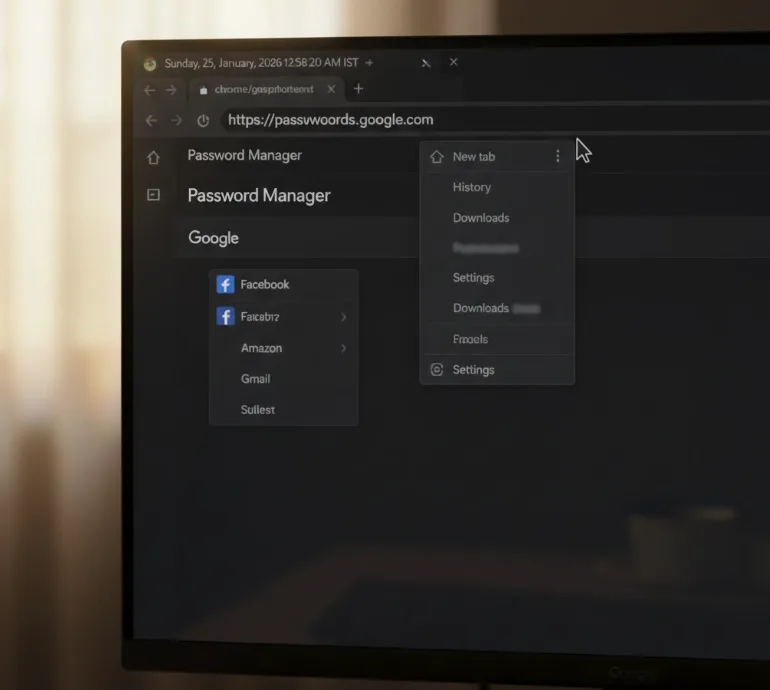
Open the Chrome browser on your Chromebook. Click the three-dot menu button in the top right corner.
Select “Settings” from the dropdown menu. This opens Chrome browser settings, not Chrome OS settings.
Find the password management section
You can navigate directly by typing chrome://settings/passwords in the address bar. Alternatively, type chrome://settings/autofill to access the broader autofill settings page.
Click “Passwords” from the autofill options if you used the second address. This displays all your saved login credentials.
Search for specific passwords
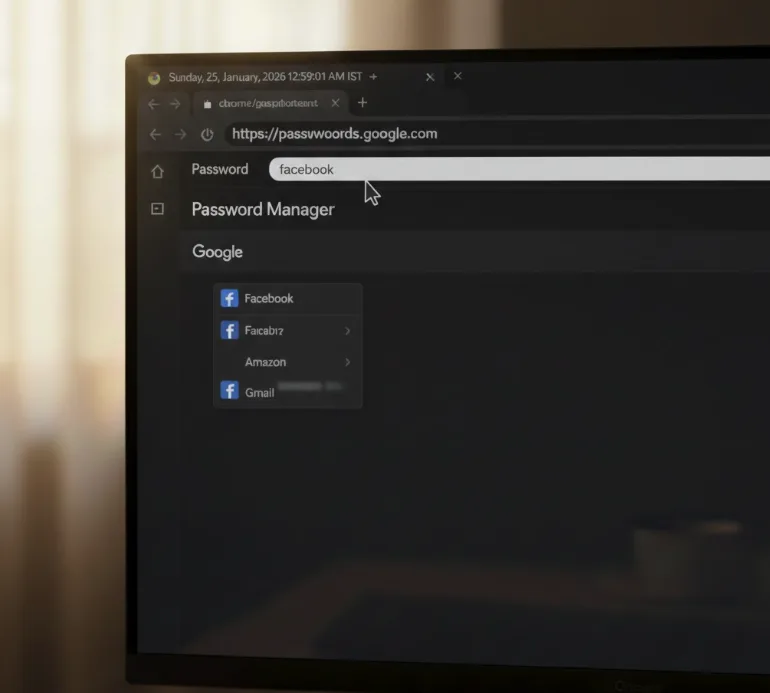
Look for the “Search passwords” field at the top of the password list. Type any part of the website name, username, or related information.
Results appear instantly as you type. Your Chromebook filters the password list based on your search terms.
View password details
Click the eyeball icon next to any saved password to reveal it in plain text. You may need to enter your Chromebook login credentials for security verification.
This method works the same as searching for saved passwords in the standalone Chrome browser. The location changed, but the functionality remains identical.
The separation of settings happened as part of Google’s broader effort to decouple Chrome from Chrome OS. While this may seem confusing at first, the new structure provides clearer organization between system and browser functions.
FAQs
Where are saved passwords on a Chromebook stored now?
Saved passwords are stored in Chrome browser settings, not Chrome OS settings. Navigate to chrome://settings/passwords or visit passwords.google.com to access them.
Can I search for passwords without internet on a Chromebook?
Yes, you can search saved passwords offline through chrome://settings/passwords. However, passwords.google.com requires an internet connection to access your credentials.
Why did Google move password settings from Chrome OS?
Google separated Chrome browser settings from Chrome OS settings as part of ongoing development. This aligns Chromebook password management with standard Chrome browser functionality.
How do I export my saved passwords from a Chromebook?
Open chrome://settings/passwords, click the three-dot menu next to “Saved Passwords,” and select “Export passwords.” Save the CSV file to your preferred location.
Can I use third-party password managers on a Chromebook?
Yes, you can install third-party password managers from the Chrome Web Store or Android apps. They work independently from Google Password Manager.
