


Chromebook users who want VPN protection often install the Android app from Google Play Store or set up Linux. Both methods work but consume extra system resources since they run containers in the background.
There’s a simpler solution that uses less CPU and memory. The Proton VPN browser extension gives you full VPN functionality without requiring Android or Linux to run on your Chromebook.
This approach keeps your device running efficiently while protecting your browsing activity and IP address from your internet service provider and third parties.
How to use Proton VPN on a Chromebook without Android or Linux
You can enable VPN protection on your Chromebook by installing the official browser extension. This method works with any Chromium-based browser and requires just a Proton account.
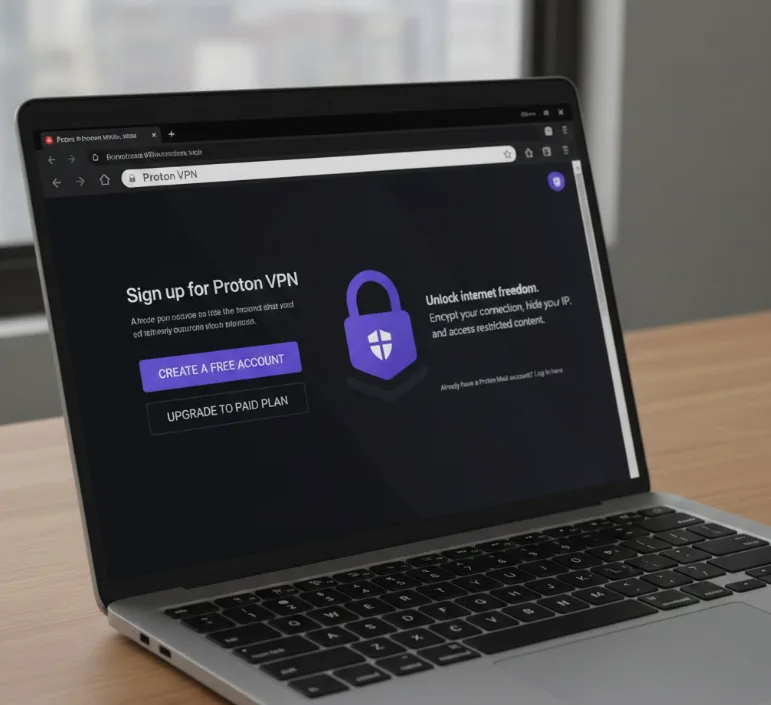
Sign up for a Proton VPN account
Visit the Proton VPN website and create a free account. You can use the basic free tier or upgrade to a paid plan for additional servers and features.
If you already have a Proton Mail account, your login credentials work for Proton VPN too.
Install the Proton VPN extension
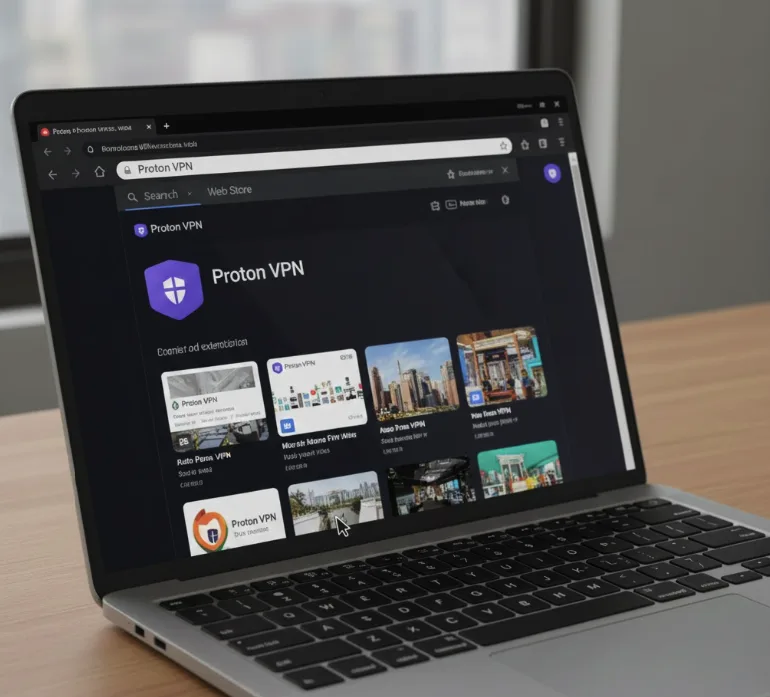
Open the Chrome Web Store and search for “Proton VPN.” Click the official Proton VPN extension and select Add to Chrome.
The extension icon appears in your browser toolbar after installation completes.
Log in to the extension
Click the Proton VPN icon in your toolbar. Enter your Proton account email and password when prompted.
The extension interface displays available VPN servers after you log in successfully.
Select a VPN server location
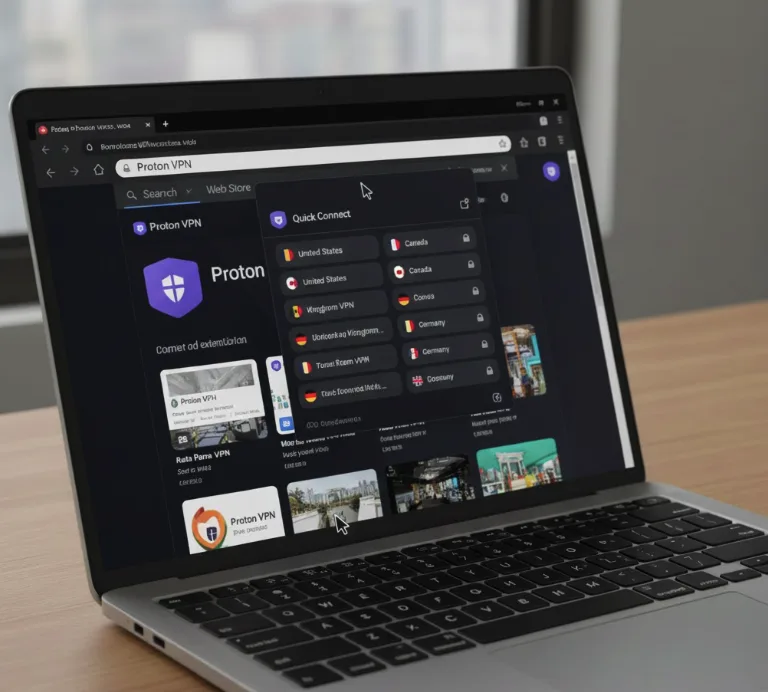
Click Quick Connect to automatically connect to the fastest server. Or browse the server list and pick a specific country or city.
Paid accounts access more server locations and specialized servers for streaming services.
Verify your VPN connection
After connecting, the extension icon changes color to show an active connection. Visit a site like whatismyipaddress.com to confirm your IP address matches your selected server location.
Your browser traffic now routes through the VPN server with full encryption.
The extension runs entirely within your browser without launching Android containers or Linux virtual machines. This saves system resources compared to running the Android version of apps on Chromebooks or using Linux applications.
You can disconnect anytime by clicking the extension icon and selecting Disconnect. The VPN only protects browser traffic, not other apps or system processes.
FAQs
Does the Proton VPN extension work on all Chromebook browsers?
Yes, the extension works on Chrome and any Chromium-based browser like Edge or Brave that supports Chrome extensions.
Can I use Proton VPN extension for free on Chromebook?
Yes, Proton offers a free tier with limited servers. Paid plans unlock more locations, faster speeds, and streaming support.
Does the browser extension protect all internet traffic?
No, only browser traffic routes through the VPN. Other apps and system processes use your regular internet connection without protection.
Why use the extension instead of the Android app?
The extension uses fewer system resources since it doesn’t require running Android containers in the background on your Chromebook.
Will Proton VPN slow down my Chromebook?
The extension has minimal performance impact. Connection speed depends on server distance and your internet speed, not your Chromebook’s hardware.
