


Getting “access denied on this server” when visiting a website stops you from viewing the page you want. This message appears when something blocks your connection to the site. The cause might be your browser settings, network configuration, or security software. It could also stem from the website itself having restrictions. Understanding what triggers this helps you fix it quickly. This guide walks through practical solutions to resolve the problem and get back to browsing without interruption.
How to Fix “Access Denied on This Server”
When you encounter “access denied on this server,” several factors could be responsible. Follow these steps to identify and resolve what’s blocking your access.
Try a Different Browser
Your current browser might have configuration problems or corrupted data causing the denial.
Open the website in another browser like Firefox or Edge. If the page loads successfully, your original browser has the issue.
When all browsers fail to load the site, the problem lies elsewhere in your system or network.

Restart Your Browser
Minor glitches can cause temporary access problems.
Close your browser completely using Task Manager if needed. Reopen it and try accessing the website again.
This simple step clears temporary conflicts that might be preventing access.
Reboot Your Device
System-level issues sometimes interfere with connections.
Shut down your computer or device fully. Wait a few seconds before powering it back on.
Test the website after your device restarts to see if “access denied on this server” still appears.
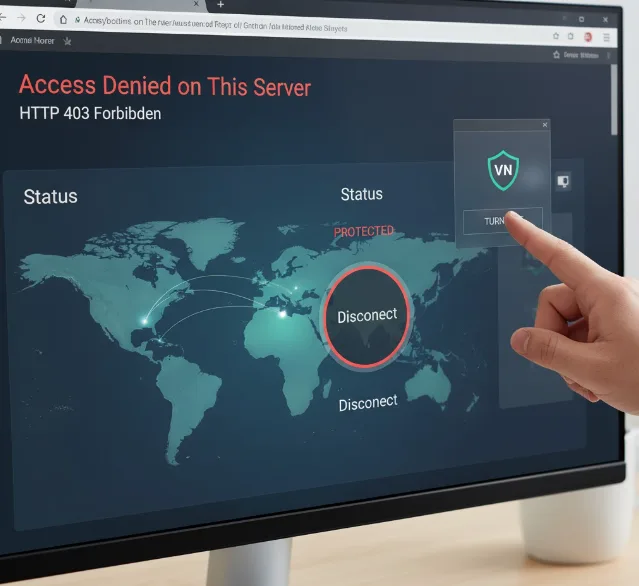
Disable Your VPN
VPNs can block access when servers detect traffic from restricted locations.
Turn off any browser-based VPN extensions first. Check if the website loads properly.
If you use a standalone VPN application, disable it from your system settings and retry.
Turn Off Firewall Protection
Firewalls sometimes mistake legitimate websites for threats, similar to how network configuration errors can block connections.
For router firewalls, access your router’s admin panel and disable the firewall temporarily.
On Windows: Open Start menu and search for Windows Security. Click Firewall & network protection.
Select each network profile and toggle the firewall off.
On Mac: Click the Apple menu and go to System Settings. Select Network, then Firewall.
Toggle the firewall switch to off position.
Pause Antivirus Software
Antivirus programs may block websites they consider suspicious.
If you trust the website, temporarily disable your security software.
For Windows Defender: Open Windows Security from the Start menu. Navigate to Virus & threat protection settings.
Switch off Real-time protection temporarily.
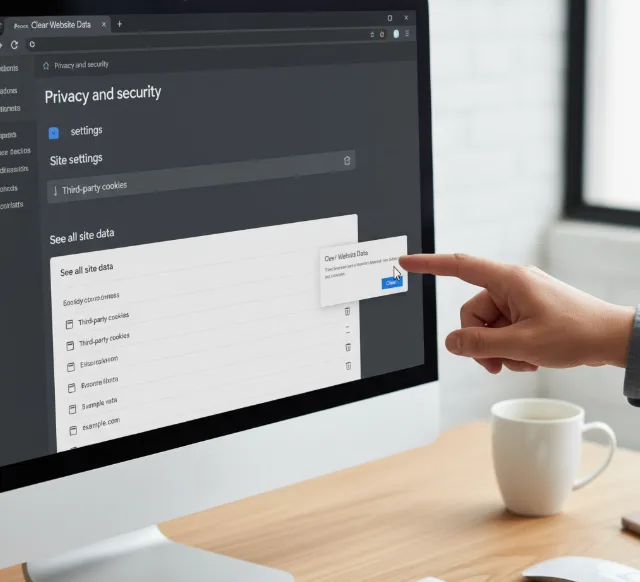
Clear Website Data
Corrupted cookies or cache files for specific sites can trigger “access denied on this server.”
Removing site-specific data often resolves the problem without affecting other websites.
Google Chrome: Click the three-dot menu and select Settings. Go to Privacy and security, then Site settings.
Choose Third-party cookies and find the problematic website. Click the delete icon next to it.
Firefox: Click the three-line menu and choose History. Right-click the website and select Forget this site.
Microsoft Edge: Open the three-dot menu and go to Settings. Click Cookies and site permissions.
Select See all cookies and site data. Find the website and remove its data.
Safari: Click Safari in the menu bar and choose Settings. Go to Privacy and select Manage Website Data.
Find the site and click Remove.
If these steps don’t resolve “access denied on this server,” contact the website administrator. The issue might be server-side restrictions beyond your control.
FAQs
What causes “access denied on this server”?
Security software, firewall settings, VPN connections, or corrupted browser data typically cause this error. Sometimes websites block access based on your location or IP address restrictions.
Can a VPN cause access denial?
Yes, websites often block VPN traffic to prevent access from restricted regions. Disabling your VPN usually resolves this if the site blocks VPN IP addresses.
Does clearing cookies fix access denied errors?
Clearing cookies removes corrupted data that may prevent website access. This solution works when browser cache issues cause the denial message.
Why does one browser work but another doesn’t?
Different browsers store separate data and use unique configurations. If one browser has corrupted files or problematic extensions, it may trigger access denial while others work fine.
Should I contact the website administrator?
Contact the administrator only after trying all troubleshooting steps. Server-side issues sometimes cause access denial that only website owners can resolve.
