


If a webpage suddenly stops working in Chrome and shows an “Aw, Snap!” error, it means the browser had trouble opening that page. This usually happens due to issues like low system memory, conflicting add-ons, or poor internet connectivity, unlike a 500 internal server error, which originates from the server side.
Below, you’ll find effective solutions—written in completely different words—that can help you get rid of this crash message and enjoy smooth browsing again.
Solutions To Resolve “Aw, Snap!” Error
1. Refresh the Webpage

Sometimes, the error is temporary. Try reloading the page to see if it resolves the issue.
- Desktop: Click the reload icon or press Ctrl + R (Windows/Linux) or Cmd + R (Mac).
- Mobile: Tap the three-dot menu and select “Reload.”
2. Verify Internet Connectivity
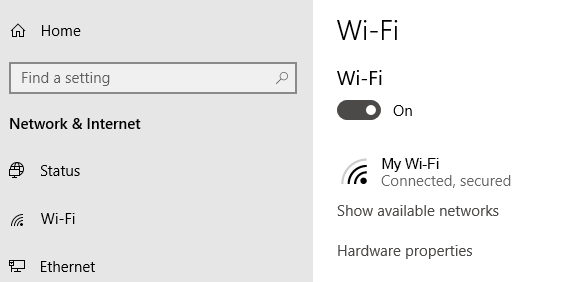
An unstable or slow internet connection can prevent pages from loading properly.
- Toggle airplane mode on and off.
- Restart your router or modem.
- Disable VPNs or proxy servers temporarily.
- Ensure other devices can access the internet.
3. Clear Browser Cache and Cookies
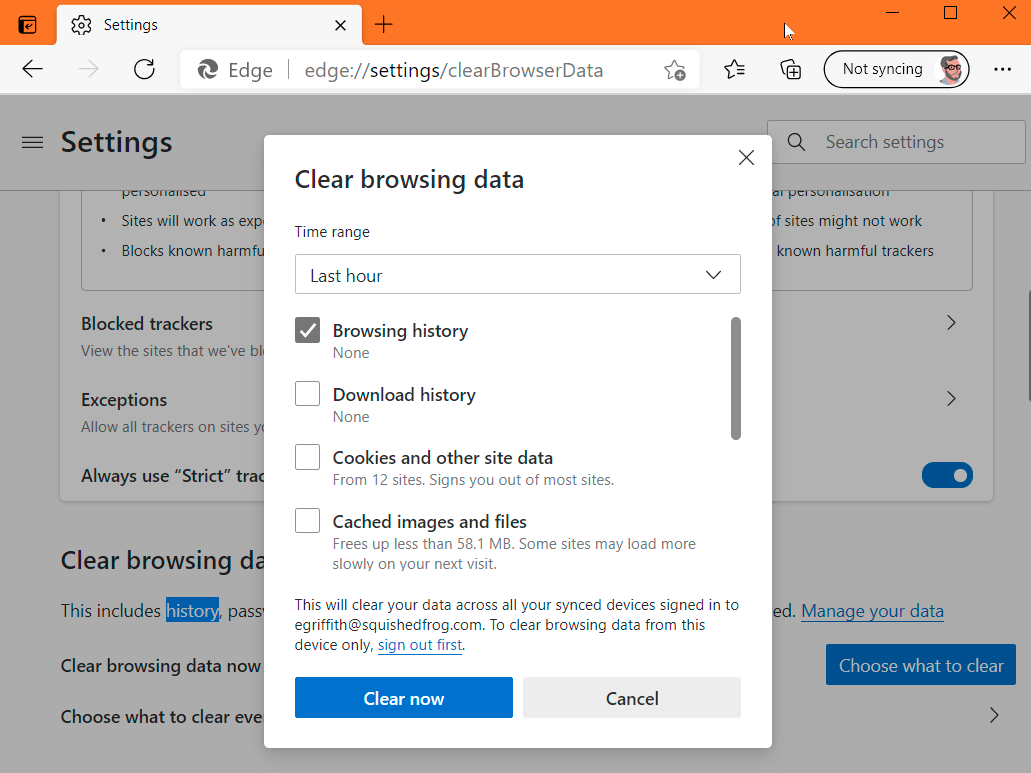
Corrupted cache or cookies can interfere with webpage loading, as observed in the Wordle link issue.
- Click the three-dot menu and go to “Settings.”
- Go to “Privacy and security” > “Clear browsing data.”
- Select “All time” as the time range.
- Check “Cookies and other site data” and “Cached images and files.”
- Click “Clear data.”
4. Open the Page in Incognito Mode
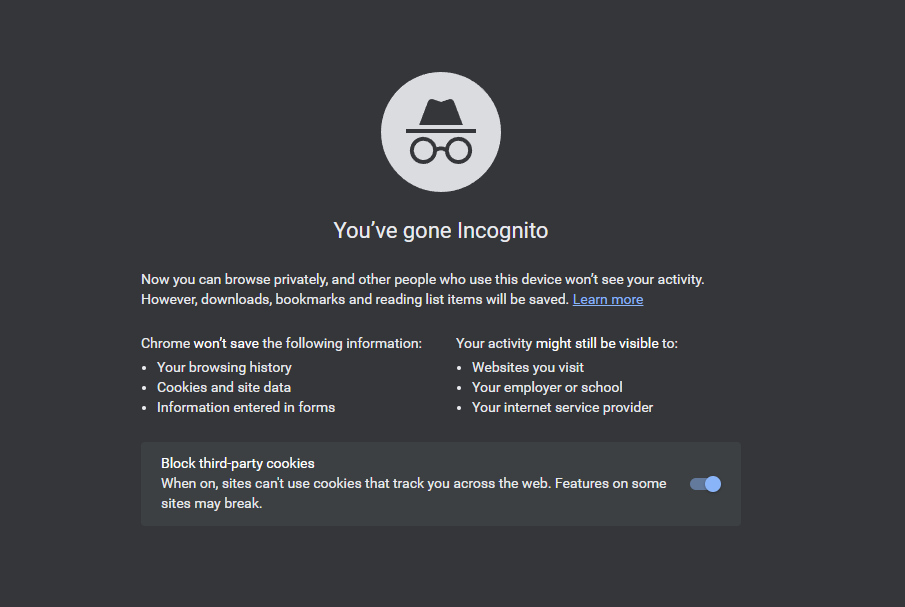
Incognito mode disables extensions and doesn’t use cached data.
- Desktop: Press Ctrl + Shift + N (Windows/Linux) or Cmd + Shift + N (Mac).
- Mobile: Tap the three-dot menu and select “New Incognito Tab.”
If the page loads correctly in incognito mode, the issue might be related to extensions or cached data.
(Need help? Learn how to exit incognito on iPhone if you’re stuck there.)
5. Disable Browser Extensions
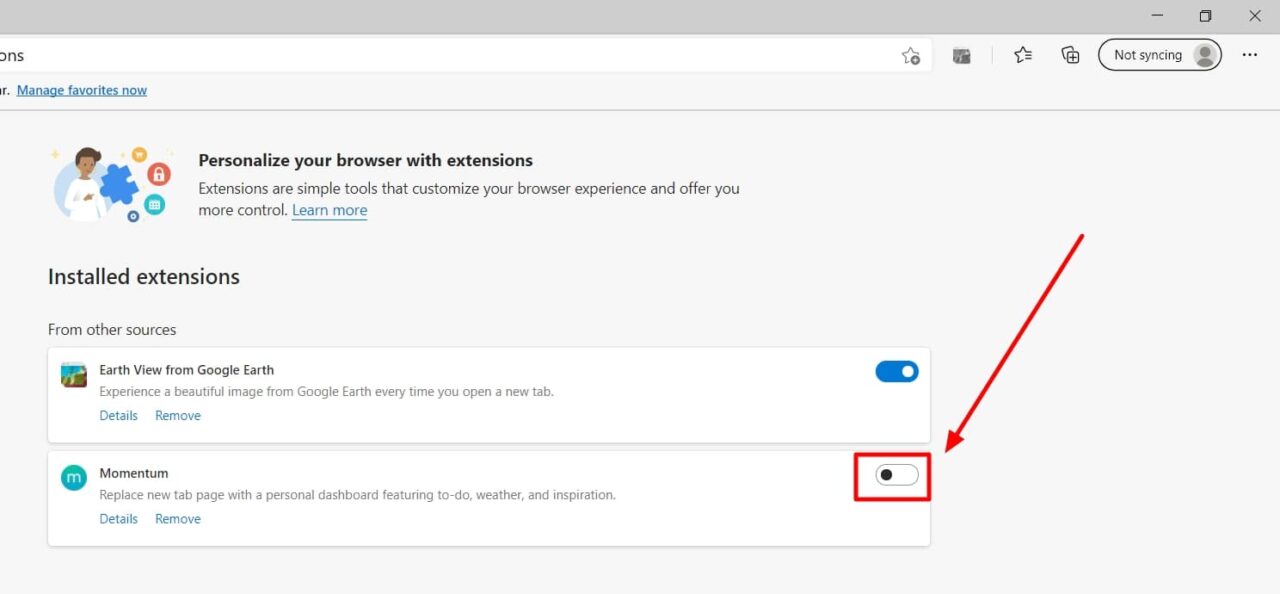
Faulty or incompatible extensions can cause pages to crash.
- Click the three-dot menu and select “More tools” > “Extensions.”
- Toggle off all extensions.
- Reload the page.
- If the page loads, enable extensions one by one to identify the culprit.
6. Update Google Chrome
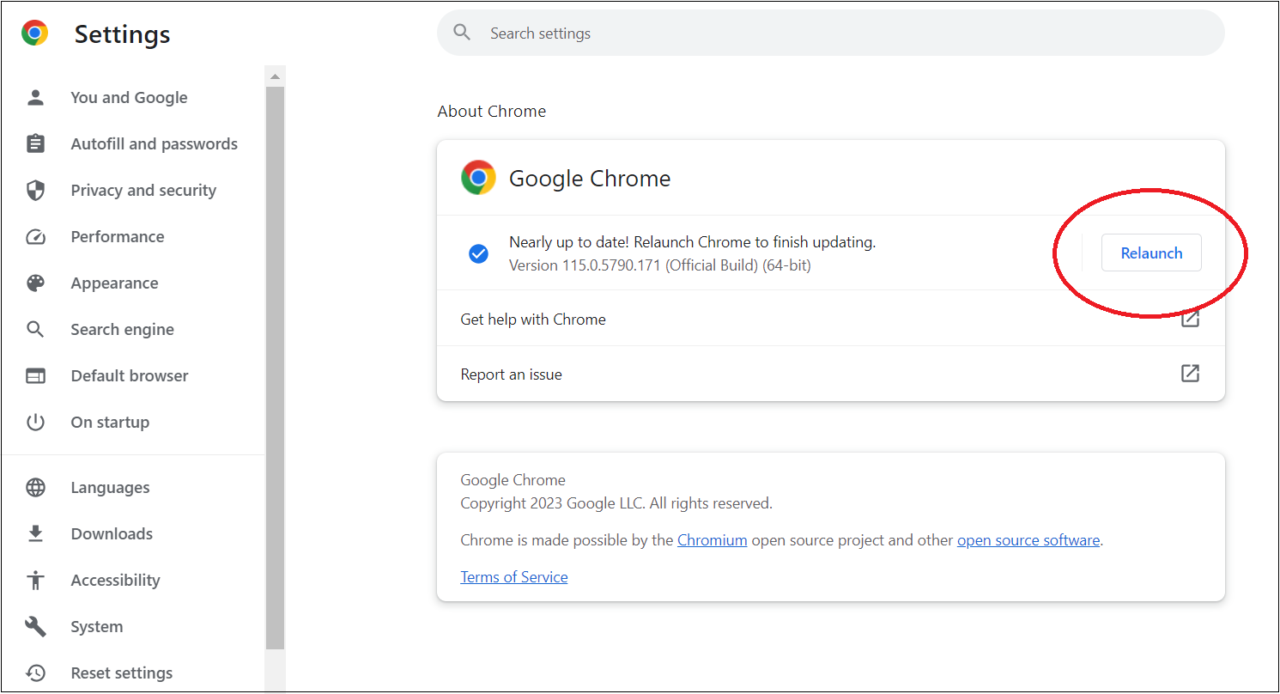
Running an outdated version of Chrome can lead to compatibility issues.
- Click the three-dot menu and go to “Help” > “About Google Chrome.”
- Chrome will check for updates and install them automatically.
- Restart the browser after updating.
7. Restart Your Device
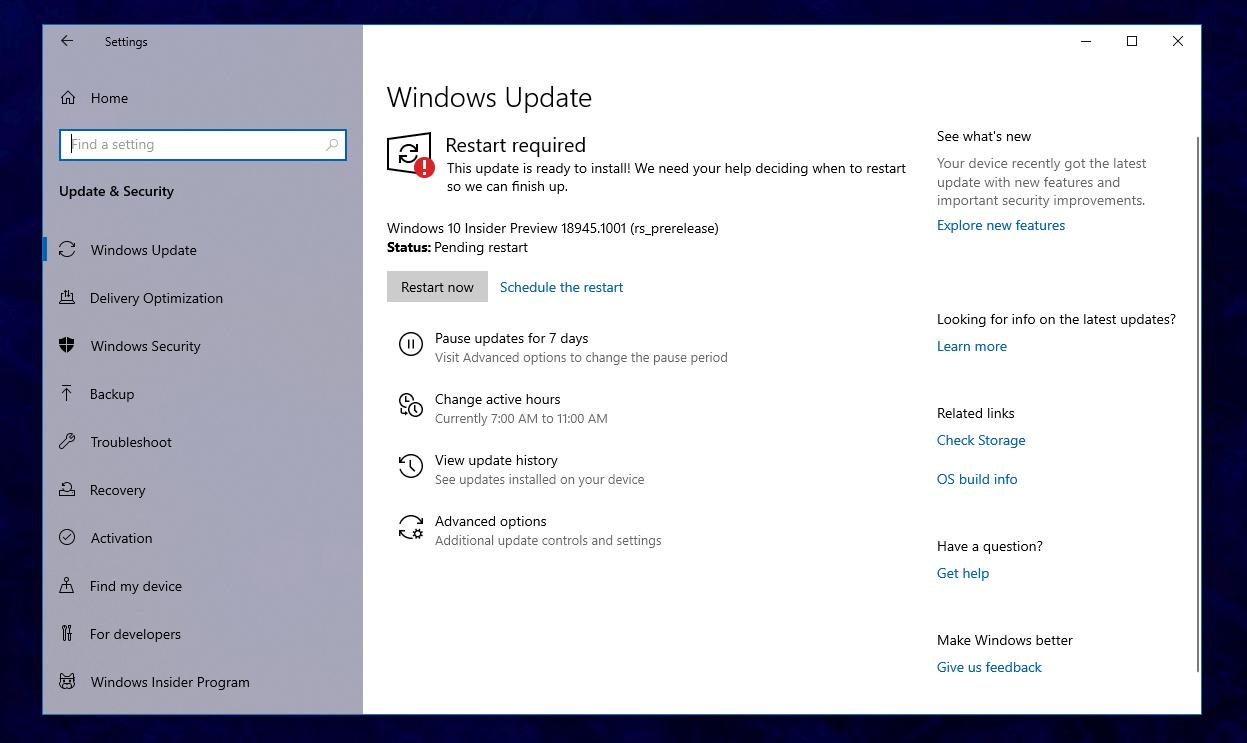
Rebooting your device can clear temporary glitches affecting Chrome.
- Desktop: Close all applications and restart your computer.
- Mobile: Hold the power button and select “Restart.”
8. Scan for Malware
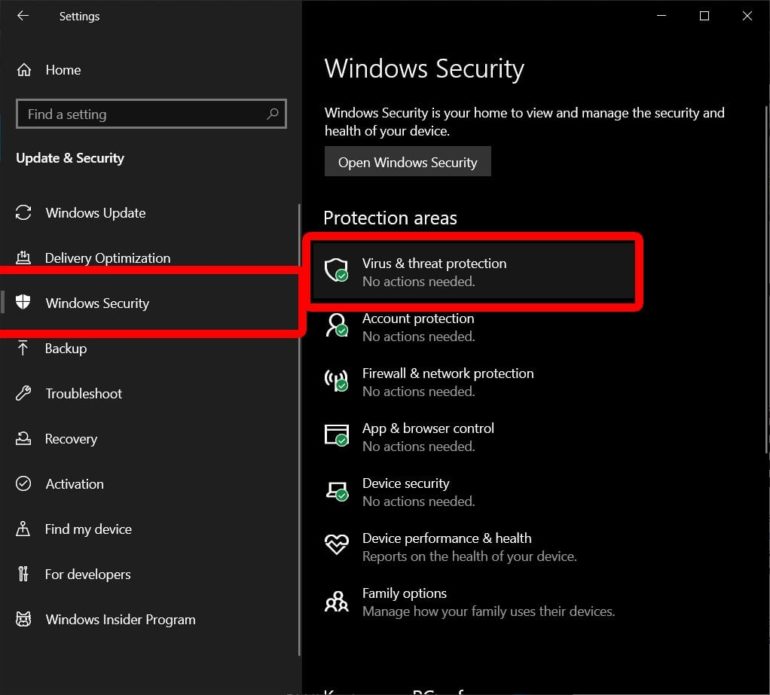
Malicious software can interfere with browser functionality.
- Windows: Use Chrome’s built-in cleanup tool:
- Go to “Settings” > “Advanced” > “Reset and clean up.”
- Click “Clean up computer” and then “Find.”
- Go to “Settings” > “Advanced” > “Reset and clean up.”
- Mac: Use reputable antivirus software to scan and remove malware.
Summary Table
| Issue | Solution |
| Temporary glitch | Refresh the webpage |
| Unstable internet connection | Verify and stabilize your internet connection |
| Corrupted cache or cookies | Clear browser cache and cookies |
| Problematic extensions | Disable or remove extensions |
| Outdated browser version | Update Google Chrome |
| System glitches | Restart your device |
| Malware interference | Scan and remove malware |
By following these steps, you should be able to resolve the “Aw, Snap!” error in Google Chrome and continue browsing without interruptions.
