


Split screen on Chromebook lets you view two applications side by side on a single display. This feature helps when you need to reference one document while working on another, take notes during a video call, or compare information across different windows.
ChromeOS includes built-in window management that makes splitting your screen straightforward. You can use drag-and-drop methods, keyboard shortcuts, or the maximize button to arrange windows. The feature works with Chrome browser tabs, Android apps, and progressive web apps.
Learning how to split screen on Chromebook improves your workflow efficiency. Students can research while writing papers. Professionals can monitor email while editing documents. Anyone who juggles multiple tasks will find this functionality essential for daily computing.
How To Split Screen On Chromebook?
You have several methods to split screen on Chromebook. Each approach achieves the same result through different inputs.
Drag Windows to Screen Edges
Open your first application or browser tab. Click and hold the window’s title bar at the top of the screen.
Drag the window toward the left or right edge. You’ll see a gray outline appear when you reach the correct position.
Release your mouse button to snap the window into place. The window now occupies half the screen.
Open your second application. Drag it to the opposite edge using the same method to complete your split screen setup.
Use Keyboard Shortcuts
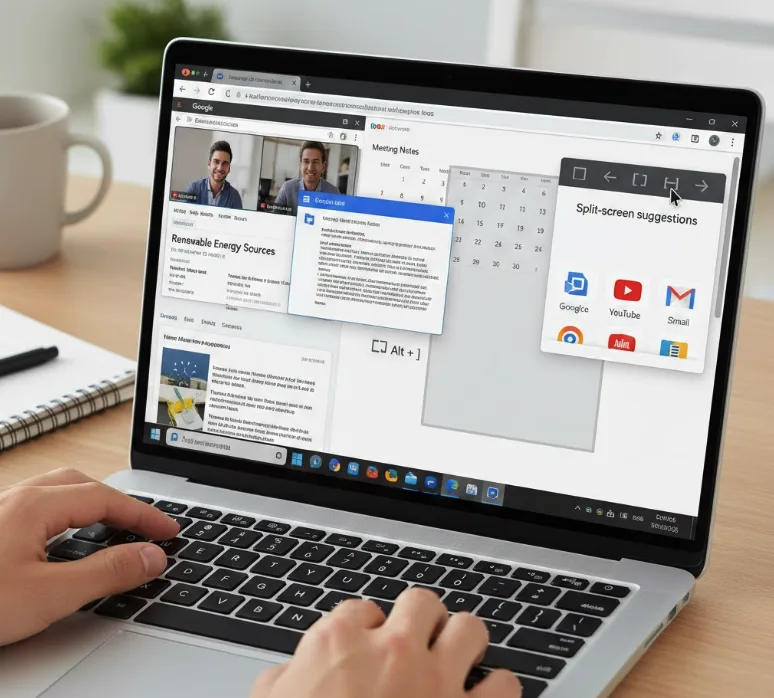
Press Alt + [ to snap your current window to the left side. Press Alt + ] to snap it to the right side.
Open your second application after snapping the first window. Use the opposite keyboard shortcut to position it on the remaining half of the screen.
This method works faster than dragging once you memorize the shortcuts.
Access the Maximize Button Menu
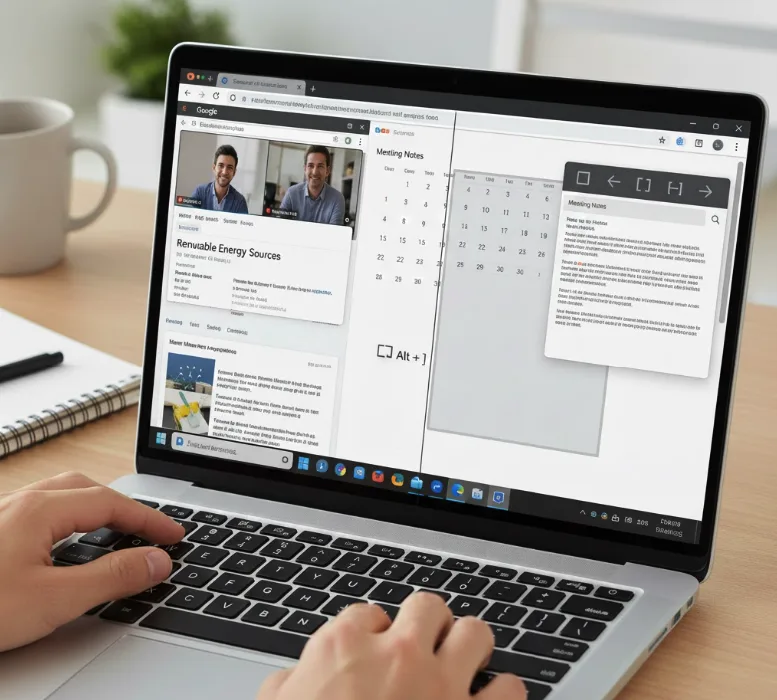
Open your first window and hover your cursor over the maximize button in the top-right corner. Wait for a small popup menu to appear.
Select your preferred layout from the options shown. Choose which side you want the current window to occupy.
ChromeOS will display suggestions for your second window. Click one of the suggested applications to fill the remaining space automatically.
Use Overview Mode
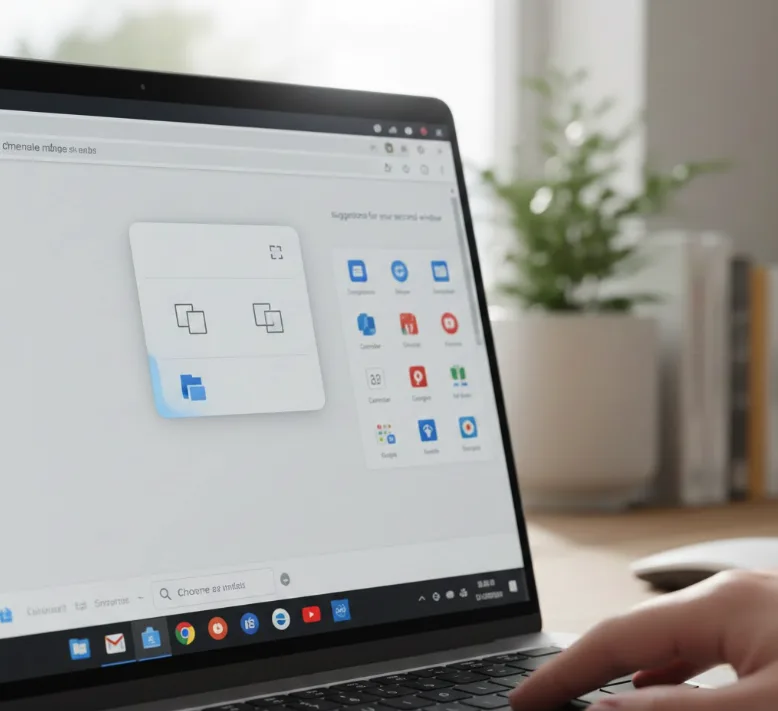
Press the Show Windows key on your keyboard. You can also swipe up with three fingers on your trackpad.
Find the window you want to snap in the overview display. Drag it toward the left or right edge of your screen.
Look for the “Drag here to use split-screen” indicator. Release the window when this message appears.
Select another window from the overview to fill the opposite side.
Adjust Window Sizes
Click and hold the divider line between your split windows. Drag left or right to resize both windows according to your needs.
ChromeOS 105 and later versions support partial split mode. This creates a 67/33 ratio instead of the standard 50/50 split through the maximize button menu.
Exit Split Screen Mode
Click the maximize button on either window to make it full screen. You can also drag a window toward the center-top of your display.
Press Alt + = with your desired window selected to maximize it and exit split screen.
The split screen feature works on all Chromebook models including Dell, HP, and Acer devices. Larger screens provide better visibility for multitasking, though any display size supports the functionality. You’ll need ChromeOS to access all split screen features, with newer versions offering additional layout options.
FAQs
Can you split screen on Chromebook with any apps?
Split screen works with Chrome browser windows, progressive web apps, and Android applications. Most apps support this feature, though some full-screen games may have limitations.
How do you put two Chrome tabs side by side?
Right-click the tab you want to separate and select “Move to new window.” Then use any split screen method to arrange both windows side by side.
What’s the fastest way to split screen on Chromebook?
Keyboard shortcuts provide the quickest method. Press Alt + [ for left snap and Alt + ] for right snap to position windows instantly without dragging.
Does split screen work in tablet mode?
Yes, swipe up from the bottom to access overview mode. Drag an app to either side, then tap another app to fill the remaining space.
How do you undo split screen on Chromebook?
Click the maximize button on either window, drag a window to the center-top of the screen, or press Alt + = to exit split screen mode.
