


ChromeOS Flex lets you turn an old Windows PC or Mac into a functioning Chromebook. Google designed this free operating system to reduce e-waste and save money.
The installation seems simple on paper. You download files to a USB drive and boot from it.
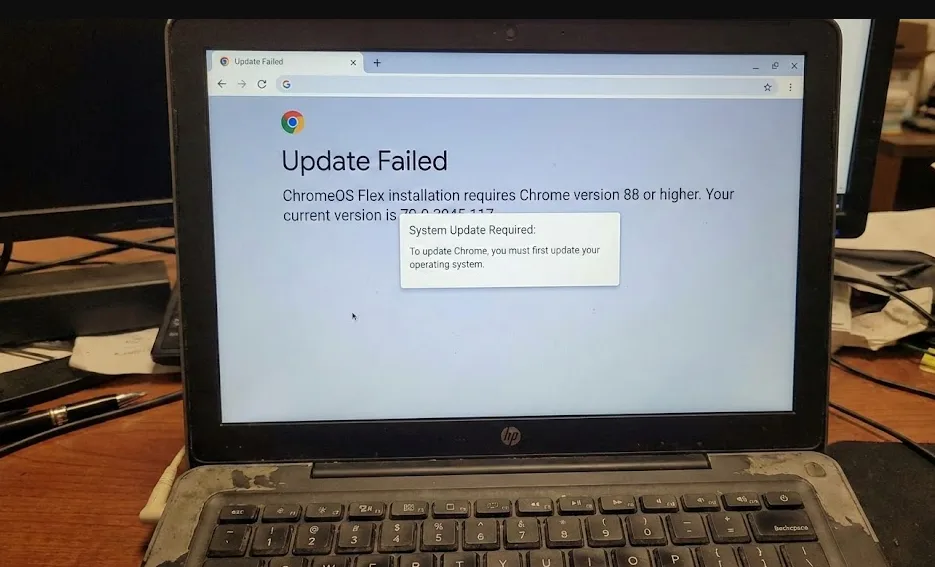
However, older devices create unexpected problems. Outdated operating systems block access to current Chrome versions. Chrome version 88 or higher is required for the Chromebook Recovery Utility extension.
Many users discover this after starting the process on their target device. The smarter approach is to understand all requirements before you begin.
This guide walks through the entire process, including the common pitfalls that trip people up.
How to install ChromeOS Flex the hard way?
The hard way involves using the same old computer you want to convert. This path creates complications when the device runs outdated software. Here is how to navigate this process.
Check device compatibility first
Visit Google’s certified device list before starting. ChromeOS Flex supports over 400 devices, including many older MacBooks and PCs.
Note any hardware limitations like webcam incompatibility.
Verify your Chrome browser version
The Chromebook Recovery Utility needs Chrome version 88 or newer. Open Chrome settings and check your current version.
Older computers often run outdated Chrome versions that cannot be updated without an operating system upgrade.
Upgrade your operating system if needed
Macs need macOS 10.11 (El Capitan) or later to run Chrome 88. This upgrade alone takes about 45 minutes for older systems.
Download the operating system update directly from Apple or Microsoft. Complete the installation before proceeding.
Install the Chromebook Recovery Utility
Open the Chrome Web Store and add the Chromebook Recovery Utility extension. This tool creates your installation media despite its confusing name.

Prepare your USB drive
You need a USB drive with at least 8 GB of storage. An SD card with an adapter works too. Keeping external storage handy is useful for any ChromeOS user.
Search for Google Chrome OS Flex in the utility menu. Follow the prompts to download the installation files.
Test before committing
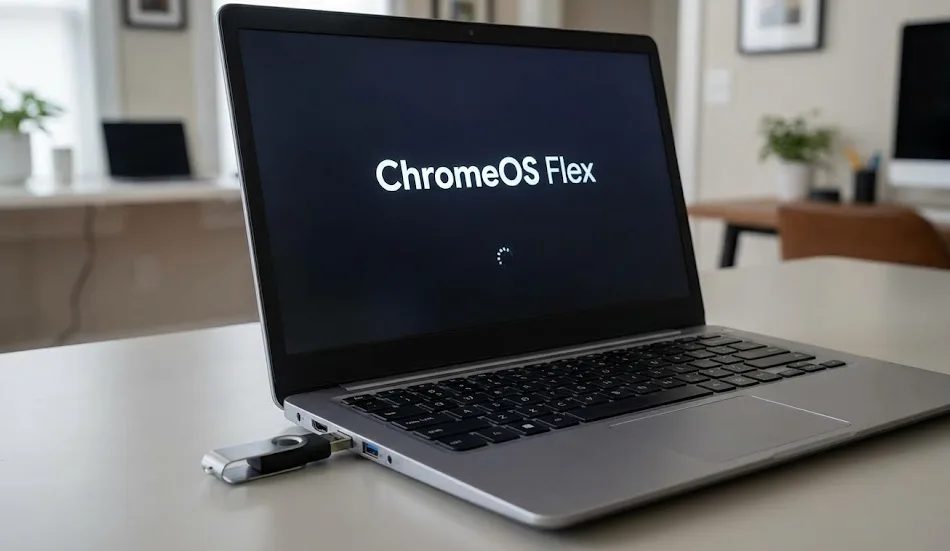
Boot your computer from the USB drive. ChromeOS Flex runs directly from the drive without wiping your existing operating system.
Performance is slower in test mode because external storage is slower than internal drives.
Complete the full installation
Choose to install ChromeOS Flex permanently when ready. This erases your original operating system.
The process takes about five minutes. Certified devices with Linux support retain this functionality after installation.
A simpler approach exists. Use a different computer with current Chrome to create the bootable USB drive. Then use that drive on your target device.
FAQs
What are the requirements to install ChromeOS Flex?
You need a certified device, Chrome version 88 or higher on the computer creating installation media, and a USB drive with 8 GB of storage.
Can I install ChromeOS Flex on an old Chromebook?
Google does not officially support installing ChromeOS Flex on Chromebooks past their update expiration date. You may encounter firmware and compatibility issues.
Does ChromeOS Flex support Android apps?
No. ChromeOS Flex provides the base ChromeOS experience without Android app support. FydeOS offers Android compatibility as an alternative for users who need it.
Can I try ChromeOS Flex without erasing my current operating system?
Yes. Boot from the USB installation media to test ChromeOS Flex. Your original operating system remains untouched until you choose full installation.
How long does ChromeOS Flex receive software updates?
Update periods vary by device. Google publishes support dates for certified devices. Some models receive updates for several years after installation.
