


A factory reset on a Chromebook, officially called a Powerwash, wipes all local data and returns your device to its original state. You might need this when dealing with persistent software problems, preparing to sell or give away your device, or fixing performance issues that basic troubleshooting can’t resolve.
The process permanently deletes everything stored locally on your Chromebook. Before you start, back up important files to Google Drive or another cloud service. Once the reset completes, you’ll go through the initial setup process just like when the device was new.
How To Factory Reset Your Chromebook?
You can reset your Chromebook using several methods depending on your situation. Choose the approach that matches your access level and the type of problem you’re experiencing.
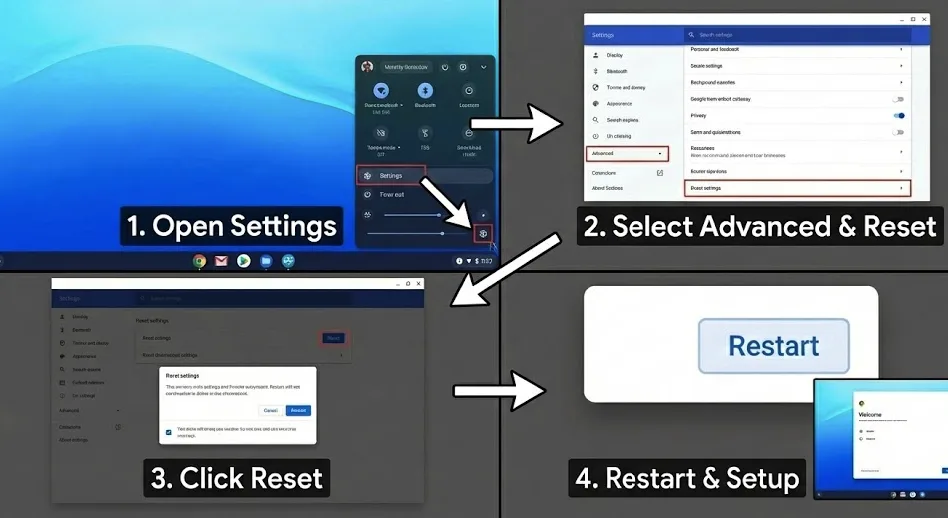
Reset Through Settings Menu
Open Settings from your app launcher or the quick settings panel in the bottom-right corner.
Click “Advanced” in the left sidebar to reveal additional configuration options.
Find and select “Reset settings” from the expanded menu.
Click the “Reset” button. The system will ask you to confirm your decision.
Select “Restart” when prompted. Your Chromebook will reboot and display the initial setup screens.
Reset From the Login Screen
This method works when you can’t access your account or have forgotten your password.
Press Ctrl + Shift + Alt + R together while on the login screen.
A restart dialog will appear. Click “Restart” or press and hold the power button to force shutdown.
After reboot, select “Powerwash” from the dialog box that appears.
Click “Continue” to start erasing all data. The device will restart with fresh setup prompts.
Perform a Hard Reset
A hard reset fixes hardware configuration issues without deleting your files. Use this when your device won’t turn on or has hardware-related problems.
Turn off your Chromebook completely.
Press and hold the Refresh key (circular arrow) and Power button simultaneously.
Release the Refresh key once the device begins restarting.
For tablets running Chrome OS, press Power and Volume Up together for 10 seconds. If issues continue, add the Esc key to this combination.
Back up files from your Downloads folder before attempting this, as some data might be removed.

Reset School or Work Devices
Managed Chromebooks have administrative restrictions that block standard resets. Contact your IT department to request device un-enrollment before attempting any reset procedures. These protections exist to preserve institutional configurations and require administrative permissions to remove.
Use Recovery Mode
Recovery mode becomes necessary when the operating system is corrupted or other methods fail. This process requires an 8GB or larger USB drive, another computer with Chrome installed, and a continuous power connection.
Recovery reinstalls Chrome OS from scratch, erasing everything on the device. Only use this method as a last resort when standard resets and troubleshooting don’t work.
Try Diagnostics First
Before committing to a full reset, open the Chrome OS Diagnostics app to identify specific problems. The app tests CPU performance, memory function, and battery health. You might discover simple fixes that don’t require erasing your data.

Restarting your Chromebook often resolves temporary glitches without any data loss. Try this basic step before proceeding with more drastic measures.
FAQs
Will a factory reset delete all my files?
Yes, all local files are permanently deleted. Back up important data to Google Drive or external storage before resetting, as recovery is impossible afterward.
Can I reset a Chromebook without the password?
Yes, press Ctrl + Shift + Alt + R on the login screen to access Powerwash without entering your account password or logging in first.
Does resetting fix all Chromebook problems?
Factory resets resolve software issues but cannot repair hardware failures. Try simpler solutions like system updates or running diagnostics before performing a reset.
How long does a Chromebook reset take?
The reset process takes 5-10 minutes, plus additional time for initial setup. Duration varies based on your specific device model and hardware specifications.
What’s the difference between Powerwash and hard reset?
Powerwash erases all data and settings completely. Hard reset only resets hardware configurations while preserving your user data and files on the device.
