


Running Windows on a Chromebook isn’t possible through traditional installation, but you have several practical alternatives. Chrome Remote Desktop lets you access a Windows PC from your Chromebook remotely. You can also use web apps, Android apps from Google Play Store, or Linux software to replace Windows programs.
These methods give you access to Windows functionality without installing the operating system directly. Each approach works differently depending on your needs and whether you own a separate Windows computer.
How To Run Windows on a Chromebook?
The most reliable way to run Windows on a Chromebook is through Chrome Remote Desktop. This free tool from Google connects your Chromebook to a Windows PC over the internet.
You control the Windows computer through your browser. The setup takes about 10 minutes and works well for most tasks.
Install Chrome Remote Desktop on Your Windows PC
Open Chrome browser on your Windows computer. Visit the Chrome Web Store and search for Chrome Remote Desktop extension.
Add the extension to your browser. You’ll see two setup options on the screen.
Choose “Access my computer” instead of “Share my screen.” Click “Turn on” under the remote access section.

Create Your Remote Access PIN
Name your Windows computer something you’ll remember. Create a PIN with at least six digits for secure access.
Write down this PIN since you’ll need it to connect from your Chromebook. Finish the setup process on your Windows PC.
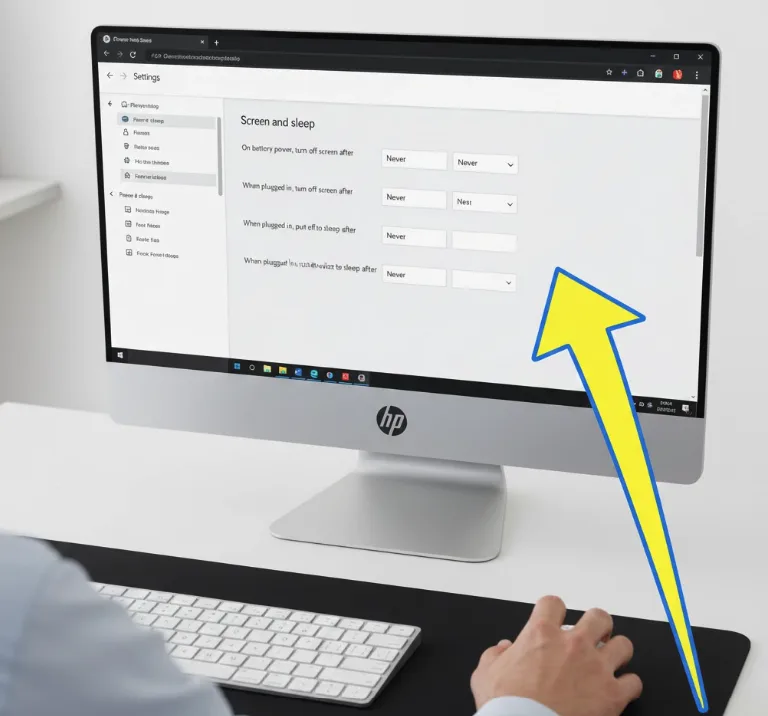
Adjust Windows Power Settings
Keep your Windows PC running when you want remote access. Go to Power Settings on your Windows computer.
Change the settings so your PC doesn’t sleep during inactivity. Chrome Remote Desktop can’t wake a sleeping computer.
You need the PC fully powered on for remote connections to work.
Connect From Your Chromebook
Sign in to your Chromebook with the same Google account used on Windows. Open Chrome Web Store and launch Chrome Remote Desktop.
Your synced Google account may already have it installed. Click “Launch app” to start the application.
Access Your Windows Desktop
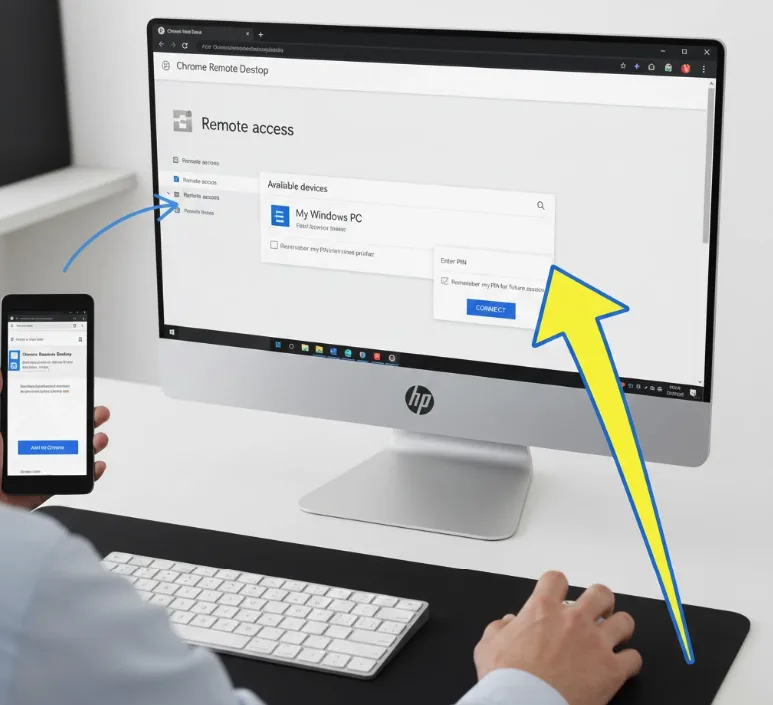
Select “Remote Access” from the left menu. Your Windows PC name appears in the available devices list.
Click on your PC name and enter the PIN you created earlier. Check the box to remember your PIN for future sessions.
Click “Connect” to access your Windows desktop.
Your Windows desktop now appears in your Chromebook browser. Use your mouse and keyboard normally within the browser window.
You can open programs, adjust settings, and run Windows software. Upload and download files between both devices as needed.
A strong internet connection on both devices ensures smooth performance. You may notice minor lag depending on your connection speed.
This setup works great for productivity software and basic tasks. Streaming videos or gaming may not provide the best experience due to latency.
FAQs
Can I install Windows directly on a Chromebook?
No, you cannot install Windows directly on a Chromebook due to hardware and firmware restrictions. Chrome OS uses different architecture that doesn’t support Windows installation natively.
Do I need a Windows PC for Chrome Remote Desktop?
Yes, Chrome Remote Desktop requires an active Windows PC to connect remotely. The PC must stay powered on and connected to internet for access from your Chromebook.
What if I don’t own a Windows computer?
You can use web apps, Android apps from Google Play Store, or Linux software as alternatives. Many programs have browser versions or Linux equivalents that work on Chromebooks.
Does Chrome Remote Desktop work offline?
No, Chrome Remote Desktop requires internet connection on both devices. Your Chromebook and Windows PC must both have stable internet access for remote connection to function.
Can I run Windows games on my Chromebook?
Running Windows games through Chrome Remote Desktop isn’t ideal due to latency and streaming limitations. Consider cloud gaming services or native Android games instead for better performance.
