


Chrome OS 90 brought Android 11 to Chromebooks, introducing a new runtime environment called ARCVM. This update replaced the previous Android 9 container system with a virtual machine approach similar to Linux app containers.
Many users experienced problems after this transition. The Play Store wouldn’t load for some. Others faced constant app crashes or launch failures. In severe cases, Chromebooks froze during or after the upgrade process.
Understanding how to fix Android 11 issues on a Chromebook helps restore functionality and get your apps running smoothly again. The migration from Android 9 to Android 11 represents a significant architectural change, which explains why early adopters encountered various stability problems.
How to fix Android 11 issues on a Chromebook
The most effective solution involves removing and re-enabling the Google Play Store. This process clears corrupted data and reinstalls Android components properly.
Disable the Google Play Store
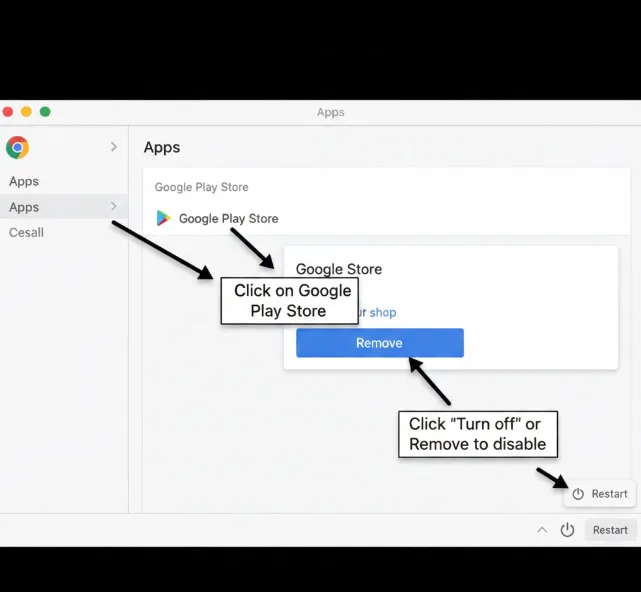
Open your Chromebook settings by clicking the clock area and selecting the gear icon. Navigate to the “Apps” section in the left sidebar. Find “Google Play Store” in the list and click on it. Select “Turn off” or “Remove” to disable the Play Store completely.
Restart your Chromebook
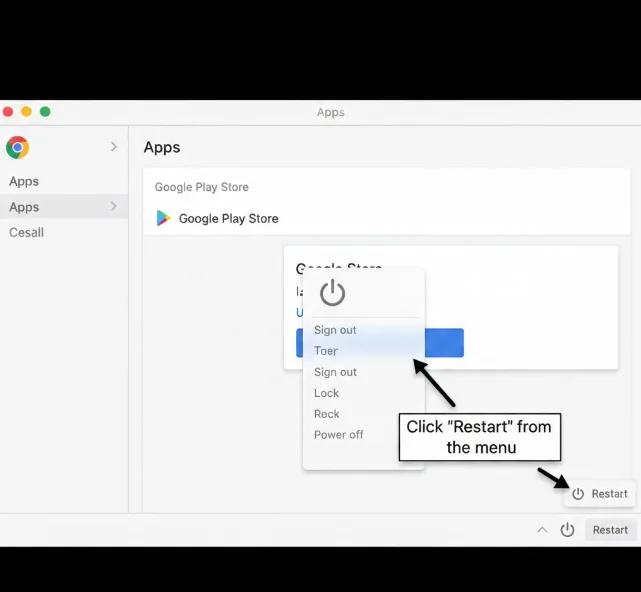
Click the power button in the bottom-right corner. Select “Restart” from the menu. Wait for your Chromebook to fully reboot before proceeding.
Re-enable the Google Play Store
Open Settings again after the restart. Go back to the “Apps” section. Click “Turn on” next to Google Play Store. Follow the on-screen prompts to set up the Play Store again.
Allow downloads to complete
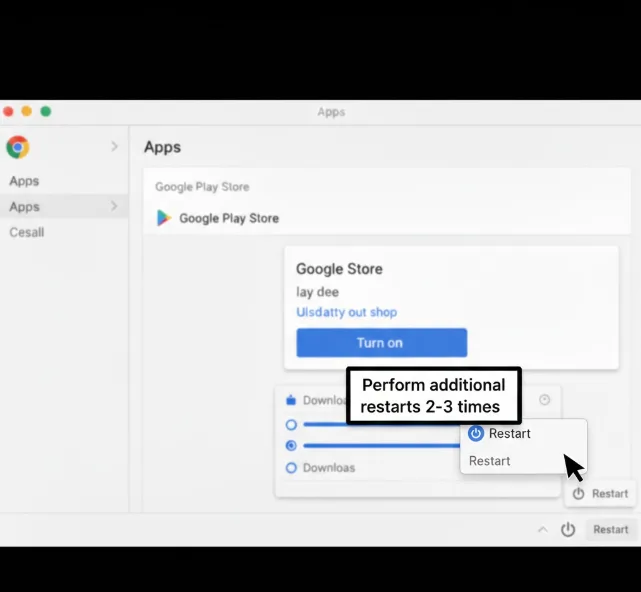
After enabling the Play Store, you’ll see download activity in the notification panel. Let these downloads finish completely, even if the descriptions appear blank. This process can take several minutes.
Perform additional restarts if needed
If you still can’t sign in or experience crashes, restart your Chromebook two to three more times. Multiple reboots sometimes help the new Android container stabilize.
Reset Chrome flags (optional)
Navigate to chrome://flags in your browser. Click “Reset all” at the top of the page. Restart your Chromebook one final time. This step has helped some users resolve persistent issues.
The ARCVM container adds resource overhead compared to the previous Android implementation. Chromebooks with 4 GB of RAM may experience slower app performance. Future optimizations should improve responsiveness as Google refines the Android 11 integration.
What Causes Android 11 issues on a Chromebook?
The transition from Android 9 to Android 11 on Chromebooks involves changing the entire runtime environment. The new ARCVM system uses a virtual machine container instead of the previous lightweight container approach.
This architectural shift can cause compatibility problems during migration. Existing Android data may not transfer correctly to the new container. Corrupted configuration files or incomplete downloads during the update process trigger app crashes and Play Store loading failures.
Resource allocation also plays a role. ARCVM requires more system memory than the old Android runtime, which can overwhelm devices with limited RAM during the initial setup phase.
FAQs
Will all Chromebooks get Android 11?
Most modern Chromebooks will receive Android 11 through Chrome OS updates. Older devices may remain on Android 9 depending on hardware compatibility and manufacturer support timelines.
Does Android 11 require more RAM on Chromebooks?
Android 11’s ARCVM container uses more memory than Android 9. Chromebooks with 4 GB RAM may experience slowdowns, though 8 GB isn’t mandatory for basic app usage.
Can I downgrade from Android 11 to Android 9?
Downgrading Android versions on Chromebooks isn’t officially supported. The only option would be reverting to a previous Chrome OS version through Powerwash and recovery, which erases all data.
Why do my apps crash after the Chrome OS 90 update?
App crashes typically result from corrupted data during the Android 11 migration. Removing and re-enabling the Google Play Store usually resolves these crashes by reinstalling Android components cleanly.
How long do Android 11 downloads take after re-enabling Play Store?
Initial downloads after re-enabling the Play Store typically take 5-10 minutes depending on your internet speed. The notification panel shows activity even if descriptions appear blank during this process.
