


Microsoft Edge offers a solid alternative to Chrome on Chromebooks. While Chrome remains the default browser, Edge provides useful features like cross-platform syncing, built-in privacy tools, and access to Microsoft services.
Installing Edge on a Chromebook requires Linux support. This process takes just a few minutes and gives you access to the full desktop version of Microsoft’s browser.
You might want Edge on your Chromebook for several reasons. Developers can test websites across different browsers. Users who prefer Microsoft’s ecosystem can sync bookmarks and passwords. The browser also offers vertical tabs and collections for better organization.
The installation process is straightforward once you enable Linux on your device.
How to install Microsoft Edge on a Chromebook
Installing Microsoft Edge requires enabling Linux on your Chromebook first. After that, you download the installation package and install it through your Files app.
The entire process takes about five minutes.
Enable Linux on your Chromebook
Open Settings and navigate to Advanced, then find the Developers menu. Click on Linux development environment and follow the prompts to turn it on.
The setup takes a minute or two. Your Chromebook will download the necessary files and configure Linux automatically.
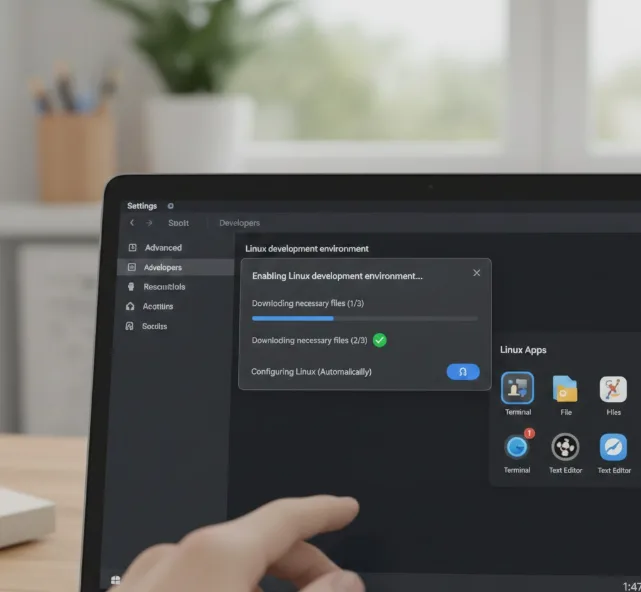
Once complete, you’ll see Linux apps available in your launcher.
Download the Edge installation package
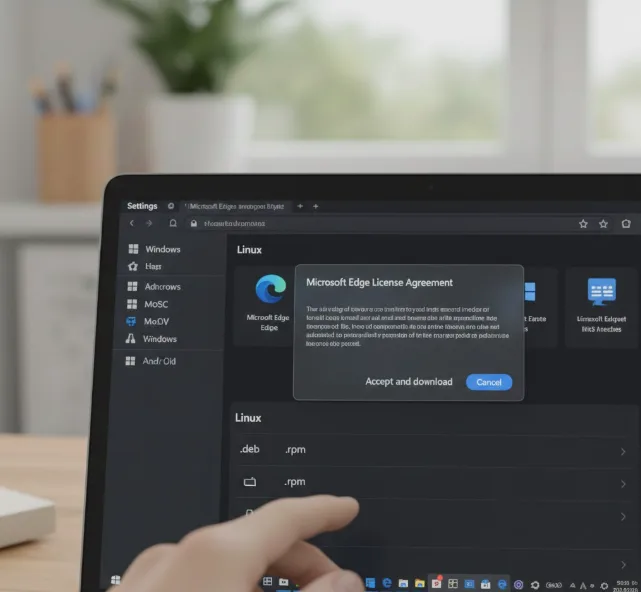
Visit Microsoft’s official Edge download page on your Chromebook. Scroll past the Windows, macOS, Android, and iOS options.
Find the Linux section and click the .deb package option. This format works with Chrome OS’s Linux container.
Accept the license agreement when prompted. The browser will download the installation file to your Downloads folder.
Install Edge using the Files app
Open your Files app and locate the downloaded .deb file. Right-click on the file to bring up the context menu.
Select “Install with Linux” from the options. Chrome OS will handle the installation automatically.
Wait for the process to complete. You’ll see a progress indicator during installation.
Launch Microsoft Edge
After installation finishes, open your Chrome OS launcher. Look for the Microsoft Edge icon in your app list.
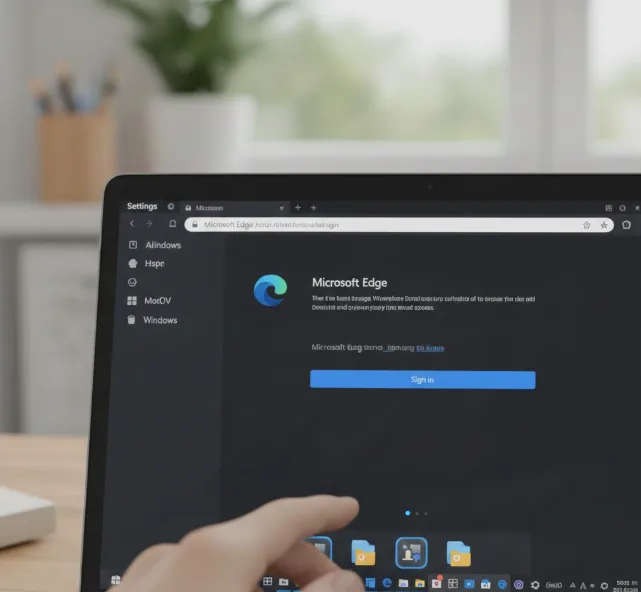
Click the icon to start Edge. The browser will open like any other Linux app on your Chromebook.
Sign in with your Microsoft account to sync your browsing data across devices.
Developers often install multiple browsers to test web applications. Edge provides different developer tools compared to Chrome.
Some users prefer Edge’s interface and features over Chrome. The browser integrates well with Microsoft 365 services. If you want to explore other browser options, you can also install Firefox on your Chromebook using the same method.
FAQs
Can I install Microsoft Edge on any Chromebook?
You need a Chromebook that supports Linux. Most modern Chromebooks from 2019 onward include Linux support, but check your device specifications first.
Does Microsoft Edge run well on Chromebooks?
Edge performs smoothly on most Chromebooks with adequate RAM. Devices with 4GB or more RAM provide the best experience for running Linux applications.
Will installing Edge slow down my Chromebook?
Edge uses system resources like any browser. Close Edge when not using it to free up memory, especially on lower-spec Chromebooks.
Can I use Edge extensions on a Chromebook?
Yes, you can install extensions from the Microsoft Edge Add-ons store. Most Chrome extensions also work since Edge uses Chromium.
How do I uninstall Microsoft Edge from my Chromebook?
Right-click the Edge icon in your launcher and select “Uninstall.” You can also remove it through Linux settings in Chrome OS.
