


Remote desktop access helps you troubleshoot issues or guide someone through Chromebook tasks without being physically present. Google’s Chrome Remote Desktop service allows you to control a Chromebook from any computer running the Chrome browser.
This feature proves useful when helping family members fix technical problems, providing IT support to colleagues, or teaching someone how to navigate Chrome OS. The process requires both users to access a specific Google URL and share a temporary access code.
Unlike traditional remote access that requires software installation, this method works entirely through your web browser. You can establish a connection between any two devices as long as both have internet access and use Chrome.
How to remotely control a Chromebook from another computer
Both the computer and Chromebook need to access Chrome Remote Desktop through a web browser. The Chromebook generates a one-time code that grants temporary access to the computer user.
Access Chrome Remote Desktop on both devices
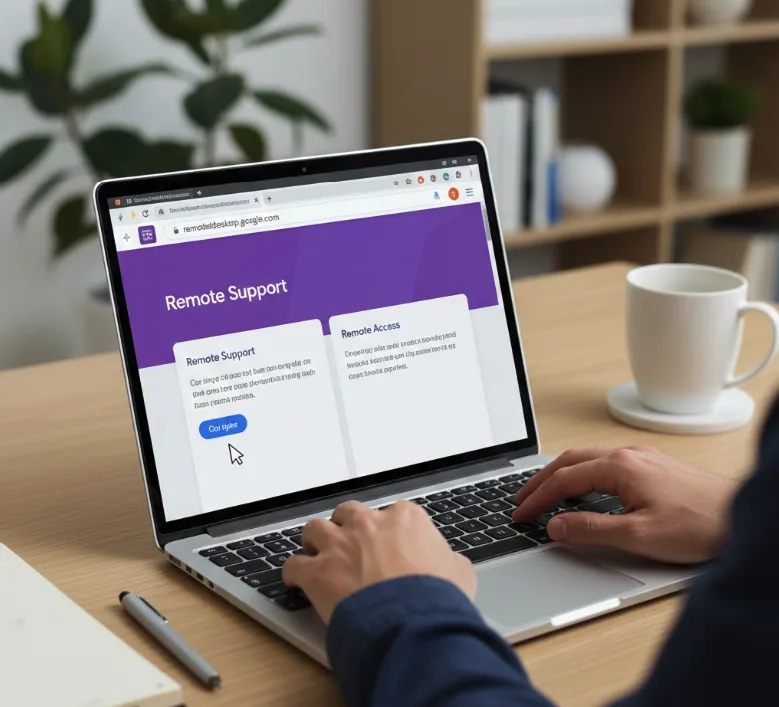
Open Chrome browser on your computer and navigate to https://remotedesktop.google.com. The Chromebook user should visit the same URL using their Chrome browser.
You’ll see two menu options on the main screen. Both users should select “Remote Support” rather than “Remote Access.”
Generate access code on the Chromebook
The Chromebook user clicks “Share this screen” under the Remote Support section. This generates a unique 12-digit access code that appears on their screen.
The code remains valid for five minutes. The Chromebook user should share this code with the computer user immediately.
Enter the access code on your computer
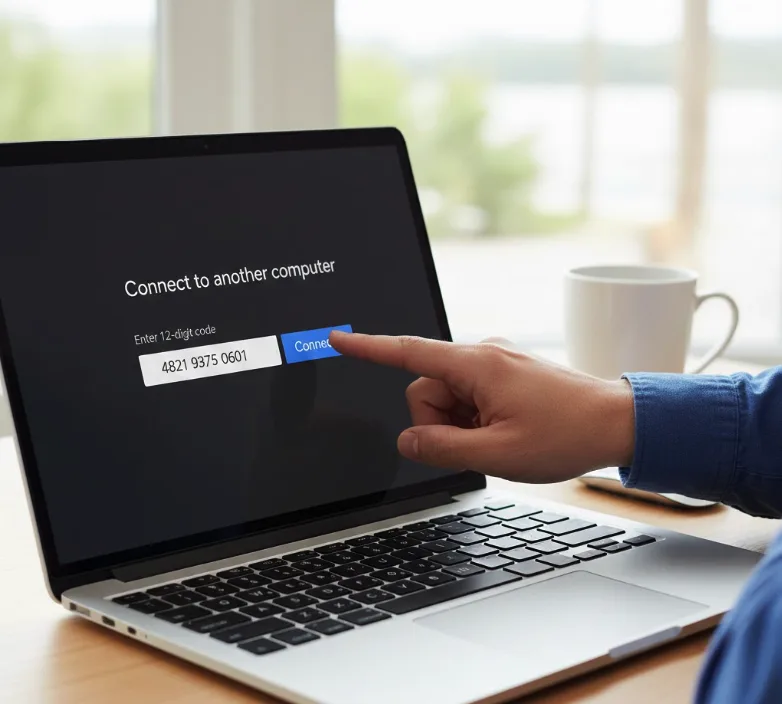
Look for the “Connect to another computer” section on your computer screen. Enter the 12-digit code provided by the Chromebook user.
Click the “Connect” button after entering the code. This sends an access request to the Chromebook.
Accept the connection request on the Chromebook
The Chromebook displays a connection request showing who wants to access the device. The Chromebook user clicks “Share” to grant access.
Once accepted, you gain full control of the Chromebook from your computer. Your mouse and keyboard inputs now control the remote Chromebook.
End the remote session
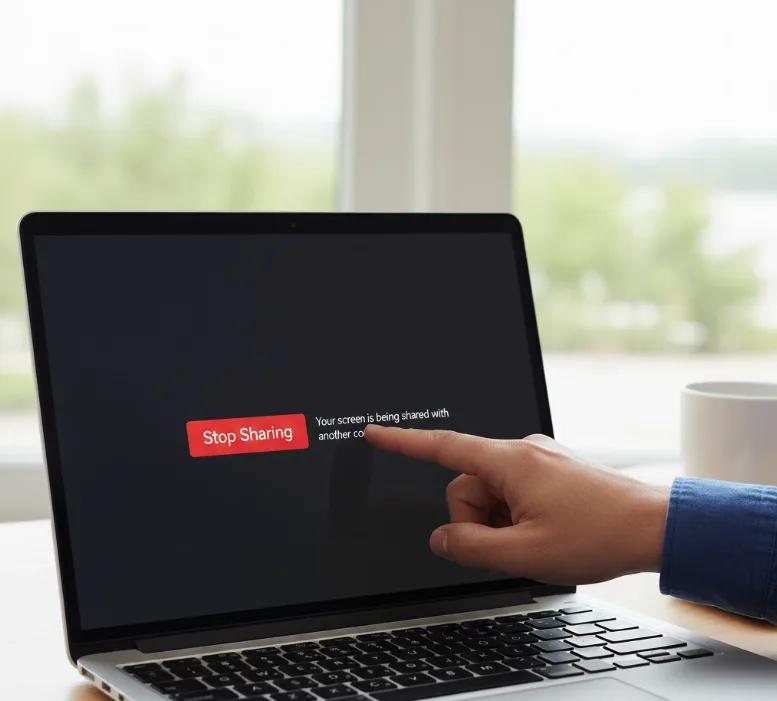
Either user can terminate the connection at any time. The Chromebook user clicks “Stop Sharing” on their screen.
The computer user can disconnect by closing the remote desktop window. Starting a new session requires generating a fresh access code and repeating the connection steps.
This method works across different network types. You can control a Chromebook on LTE while your computer uses Wi-Fi. The connection doesn’t require shared Google accounts between users, making it ideal for IT support scenarios where you need to troubleshoot common Chromebook issues.
FAQs
Can I remotely control a Chromebook without installing software?
Yes. Visit remotedesktop.google.com in Chrome browser on both devices. No extensions or software downloads are required for basic remote support sessions.
Does remote control work between two Chromebooks?
Remote control between two Chromebooks works inconsistently. Success rates vary around 50%, so you may need multiple attempts to establish a stable connection.
How long does the access code remain valid?
The access code expires after five minutes. You must generate a new code if the connection isn’t established within this timeframe for security purposes.
Do both users need the same Google account?
No. Remote desktop access works between different Google accounts. The Chromebook user simply shares the generated code with anyone who needs access.
Can either user end the remote session?
Yes. Both the Chromebook user and computer user can terminate the connection instantly. The Chromebook user clicks “Stop Sharing” while the computer user closes the window.
