


Chrome OS 90 introduces a feature that changes how you share web content. The “copy link to text” function lets you highlight specific text on any webpage and generate a link that opens directly to that highlighted section.
This saves time when sharing lengthy articles or guides. Instead of sending someone a page link and explaining where to look, you create a link that takes them straight to the relevant information.
The feature remains experimental in Chrome OS 90. You need to enable it through a flag setting before use.
How to use the “copy link to text” option in Chrome OS 90?
Follow these steps to activate and use the copy link to text feature on your Chromebook.
Enable the experimental flag
Navigate to chrome://flags/#copy-link-to-text in your Chrome browser. You’ll see the “Copy link to text” option listed.
Select “Enabled” from the dropdown menu next to this flag.
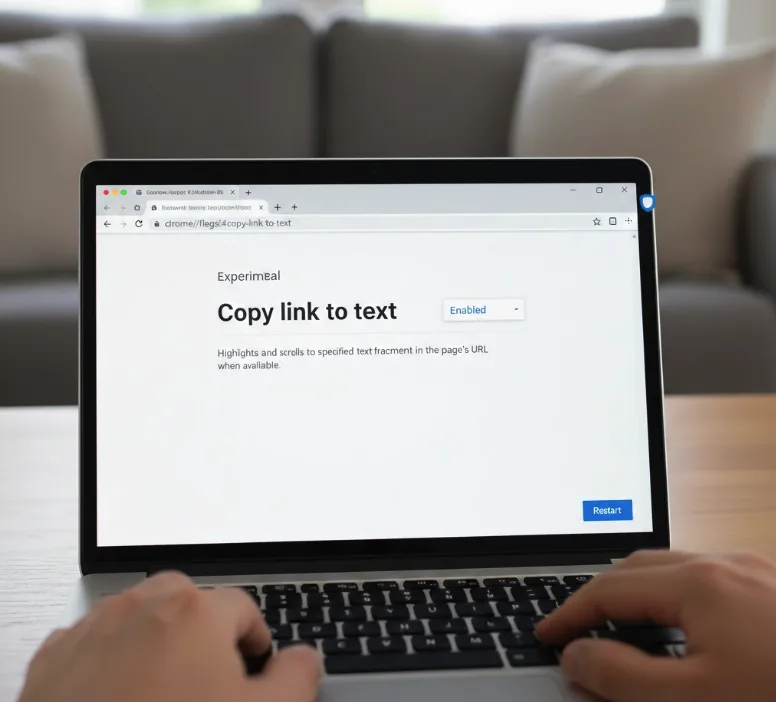
Click the “Restart” button that appears at the bottom right of your browser window.
Highlight the text you want to share
Browse to any webpage and locate the specific text you want to reference.
Click and drag your cursor over the text to highlight it.
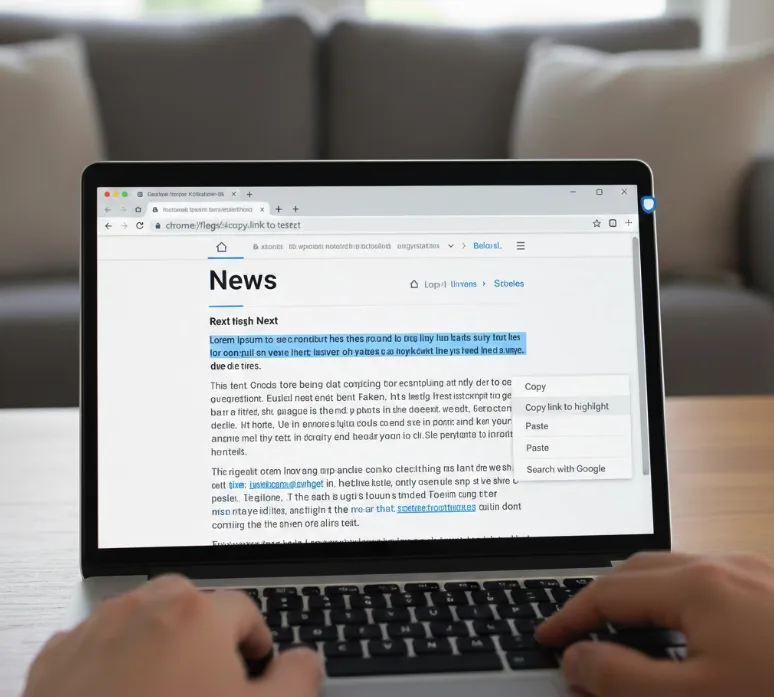
Access the copy link option
Right-click on your highlighted text. A context menu appears with several options.
Look for “Copy link to highlight” in the menu. This appears alongside the standard “Copy” option.
Create and share your link
Click “Copy link to highlight” to save the link to your clipboard.
The link now contains both the webpage URL and a reference to your highlighted text.
Paste this link into emails, messages, or any application that supports link sharing.
When someone clicks your link, their browser opens the webpage and scrolls directly to the highlighted text. The text remains highlighted for easy identification.
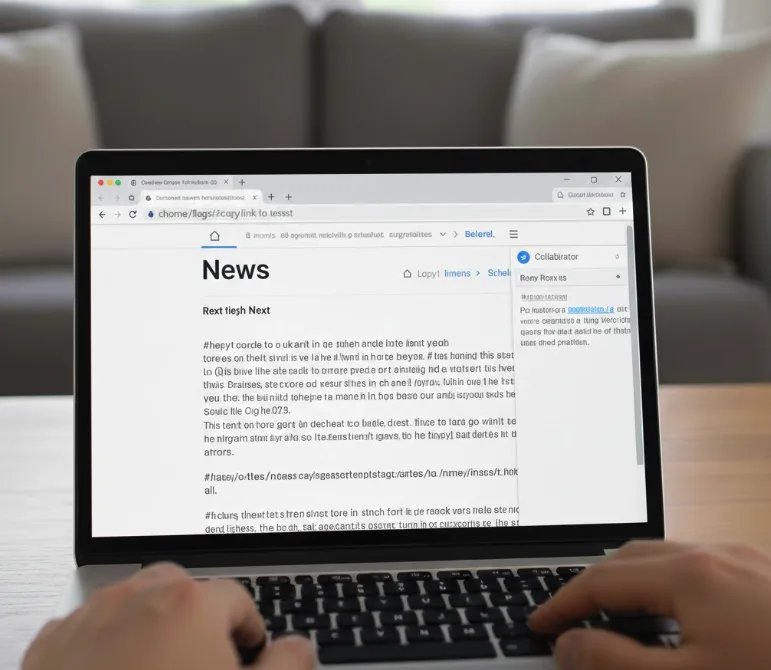
This feature works best for sharing technical documentation, research articles, or educational resources. You can point collaborators to exact paragraphs without additional instructions.
The copy link to text option requires Chrome OS 90 on the Dev or Beta Channel. Standard Stable Channel users will access this feature once Chrome OS 90 releases widely.
FAQs
Does copy link to text work on all websites?
The feature works on most standard web pages. Some sites with dynamic content or special formatting may not support text fragment links properly.
Can I create multiple text highlights in one link?
No, each link references one highlighted section. You need to create separate links for different text portions on the same page.
Will the highlight disappear after the page loads?
The highlight persists when someone opens your link. It helps recipients identify the exact text you wanted them to see immediately.
Do I need Chrome OS 90 to open these links?
No, recipients can open text fragment links in any modern Chromium-based browser. The highlighting feature works across compatible browsers regardless of Chrome OS version.
Can I use copy link to text on mobile devices?
Chrome for Android supports text fragment links. You can both create and open these specialized links on supported mobile browsers.
