


The openal32.dll file is a Dynamic Link Library component used by Windows programs to handle audio functions through OpenAL (Open Audio Library). This file enables software to play sounds and manage audio output on your system.
When openal32.dll goes missing or gets corrupted, programs that depend on it cannot run properly. You’ll see error messages preventing you from launching games or audio applications.
Understanding how to fix these errors saves time and gets your programs working again. Most solutions don’t require technical expertise and can resolve the problem within minutes.
How To Fix openal32.dll Errors?
Start with simple solutions before trying advanced fixes. These methods address the most common causes of openal32.dll problems.
Check the Recycle Bin
You might have deleted openal32.dll by accident. Open your Recycle Bin and search for the file. Right-click it and select Restore if you find it.
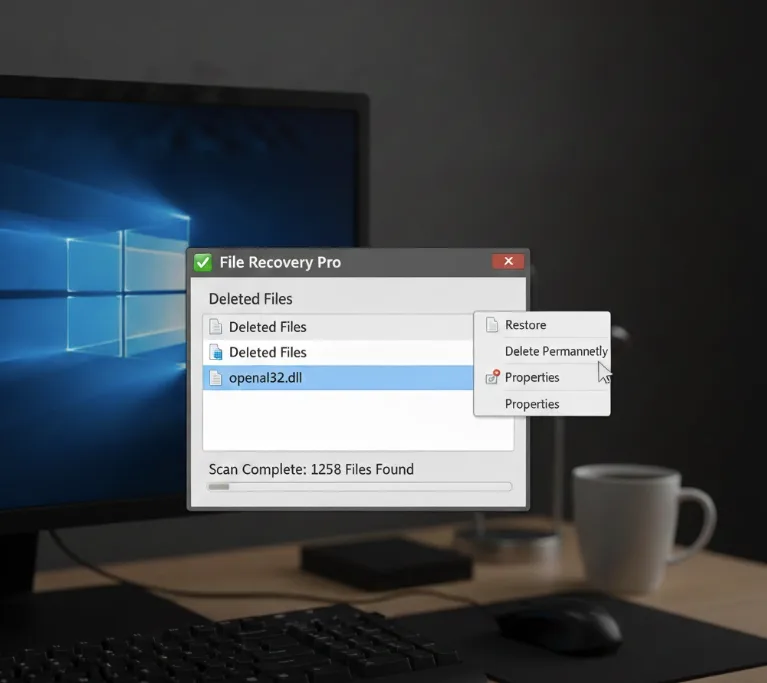
If you emptied the Recycle Bin, use a file recovery program to retrieve deleted files. Verify the recovered file isn’t corrupted before using it.
Reinstall the Affected Program
Uninstall the program showing the error through Windows Settings or Control Panel. Download the latest version from the official website and install it fresh.
This step replaces damaged or missing DLL files automatically. It works for most applications and games that use openal32.dll.
Install OpenAL for Steam Games
Open your Steam installation folder and navigate to SteamApps\common. Find your game’s folder and open it.
Look for _CommonRedist, then OpenAL, then a folder with version numbers. Run oalinst.exe inside to install the required file.
If you cannot locate these folders, use Windows Search to find oalinst.exe on your computer.

Download OpenAL Officially
Visit the official OpenAL website and download the installer. Run it to place openal32.dll in the correct Windows directories.
The installer automatically puts the file in C:\Windows\System32 and C:\Windows\SysWOW64 based on your system architecture.
Run a Malware Scan
Launch Windows Security or your antivirus software. Select Full Scan and let it check your entire system.
Malware sometimes deletes or replaces DLL files. Removing infections can restore normal file operation.
Use System Restore
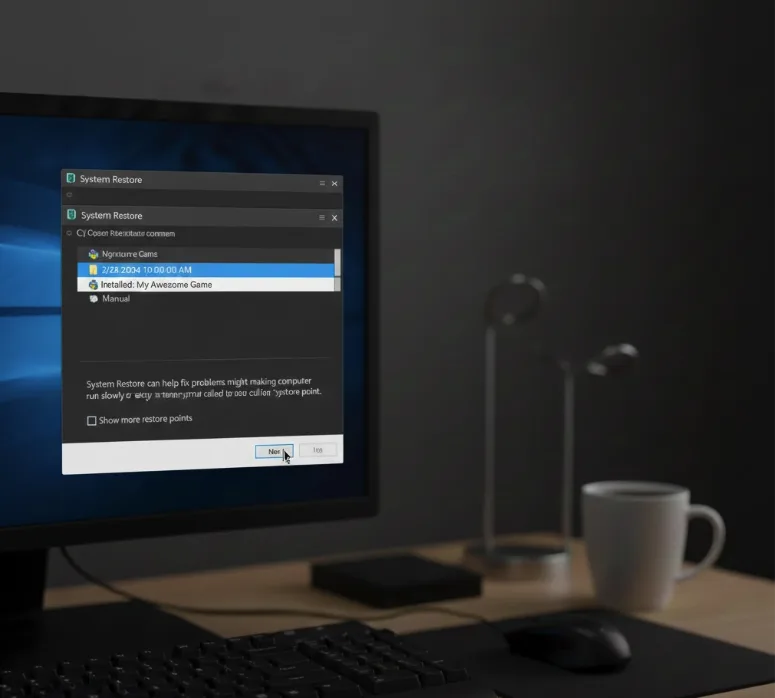
Press Windows + R, type rstrui.exe, and press Enter. Select a restore point from before the error started appearing.
System Restore reverts your computer to an earlier state without affecting personal files.
Update Your Drivers
Right-click the Start button and select Device Manager. Expand Sound, video and game controllers.
Right-click your audio device and choose Update driver. Let Windows search for the latest version automatically.
Update your graphics card drivers the same way since openal32.dll works with audio in games and multimedia applications.
Test Your Hardware
Type Windows Memory Diagnostic in the Start menu and run it. Restart your computer to check for RAM problems.
Open Command Prompt as administrator and type chkdsk /f. This scans your hard drive for errors that might corrupt DLL files.
Replace any failing hardware components if the tests detect problems.
Repair Windows Installation
Insert your Windows installation media or create a recovery drive. Boot from it and select Repair your computer.
Choose Startup Repair to let Windows fix missing system files automatically. This restores openal32.dll if it was deleted during updates.
Reinstall Windows
Back up your important files to an external drive or cloud storage. Create Windows installation media using the Media Creation Tool.
Boot from the installation media and select Custom installation. This removes everything and installs a fresh copy of Windows.
Only use this option after trying all other solutions.
FAQs
What causes openal32.dll errors?
The file gets deleted accidentally, corrupted by malware, or damaged during software updates. Registry errors and hardware failures also cause these problems.
Can I download openal32.dll from DLL websites?
No. These sites often distribute infected or wrong versions. Download OpenAL from the official source or reinstall the program needing it.
Does openal32.dll affect all programs?
Only programs using OpenAL for audio functions show errors. Games and multimedia applications commonly depend on this file for sound playback.
Will System Restore delete my files?
System Restore keeps your personal files safe. It only reverts system settings and installed programs to an earlier state.
How do I prevent future openal32.dll errors?
Keep Windows updated, run regular malware scans, avoid deleting system files, and maintain your hardware properly to prevent corruption.
