


A 502 Bad Gateway error is an HTTP status code that appears when a server acting as a gateway or proxy receives an invalid response from an upstream server. This server-side issue doesn’t stem from your device or internet connection.
The error occurs when a gateway server fails to fetch data from the backend server that hosts website content. Users encounter this error when servers experience overload, network disruptions, configuration problems, or temporary glitches.
Understanding what triggers a 502 Bad Gateway helps you troubleshoot effectively and determine whether you can fix it yourself or need to wait for server administrators to resolve the issue.
How to Fix a 502 Bad Gateway Error
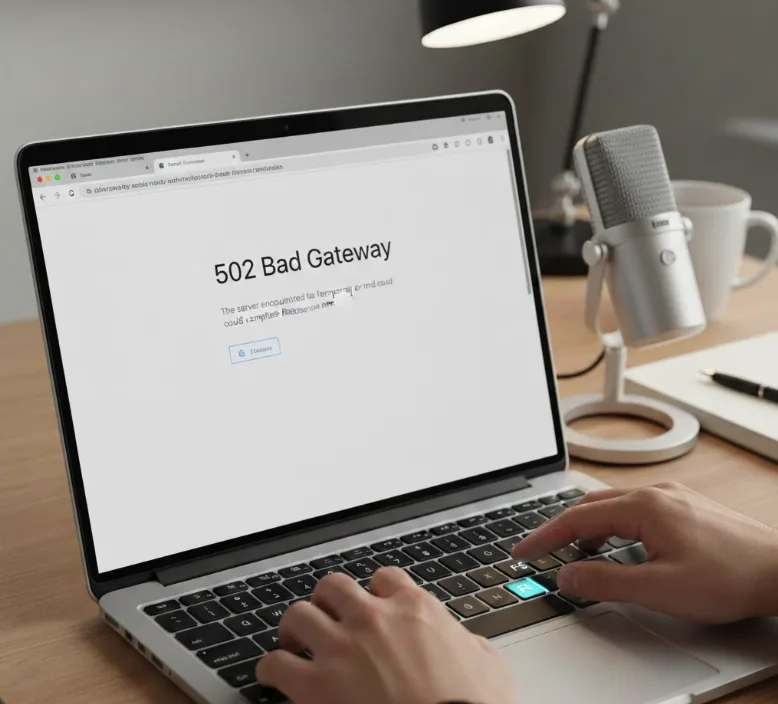
Refresh the Page
Press F5 or click your browser’s refresh button. Many 502 Bad Gateway errors are temporary and resolve within seconds when you reload the page.
Verify the URL
Check the web address for typos. A single incorrect character can trigger a 502 Bad Gateway error, similar to how a 404 error occurs when the requested content doesn’t exist on the server. Use a search engine to find the correct link if you’re unsure.
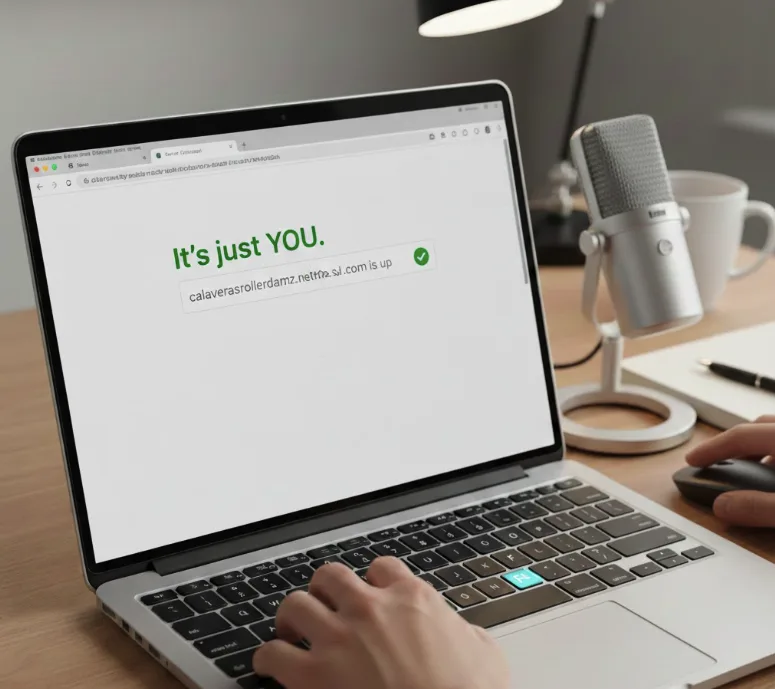
Check if the Website is Down
Visit a service like “Down for Everyone or Just Me” to verify whether the 502 Bad Gateway affects all users. If the site is down globally, wait for administrators to restore service.
Try a Different Browser
Open the website in another browser or use Incognito Mode. Browser cache or cookies sometimes cause display issues that mimic a 502 Bad Gateway error.
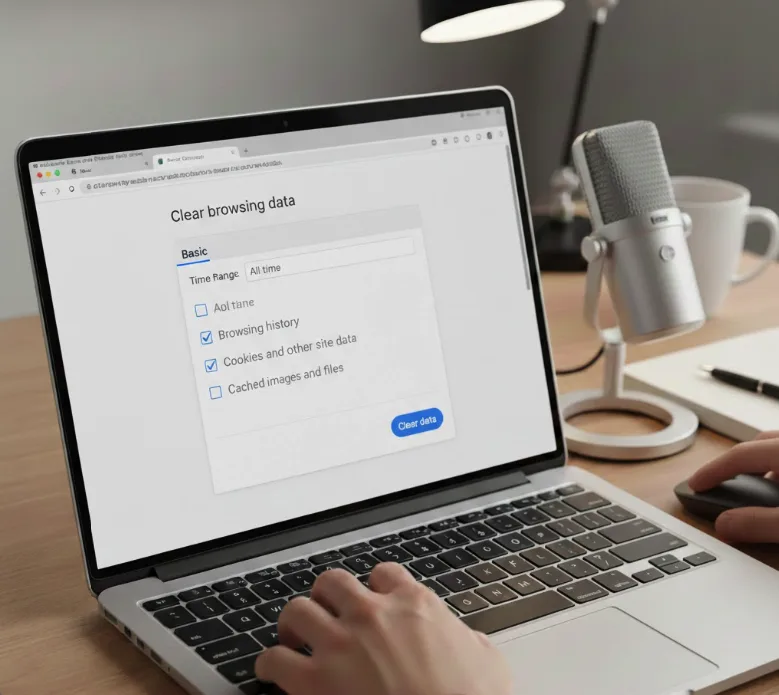
Clear Browser Cache and Cookies
Navigate to your browser settings and delete cached files and cookies. Outdated data can prevent proper communication between your browser and the server, much like how clearing cache resolves STATUS_ACCESS_VIOLATION errors.
Flush Your DNS Cache
Open Command Prompt (Windows) or Terminal (Mac) and run the appropriate command to clear DNS records. You can also clear DNS cache in Chrome using chrome://net-internals/#dns. Alternatively, switch to Google Public DNS (8.8.8.8 and 8.8.4.4) in your network settings.
Disable Browser Extensions
Turn off extensions one by one, especially ad blockers and privacy tools. Some extensions interfere with server requests and trigger a 502 Bad Gateway error.
Check Proxy and VPN Settings
Disable any proxy servers, VPNs, or firewall software temporarily. Misconfigured network tools can block communication between your device and the server. If you need help, learn how to turn off proxy on Chromebook.
Wait and Retry Later
Server overload or maintenance causes many 502 Bad Gateway errors. Wait 10-30 minutes and try accessing the website again.
Contact Website Support
Reach out to the website’s customer service team if the 502 Bad Gateway persists. They can provide updates on server status and estimated resolution times.
FAQs
What causes a 502 Bad Gateway error?
Server overload, network failures, configuration mistakes, DNS issues, security software interference, or temporary glitches cause a 502 Bad Gateway error. The gateway server cannot get a valid response from the backend server.
Is a 502 Bad Gateway error on my end?
No. A 502 Bad Gateway error originates from the server side, not your device or internet connection. The problem exists between the gateway server and backend server infrastructure.
How long does a 502 Bad Gateway last?
A 502 Bad Gateway typically resolves within minutes to hours. Duration depends on whether the cause is temporary server overload, maintenance, or requires manual configuration fixes by administrators.
Can I fix a 502 Bad Gateway myself?
You can try refreshing the page, clearing cache, flushing DNS, or disabling extensions. However, if the issue stems from server problems, only website administrators can resolve the error.
What’s the difference between 502 and 504 errors?
A 502 Bad Gateway means the gateway received an invalid response. A 504 Gateway Timeout means the gateway didn’t receive any response within the allowed timeframe, similar to how 500 Internal Server Error indicates different server-side issues.
