


The VCRUNTIME140_1.dll missing error appears when Windows lacks essential Microsoft Visual C++ runtime files needed to run certain applications. This dynamic link library file is part of the Visual C++ Redistributable package and is crucial for many programs to function properly.
Users often encounter this error when launching games, creative software, or development tools. The error message typically states “The program can’t start because VCRUNTIME140_1.dll is missing from your computer.”
Understanding how to resolve this issue is important because it prevents you from using affected applications. The fix involves installing or repairing the Microsoft Visual C++ Redistributable package on your system.
How To Fix VCRUNTIME140_1.dll Download?
The most reliable method to fix the VCRUNTIME140_1.dll missing error is to install the correct Microsoft Visual C++ Redistributable package. This ensures your system has all necessary runtime components.
Download the Microsoft Visual C++ Redistributable Package
Visit the official Microsoft website to download the Visual C++ Redistributable installer. For most modern systems, you’ll need the x64 version, which you can find at https://aka.ms/vs/17/release/vc_redist.x64.exe.
If you’re using a 32-bit system, download the x86 version instead. Check your system type by right-clicking “This PC” and selecting “Properties.”
Install the Redistributable Package
Run the downloaded installer file as an administrator. Right-click the file and select “Run as administrator” to ensure proper installation.
Follow the on-screen prompts to complete the installation process. Accept the license terms and click “Install.”

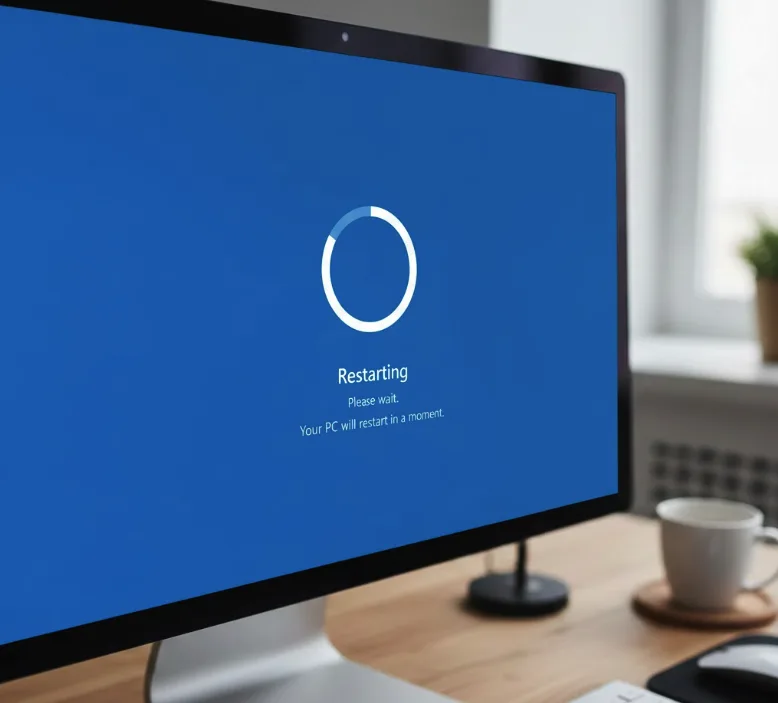
Restart Your Computer
After installation completes, restart your computer to apply all changes. This step is crucial for the new DLL files to be properly registered in your system.
Repair Existing Installation
If you already have Visual C++ Redistributable installed but still face the error, try repairing it. Open “Apps & Features” in Windows Settings.
Locate “Microsoft Visual C++ Redistributable” in the list. Click on it and select “Modify,” then choose “Repair.”
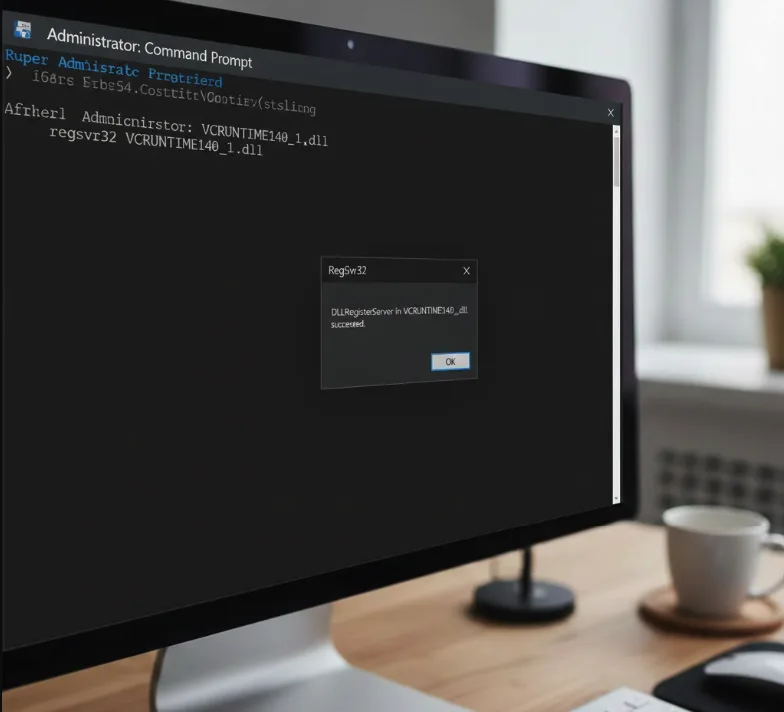
Register the DLL File Manually
If the error persists, you may need to register the DLL file manually. Open Command Prompt as administrator.
Type regsvr32 VCRUNTIME140_1.dll and press Enter. This command registers the DLL file with Windows.
Copy the DLL File to System Directory
As a last resort, if you have the DLL file, copy it to the system directory. For 64-bit systems, paste it in C:\Windows\System32.
For 32-bit systems, use C:\Windows\SysWOW64. Restart your computer after copying the file.
What Causes VCRUNTIME140_1.dll Missing Error?
The VCRUNTIME140_1.dll error typically occurs when the Microsoft Visual C++ Redistributable package is missing, corrupted, or outdated on your system.
Software installations sometimes fail to include required runtime files. Incomplete uninstallations of programs can also remove shared DLL files.
Malware infections may corrupt or delete system files including DLL files. Windows updates occasionally cause compatibility issues with existing Visual C++ installations.
Registry errors or disk problems can prevent applications from accessing necessary DLL files.
FAQs
Is it safe to download VCRUNTIME140_1.dll from third-party websites?
No, downloading DLL files from third-party websites is risky and may introduce malware. Always download the official Microsoft Visual C++ Redistributable package from Microsoft’s website for guaranteed safety and compatibility.
Can I fix VCRUNTIME140_1.dll error without downloading anything?
Yes, if Visual C++ Redistributable is already installed, you can repair it through Windows Settings. Navigate to Apps & Features, find the package, and select the repair option to fix corrupted files.
Do I need both x86 and x64 versions installed?
Many applications require both versions even on 64-bit systems. 32-bit programs need the x86 version while 64-bit programs use x64. Installing both ensures maximum compatibility with all software.
Will reinstalling Windows fix the VCRUNTIME140_1.dll error?
Yes, reinstalling Windows will fix the error, but it’s an extreme solution. Installing or repairing the Visual C++ Redistributable package is much simpler and resolves the issue without data loss.
Why does the error appear after Windows updates?
Windows updates may overwrite or remove certain Visual C++ runtime files. Some updates also introduce compatibility issues with older redistributable versions, requiring you to reinstall or update the package.
