


When it comes to gaming on a Chromebook, there are some notable issues. For example, they have underpowered hardware and limited software support.
However, despite these undoubted limitations, plus a range of other drawbacks, there are some simple steps you can take to improve your Chromebook’s gaming performance.
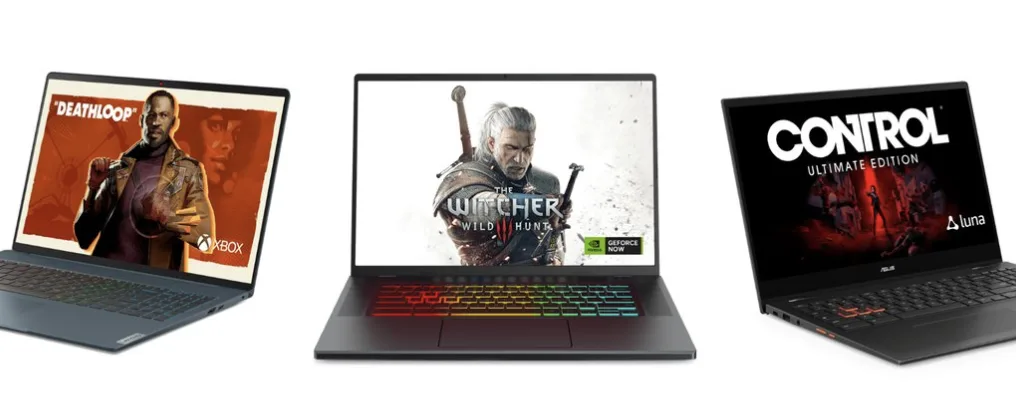
Of course, you aren’t going to suddenly be able to match the power and sophistication of a PlayStation 5 console, but Chromebook users who also want to enjoy gaming can still enhance their machine’s capabilities.
Whether you’re interested in poker online against your buddies or you’re partial to food-themed online slot games like Yum Yum Powerways, these straightforward steps can make a massive difference. Let’s take a look at some of them below.
Make sure you have the right Chromebook
First and foremost, it’s worth pointing out that not all Chromebooks are suitable for gaming, no matter what you try to do to them. Essentially, attempting to turn certain Chromebooks into a gaming beast is just a non-starter.
However, if you have a product with an Intel Core i3 or higher processor, then you should be fine. Likewise, you’ll ideally need around 8GB RAM and 128GB SSD or higher to deliver a smooth enough gaming experience.
If your Chromebook meets these requirements, then you’re able to improve its gaming performance.
Enable both Android and Linux applications
Not all Chromebook owners are aware of the various options they have in terms of downloading and purchasing games.
In order to explore a more comprehensive selection, turn on both Android app support and install Linux support through both the Google Play Store and the Linux Development Environment.
From there, you’ll be able to install a variety of gaming releases from the Play Store, while also having access to additional gaming tools or even cloud gaming services thanks to Linux.
Enable hardware acceleration
Another good thing to do is to enable hardware acceleration. This easy task boosts your Chromebook’s gaming performance immediately. Simply access the Chrome settings, then System, and restart your browser after enabling “Use hardware acceleration when available.”
This beneficial move takes a few minutes at most and can allow you to enjoy gaming in a better manner for hours and hours.
Optimise Chrome Flags
Another recommendation is to optimize Chrome Flags. What are Chrome Flags, you ask? Accessible through Chrome by typing chrome://flags in the address bar, these features are known to enhance the gaming offerings available to Chromebook users.
The various settings that appear after your search in the address bar include GPU Rasterization and Override Software Rendering List. Should you enable both these options, for example, then you’ll notice both improved graphics rendering and GPU acceleration.
Uninstall unused apps
Perhaps the easiest solution is to try uninstalling any unused apps. These apps can take up precious memory and improve performance.
For instance, while we recommended both Android and Linux for more gaming products, if you’re exploring games from elsewhere and avoiding both the Linux development environment and the Google Play Store, then delete both options.
In turn, this should free up more space, which should help your Chromebook run more smoothly when gaming.
Check your internet connection
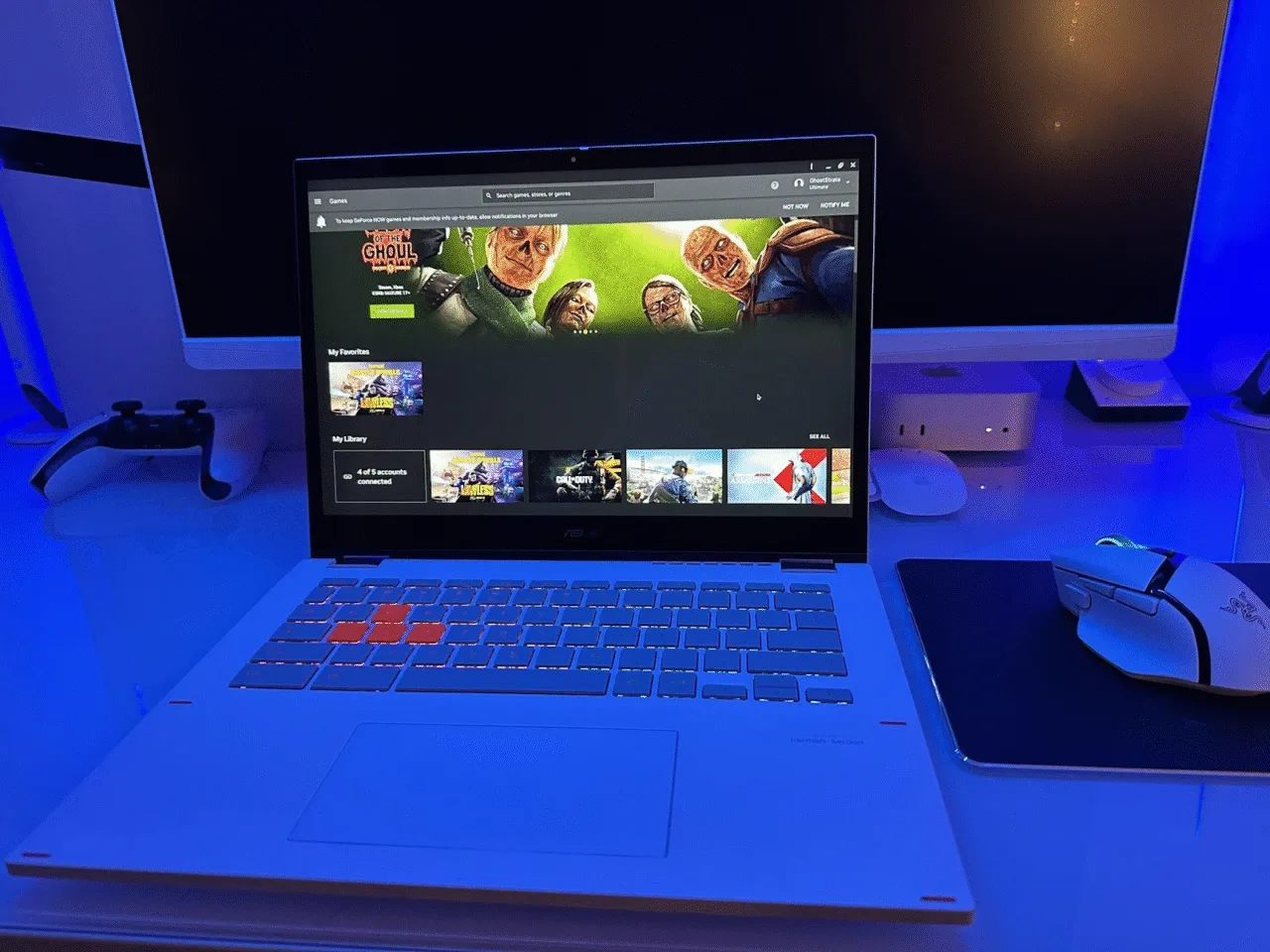
Finally, alongside ensuring your system is up to date, you should always make sure your internet connection is fast and stable.
A poor connection can result in a painful gaming experience, with options like fiber-optic catering for high-bandwidth activities like online gaming. If you don’t have access to fiber-optic internet, then opt for the best package in your area and hope that it will suffice.
