


The STATUS_ACCESS_VIOLATION on Chromebook appears when Chrome attempts to access memory incorrectly, blocking web pages and disrupting your browsing.
This browser error stops Chrome from functioning properly and displays a frustrating message that prevents page loading.
While it may seem alarming, this error typically results from conflicting extensions, outdated software, or corrupted cache files.
Most users can resolve the STATUS_ACCESS_VIOLATION on Chromebook through simple troubleshooting steps.
This guide provides straightforward solutions to restore normal browser function and eliminate this persistent error.
How to Fix STATUS_ACCESS_VIOLATION on Chromebook?
Refresh the Page
Start with the simplest solution when encountering this error. Press Ctrl + R to perform a standard page refresh.
If the error persists, try a hard refresh by pressing Ctrl + Shift + R. This clears temporary cached data that might be causing the conflict. The refresh button on a Chromebook can resolve many temporary browser issues.
Update Chrome Browser
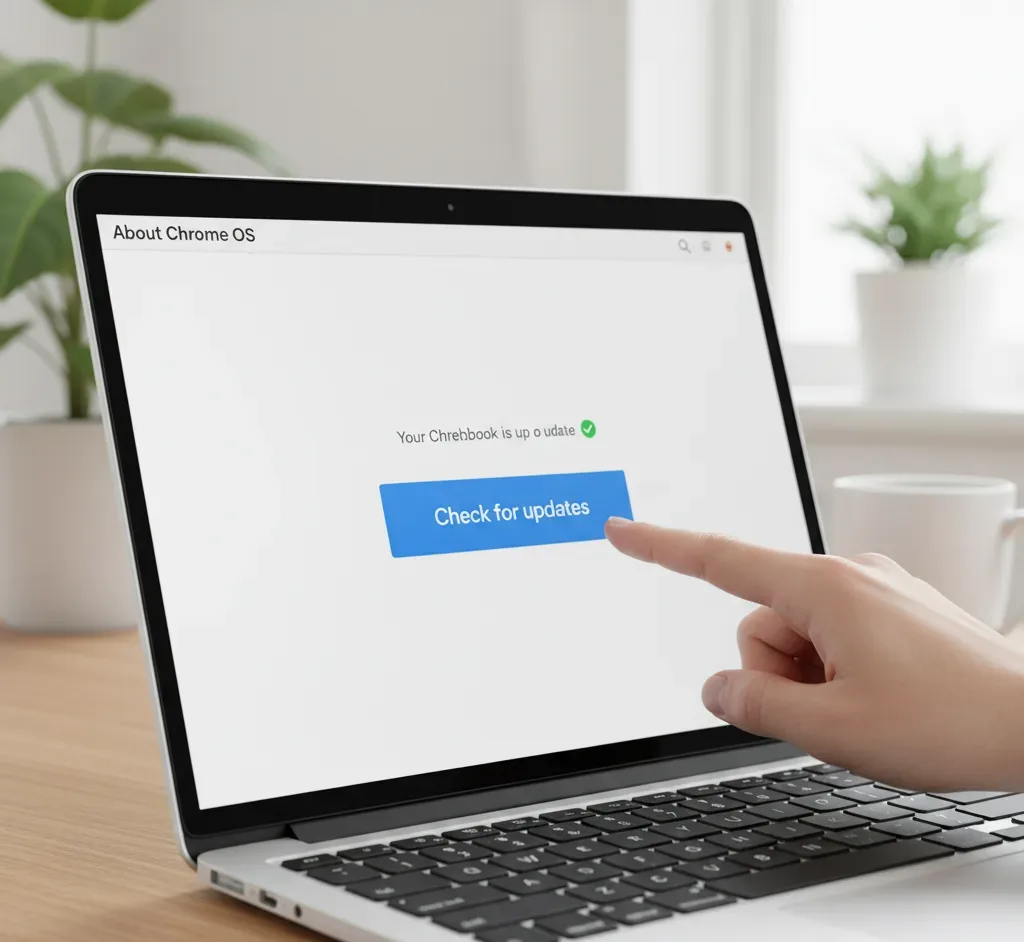
An outdated browser version frequently triggers memory access errors. Click the three-dot menu at the top-right corner of Chrome.
Navigate to Settings, then select About Chrome OS. The system automatically checks for available updates and installs them. Restart your Chromebook after the update completes to ensure changes take effect.
Disable Problematic Extensions
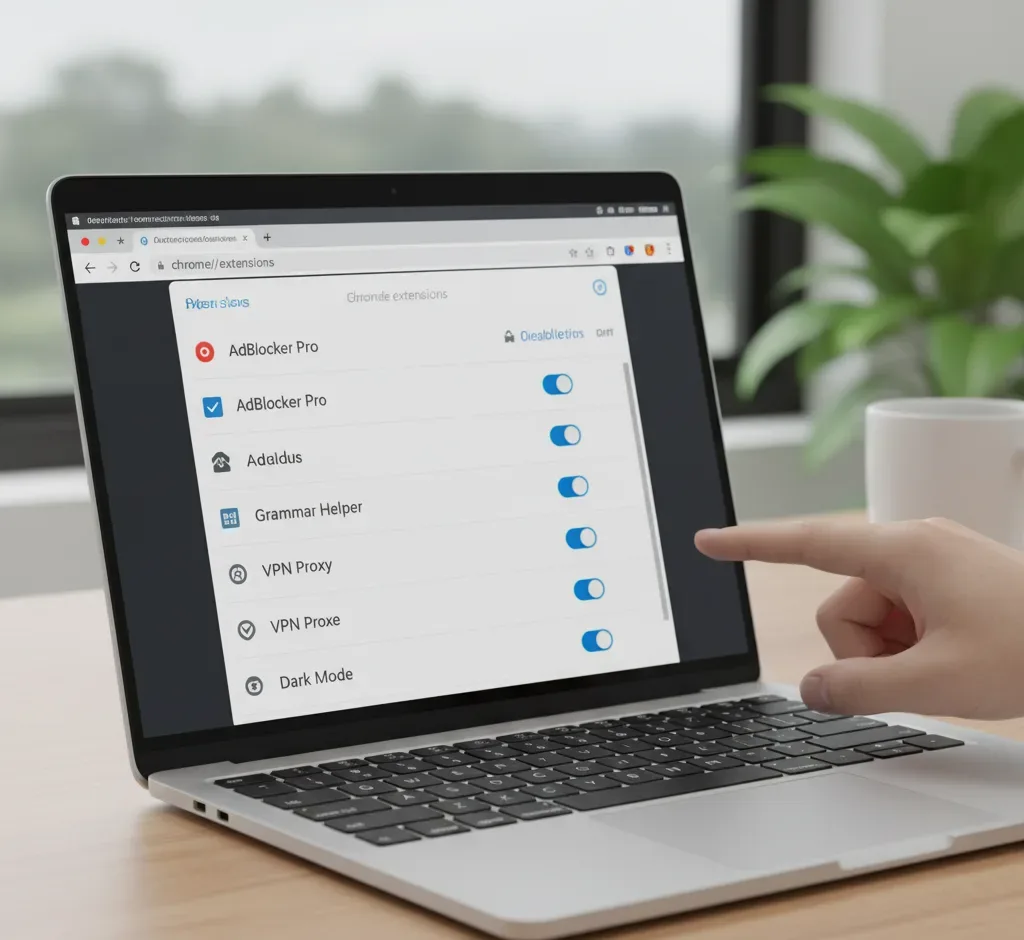
Extensions often cause the STATUS_ACCESS_VIOLATION on Chromebook by conflicting with each other or consuming excessive memory. Type chrome://extensions in the address bar to access the extensions page.
Toggle off all extensions temporarily to identify the culprit. Re-enable extensions one at a time, testing the problematic website after each activation. Remove any extension that triggers the error. Managing Chrome extensions properly prevents future conflicts and improves browser stability.
Clear Browser Cache and Cookies
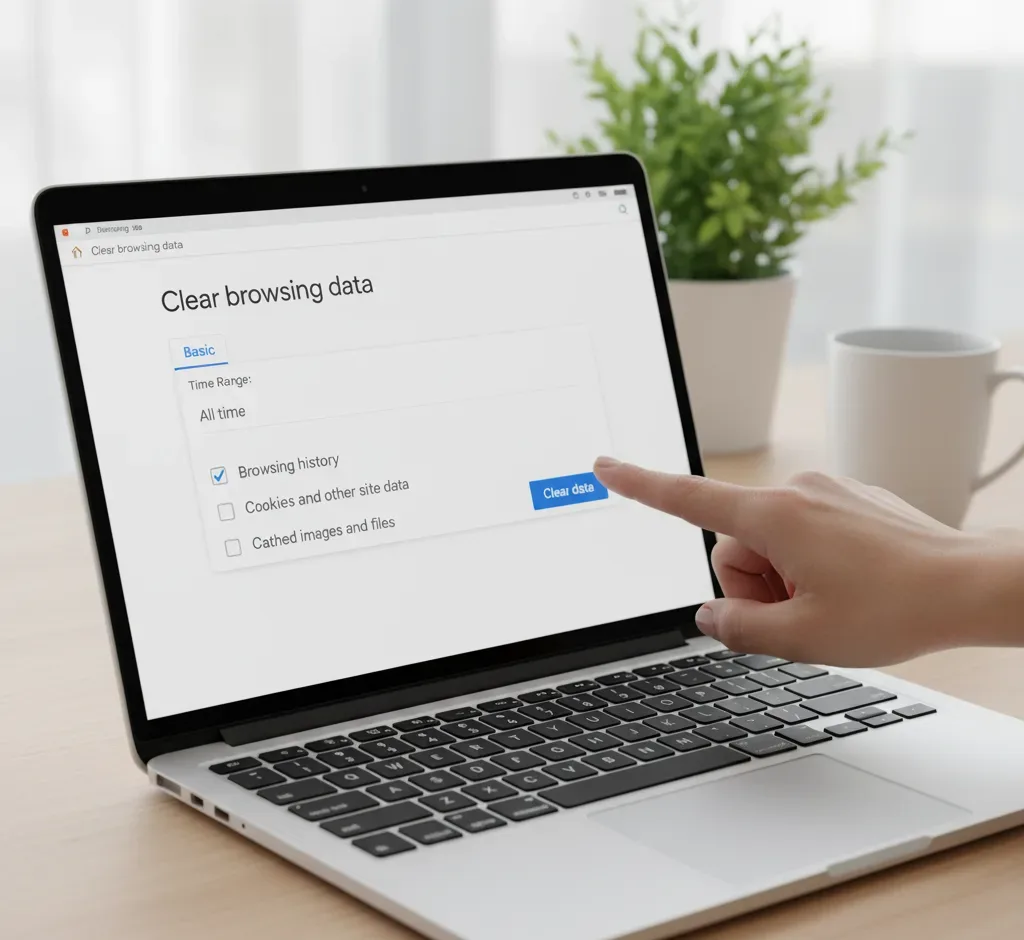
Corrupted cache files and cookies can trigger memory access violations. Navigate to Settings in Chrome, then select Privacy and Security.
Click Clear Browsing Data and choose a time range. Check boxes for Cached Images and Files, and Cookies and Other Site Data. Click Clear Data to remove these files. Similar network configuration errors often resolve through cache clearing.
Reset Chrome Settings
Resetting Chrome restores default configurations without deleting bookmarks or passwords. Open Settings and scroll to the Advanced section.
Select Reset Settings, then click Restore Settings to Their Original Defaults. Confirm by clicking Reset Settings. This process removes all customizations and disables extensions, providing a clean slate for troubleshooting.
Restart Your Chromebook
A full system restart clears temporary memory issues. Save any open work before proceeding.
Press and hold the Power button, then select Restart from the menu. Alternatively, perform a hard reset by holding Refresh + Power simultaneously. This forces a hardware-level restart that often resolves persistent errors.
Perform a Powerwash
If all other methods fail, a factory reset eliminates deep system conflicts. Back up important files to Google Drive before proceeding, as this erases all local data.
Open Settings and navigate to Advanced, then Reset Settings. Click Powerwash and follow the on-screen prompts. Learn more about factory resetting your Chromebook to ensure proper data backup.
What Causes STATUS_ACCESS_VIOLATION on Chromebook?
Multiple factors trigger the STATUS_ACCESS_VIOLATION on Chromebook, primarily related to memory management issues. Conflicting browser extensions attempting to access the same memory resources create unauthorized access attempts.
Corrupted cache files interfere with normal memory allocation, causing the browser to trip over invalid data. Websites loaded with excessive advertisements and scripts consume more memory than available, triggering access violations. Outdated Chrome OS versions contain unpatched bugs that may cause memory errors. Occasionally, malicious extensions from untrusted sources attempt unauthorized system access, which antivirus protections can help prevent.
FAQs
Can STATUS_ACCESS_VIOLATION Damage My Chromebook?
No, this error does not cause physical damage to your device. It simply blocks specific web pages from loading until you resolve the underlying browser issue.
Does This Error Mean My Chromebook Has a Virus?
Not necessarily, though malicious extensions can trigger this error. Most cases result from conflicting legitimate extensions or corrupted cache files rather than malware infections.
Will Clearing Cache Delete My Passwords?
Clearing cache removes temporary files but preserves saved passwords. Ensure you only select cached images and files when clearing browsing data to retain login credentials.
How Often Should I Update Chrome OS?
Check for updates weekly to maintain optimal security and performance. Chrome OS automatically notifies you of available updates, making the process seamless and quick.
Can I Prevent This Error From Recurring?
Yes, maintain updated software, install extensions from trusted sources, and periodically clear cache. Regular browser maintenance reduces the likelihood of memory access violations occurring again.
