


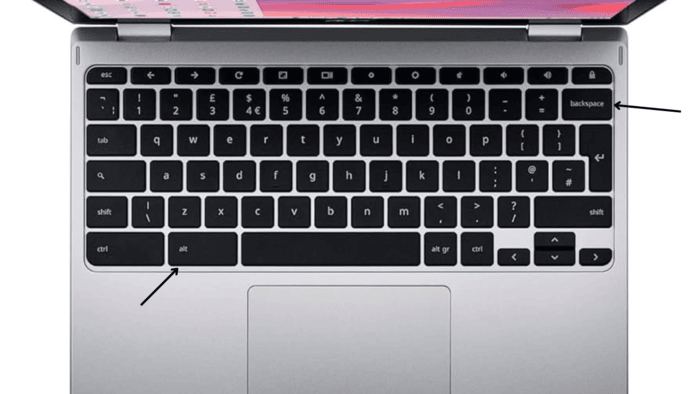
To simulate the Delete key on a Chromebook, press Alt+Backspace. You can also right-click an item and choose Delete from the menu. If you need to access other missing keys, use these combinations:
- Press Ctrl+Alt+Up Arrow for the Home key.
- Press Ctrl+Alt+Down Arrow for the End key.
- Press Search+Up Arrow for the Page Up key.
- Press Search+Down Arrow for the Page Down key.
To customize your keyboard, go to the Time section at the bottom-right corner of your screen. Click on Settings, then choose Device, and select Keyboard. A drop-down menu will appear, letting you pick a new function for the keys.
The article shows how to set up the Delete key function and use combinations for other missing keys. If you’re used to having standard keys like Home, End, Page Up, and Page Down, these key combinations offer a simple solution.
Customizing the keyboard also helps you adjust the layout to fit your needs. By following these easy steps, you can make your Chromebook keyboard work how you prefer and boost your productivity.
How to Delete on Chromebook?
To delete on Chrome OS, you can use a simple keyboard shortcut—Press Alt+Backspace to remove a file or delete a character before the cursor. The Backspace key removes the character to the left of the cursor, and you don’t need any other keys to do that.
Right-click the file or text you want to delete. The menu will appear. Select “Delete” from the options. The system will remove the item immediately.
For files, deleting is straightforward. Just find the file you want to remove, right-click on it, and select “Delete.” In some cases, files might go to the trash, where you can recover them if needed. For text, the process is similar. Highlight the text you want to delete, right-click, and choose “Delete” from the options.
The keyboard shortcut, Alt+Backspace, is excellent for quick deletions, especially when editing text. It saves time, as you don’t need a mouse or trackpad to delete a character. Remember, the Backspace key only deletes one character at a time. So, if you need to remove more, use the shortcut or select the text and right-click to delete.
Other Chromebook Shortcuts
Some keys on traditional keyboards are missing from a Chromebook. You can use these shortcuts to perform similar actions:
- Home: Ctrl+Alt+Up Arrow
- End: Ctrl+Alt+Down Arrow
- Page Up: Alt or Search+Up Arrow
- Page Down: Alt or Search+Down Arrow
Tip: To see a complete list of Chrome OS shortcuts, go to the Keyboard settings page and select “View keyboard shortcuts.”
Creating Custom Keys on Chromebook
You can’t create a custom Delete key on your Chromebook, but you can assign other functions to existing keys.
- Log in to your Chromebook.
- Click the Time indicator in the lower-right corner.
- In the pop-up window, click the gear icon for Settings.
The Settings page will open. Select Device from the left menu. - Next, click Keyboard.
- The keyboard settings will appear. At the top, you’ll see options for Search, Ctrl, Alt, Escape, and Backspace. Each key has a drop-down menu. You can change what these keys do by selecting a new function. For example, if you rarely use the Search key but want Caps Lock, click the drop-down menu for the Search key and select Caps Lock.
- When done, click the X in the upper-right corner to close Settings. Your changes will take effect immediately.
