


Chrome OS 97 introduces a built-in grammar checker that works directly on your Chromebook without needing an internet connection. This feature marks a significant step forward for Chromebook users who want writing assistance without relying on third-party extensions.
Unlike browser-based tools that require constant connectivity, the on-device Chromebook grammar check functions entirely offline. This means you can write confidently anywhere, whether you’re on a plane, in a coffee shop with spotty Wi-Fi, or simply prefer keeping your writing private.
The grammar checker identifies errors with blue underlines and offers instant corrections. You might want to enable this feature if you frequently write emails, documents, or social media posts and prefer native Chrome OS functionality over additional extensions.
This guide walks you through the simple process of activating and using the on-device grammar checker in Chrome OS 97.
How to enable the on-device Chromebook grammar check in Chrome OS 97
Enable the experimental flag
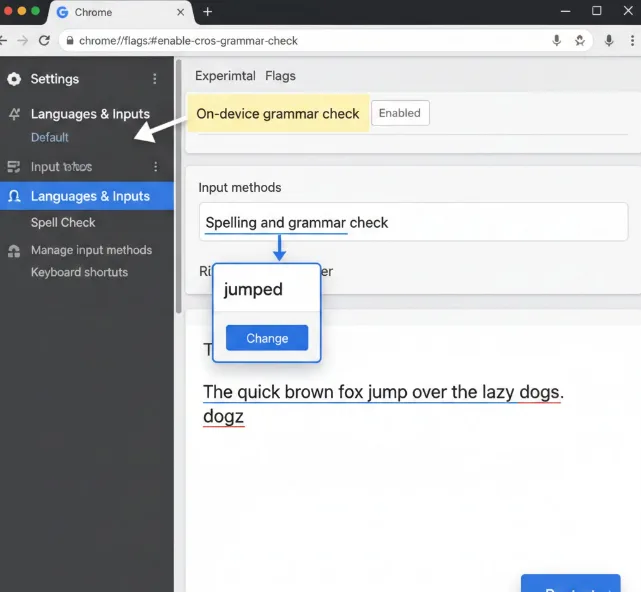
Navigate to chrome://flags#enable-cros-on-device-grammar-check in your Chrome browser. You’ll see the experimental flags page with the grammar check option.
Change the dropdown menu from “Default” to “Enabled.”
Click the blue “Restart” button that appears at the bottom of your screen. Your Chromebook will restart the browser to activate the feature.
Verify the feature in Settings
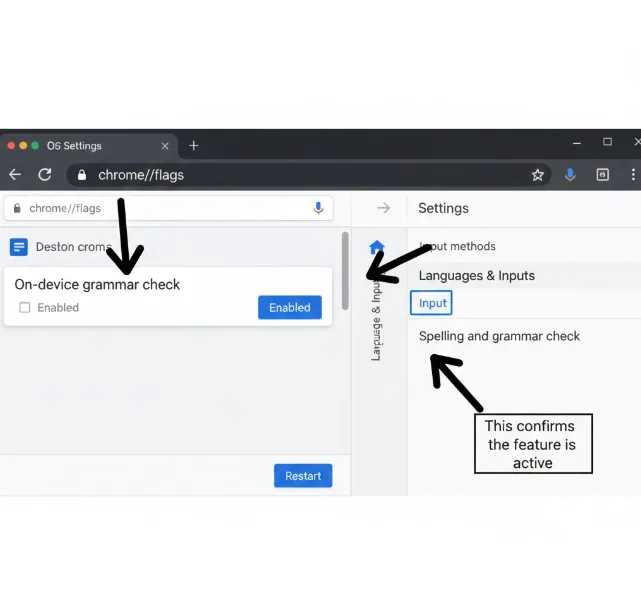
Open the Chrome OS Settings app after your browser restarts.
Scroll down and select “Languages & Inputs” from the left menu.
Click on “Inputs” to view your keyboard and input settings.
Look for the option that now reads “Spelling and grammar check” instead of just “Spell Check.” This confirms the feature is active.
Use the grammar checker
Type any text in your browser. The grammar checker analyzes complete sentences rather than individual words.
Watch for blue underlines that appear beneath grammar errors. These differ from red spelling error underlines.
Click any blue underline to see suggested corrections.
Select the suggested fix to apply the change instantly.
The on-device Chromebook grammar check currently supports English only. Google may add additional languages in future updates, though no timeline has been announced.
The feature works entirely offline. You can disable your Wi-Fi connection and still receive grammar suggestions, making it ideal for users who work in areas with unreliable internet access.
This built-in tool offers a privacy advantage over cloud-based alternatives. Your writing stays on your device rather than being sent to external servers for analysis. Google originally announced this feature to enhance data privacy for Chromebook users.
FAQs
Does the on-device Chromebook grammar check work offline?
Yes, it works completely offline. The grammar checking happens directly on your Chromebook, so you don’t need an internet connection to receive suggestions.
Which languages does the Chrome OS 97 grammar checker support?
Currently, the feature only supports English. Google may add more languages in future Chrome OS updates, but no specific timeline is available.
How do I know if my grammar checker is working?
Type a sentence with a grammar error. A blue underline will appear beneath the mistake. Click it to see the suggested correction.
Can I use this instead of Grammarly?
Yes, you can. The on-device grammar checker provides similar functionality and works offline, though extensive testing will help you determine which suits your needs. Learn more about using Grammarly on Chromebook for comparison.
Where do I find the experimental flag for grammar check?
Navigate to chrome://flags#enable-cros-on-device-grammar-check in your Chrome browser. Change the setting to “Enabled” and restart your browser. Discover more useful Chrome OS flags to enhance your Chromebook experience.
