

Close Menu
    Facebook X (Twitter) Instagram
    • About
    • Privacy Policy
    • Write For Us
    • Newsletter
    • Contact
    Instagram
    About ChromebooksAbout Chromebooks
    • News
      • Stats
    • AI
    • How to
      • DevOps
      • IP Address
    • Apps
    • Business
    • Q&A
      • Opinion
    • Gaming
      • Google Games
    • Blog
    • Podcast
    • Contact
    About ChromebooksAbout Chromebooks
    News

    Chrome OS Diagnostics app gains some new tricks

    Kevin TofelBy Kevin TofelApril 28, 2022Updated:September 23, 2025No Comments2 Mins Read
    Share
    Facebook Twitter LinkedIn Pinterest

    I’ve been researching a reader question about some odd mouse behavior and I wish there was a better way to diagnose it. Oh wait, there is! Or at least there will be. The Google Chrome OS Diagnostics app will let you test input devices and other peripherals in the coming months.

    All of these new cards in the Chrome OS Diagnostics apps are hidden behind experimental flags. I had seen some in Chrome OS 100 previously, but they didn’t add any functionality. ChromeUnboxed took a recent look and reported there are both more flags and some are now working.

    I double-checked on Chrome OS 102 and I see them as well:
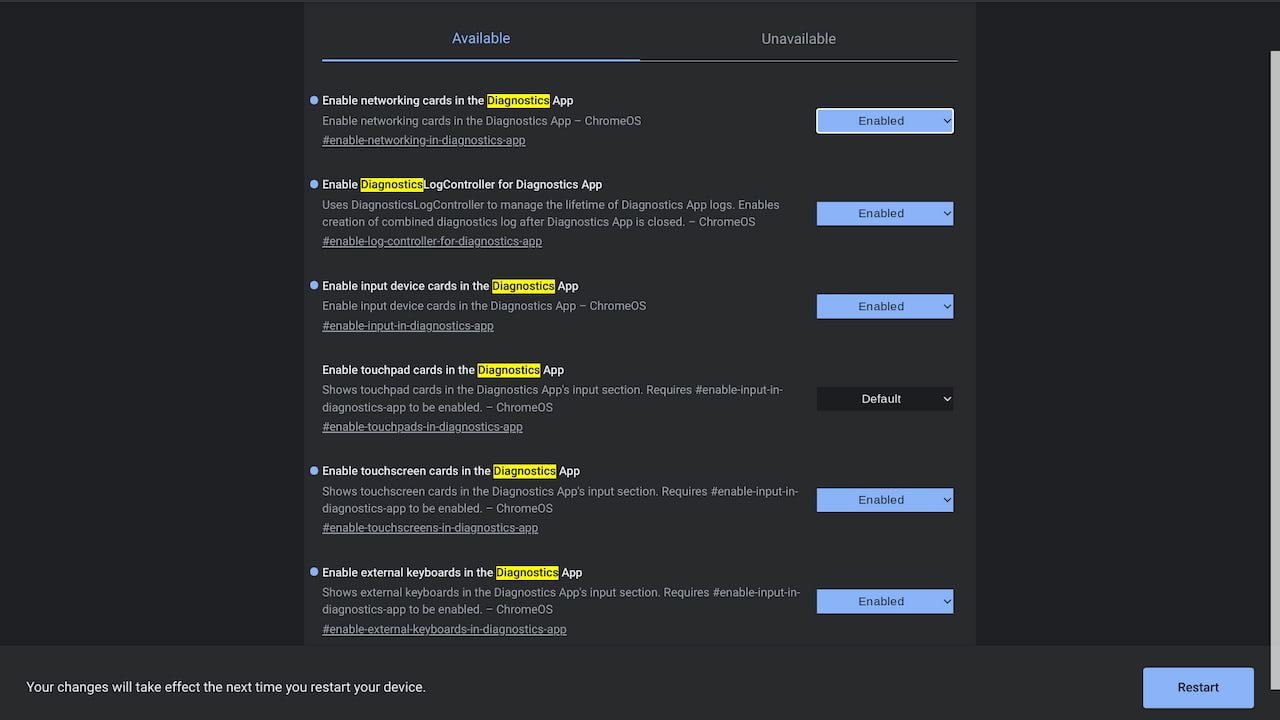
    Added since I last looked are options to test the touchscreen, the trackpad, input devices, and external keyboards. All of the experimental flag URLs are in the above image, so be on the lookout for them in future Chrome OS updates.

    Unfortunately, this Diagnostics app update is still in the early works.

    I connected a Bluetooth mouse, an external SSD drive, and a USB camera to my everyday Chromebook, but the only tests I see are these:
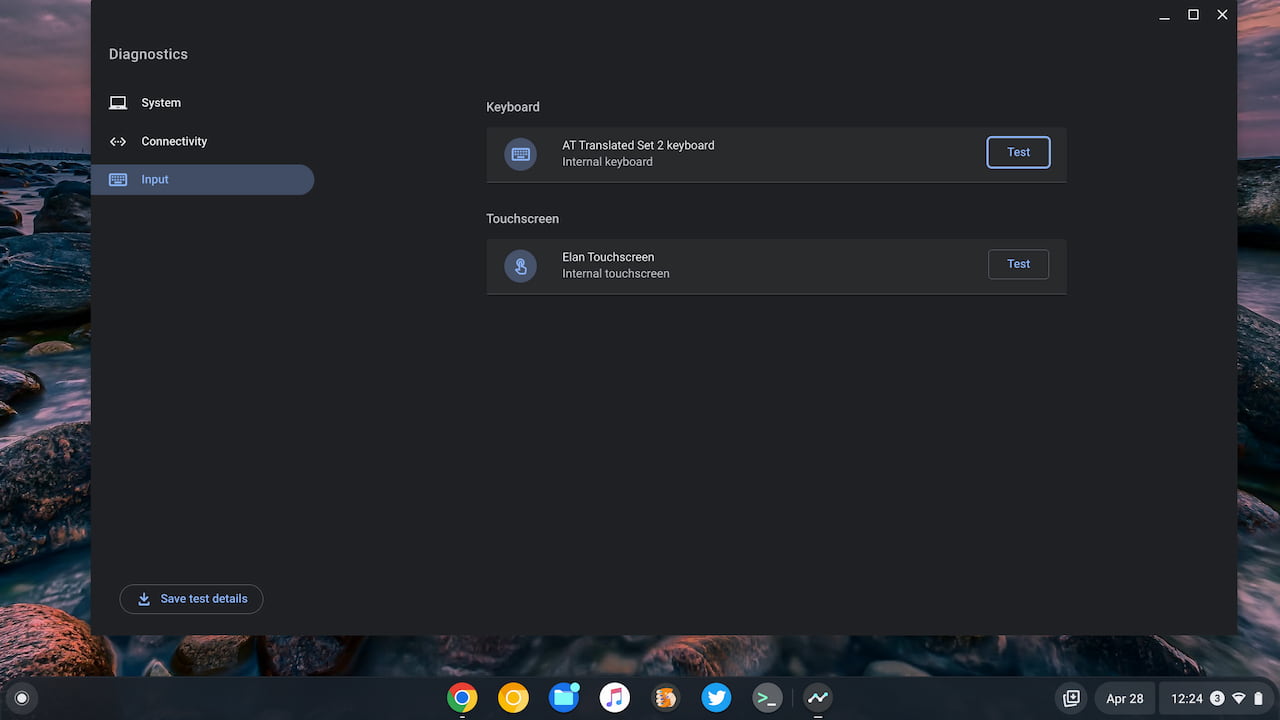
    Chrome OS Diagnostics app Input tests

    And of those two, only the keyboard test is currently working as of today.

    For now, it lets you tap keys and shows a visual representation on a virtual keyboard. If you’ve got some sticky or non-responsive keys, the Diagnostics app may help troubleshoot the problem in the future.
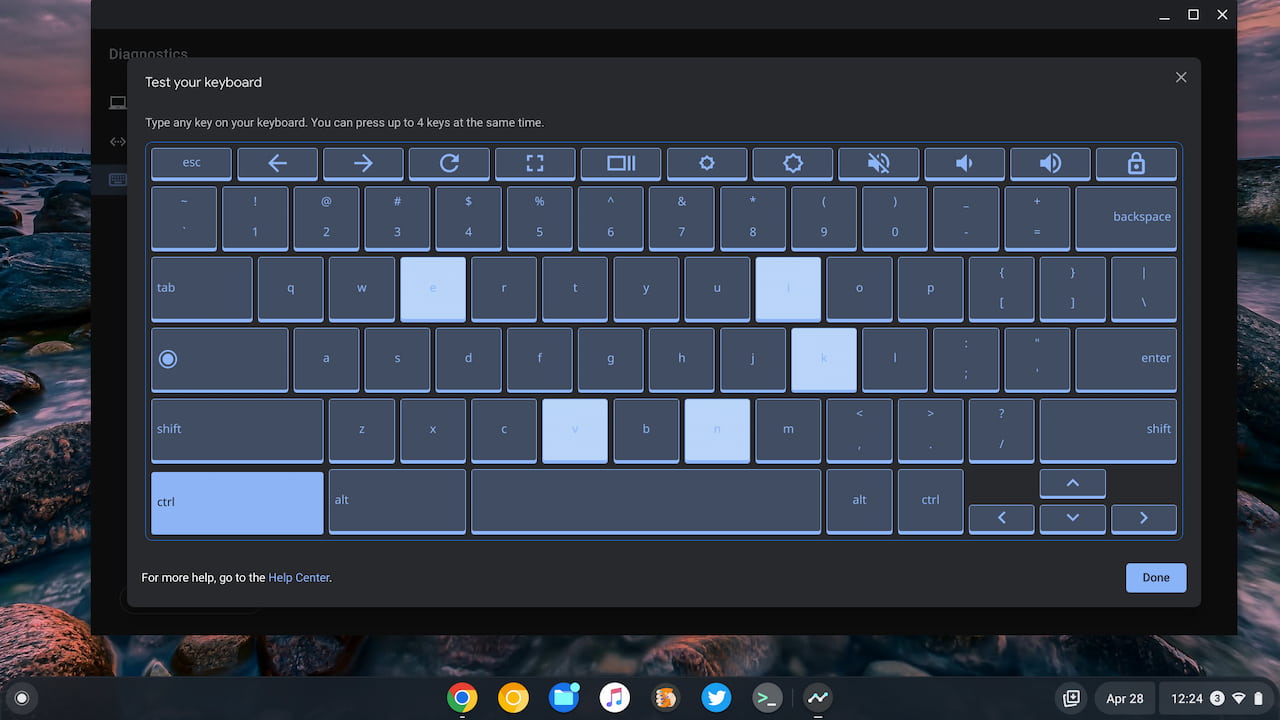
    Chrome OS Diagnostics keyboard test

    For now, I wouldn’t bother enabling any of the extra flags to see the additional Google Chrome OS Diagnostics app cards. You’re not going to see much, if any benefit, just yet.

    I’ll keep mine turned on so I can see the progress Google makes going forward though. Hopefully, aside from hitting the basics, there are some advanced and detailed hardware data captured on all of these tests.

    Chrome OS Chrome OS 102 Chrome OS flags Chromebooks Diagnostics app Google Chrome OS
    Share. Facebook Twitter Pinterest LinkedIn Tumblr
    Kevin Tofel
    • Website

    After spending 15 years in IT at Fortune 100 companies, Kevin turned a hobby into a career and began covering mobile technology in 2003. He writes daily on the industry and has co-hosted the weekly MobileTechRoundup podcast since 2006. His writing has appeared in print (The New York Times, PC Magazine and PC World) and he has been featured on NBC News in Philadelphia.

    Related Posts

    Auto DraftStarbucks Partner Hours: Manual to Managing Work Schedules

    January 26, 2026

    Anon Vault For Private Cloud Storage

    January 23, 2026

    GitHub Copilot Statistics [2026]

    January 7, 2026

    Comments are closed.

    Best of AI

    VALL-E Statistics 2026

    January 28, 2026

    StarCoder Statistics And User Trends 2026

    January 27, 2026

    BLIP-2 Statistics 2026

    January 23, 2026

    AI mode Usage Statistics 2026

    January 22, 2026

    Code Llama Statistics 2026

    January 22, 2026
    Trending Stats

    Most searched keywords on Google

    January 27, 2026

    Ahrefs Search Engine Statistics 2026

    January 19, 2026

    Pay Per Click Advertising Statistics 2026

    January 16, 2026

    Google Ads Revenue 2025

    November 29, 2025

    Statistical Analysis Programs for Chromebook 2025

    November 22, 2025
    • About
    • Write For Us
    • Contact
    • Privacy Policy
    • Sitemap
    © 2026 About Chrome Books. All rights reserved.

    Type above and press Enter to search. Press Esc to cancel.