


ChromeOS includes built-in tools that let you add text and annotations to PDF files without downloading third-party apps. You can fill out forms, add signatures, and make notes directly in the Gallery app.
This native feature started with ChromeOS 73, which introduced basic PDF annotation support. Google expanded these capabilities in ChromeOS 104, adding full text editing through the Gallery app.
You won’t need to install extensions or web apps. Everything works through your Chromebook’s built-in apps. This makes it faster to handle PDF forms, contracts, and documents that need your signature.
The process takes just a few steps. You download the PDF, open it through the Files app, and use the Gallery app’s editing tools to make changes.
How to edit PDFs on a Chromebook natively
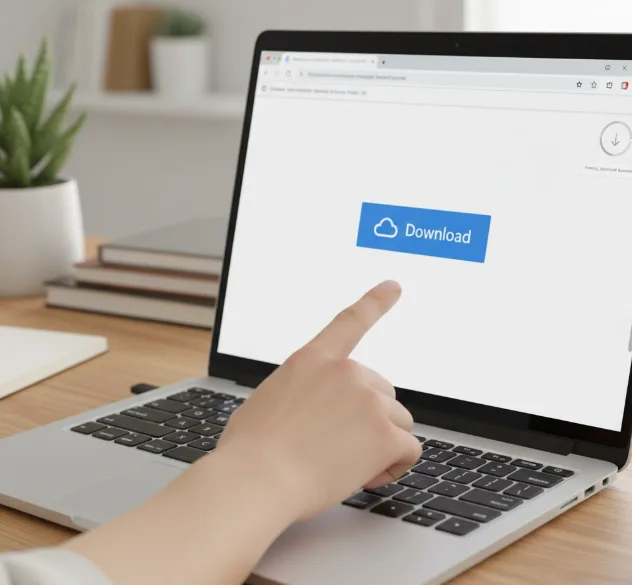
Download your PDF file
Start by downloading the PDF you want to edit. Your Chromebook saves downloaded files to the Downloads folder by default.
You can download PDFs from email attachments, websites, or cloud storage services. The file appears in your Downloads folder once the download completes.
Open the PDF in Gallery app
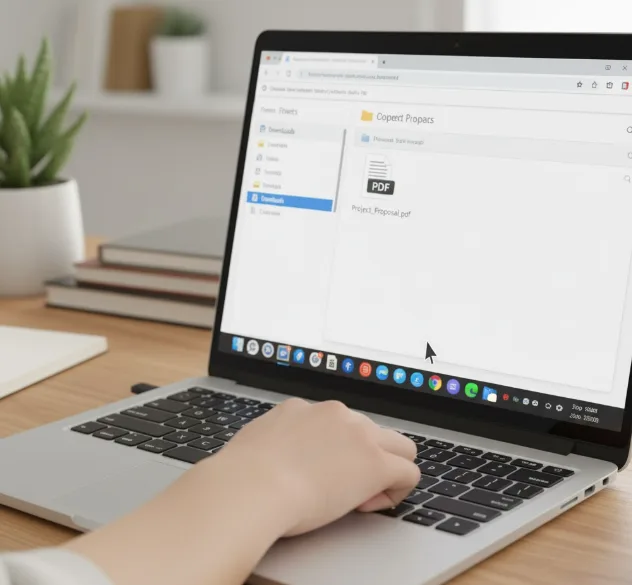
Navigate to the Files app on your Chromebook. You’ll find your downloaded PDF in the Downloads folder.
Double-click the PDF file. ChromeOS opens PDFs in the Gallery app automatically. This is the default behavior for all PDF files stored on your device.
Add text to your PDF
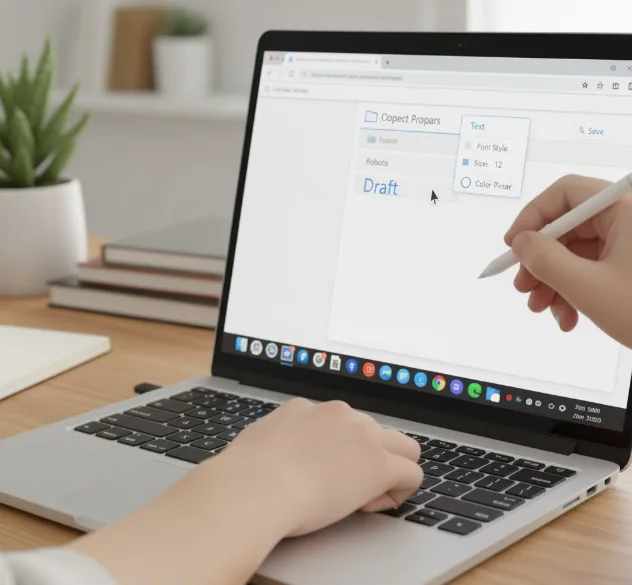
Look for the Text button in the Gallery app menu bar. Click it to activate text editing mode.
You can select your font style, size, and color before adding text. Click anywhere on the PDF where you want to insert text.
Drag the borders around your text box to resize or reposition it. You can add multiple text entries throughout the document.
The Gallery app lets you choose custom colors using hex codes or a color picker. This gives you complete control over text appearance.
Add annotations and signatures
Click the Annotate button to access digital ink tools. Choose between pen, highlighter, or eraser options.
Select your preferred ink color and thickness. Use a stylus or your finger to draw directly on the PDF.
This works well for adding signatures or handwritten notes. The pen tool captures your handwriting naturally.
ChromeOS 115 saves your signature for reuse in future documents. You won’t need to sign each PDF manually.
Save your edited PDF
Click the Save button at the top right of the Gallery app. Your changes save to the original file.
Use the arrow next to Save to access “Save as” if you want to keep the original unchanged. This creates a new copy with your edits.
Your edited PDF stays in the Files app. You can attach it to emails, upload it to Google Drive, or access it from other devices.
If you need advanced features like OCR text extraction, ChromeOS continues adding new capabilities.
FAQs
Can I edit PDFs on a Chromebook without internet?
Yes. The Gallery app works offline since it’s built into ChromeOS. You can edit PDFs without an internet connection and save changes locally.
Does editing PDFs require a stylus?
No. You can add text using your keyboard and create annotations with your finger on touchscreen Chromebooks. A stylus provides better precision for signatures.
Can I remove text from an existing PDF?
ChromeOS native tools only add content to PDFs. You cannot delete existing text. Consider using web-based PDF editors for text removal.
Where do edited PDFs save on my Chromebook?
Edited PDFs save to the same location as the original file, typically your Downloads folder. Use “Save as” to specify a different location.
Can I edit password-protected PDFs?
You must enter the password to open protected PDFs first. Once opened in Gallery app, you can add text and annotations like any other PDF.
